Create OLake Go Replication Jobs: Postgres to Iceberg Docker CLI
14 min read
From Postgres to Iceberg: Creating OLake Jobs with Docker CLI and UI
Data replication has become one of the most essential building blocks in modern data engineering. Whether it's keeping your analytics warehouse in sync with operational databases or feeding real-time pipelines for machine learning, companies rely on tools to move data quickly and reliably.
Today, there's no shortage of options—platforms like Fivetran, Airbyte, Debezium, and even custom-built Flink or Spark pipelines are widely used to handle replication. But each of these comes with trade-offs: infrastructure complexity, cost, or lack of flexibility when you want to adapt replication to your specific needs.
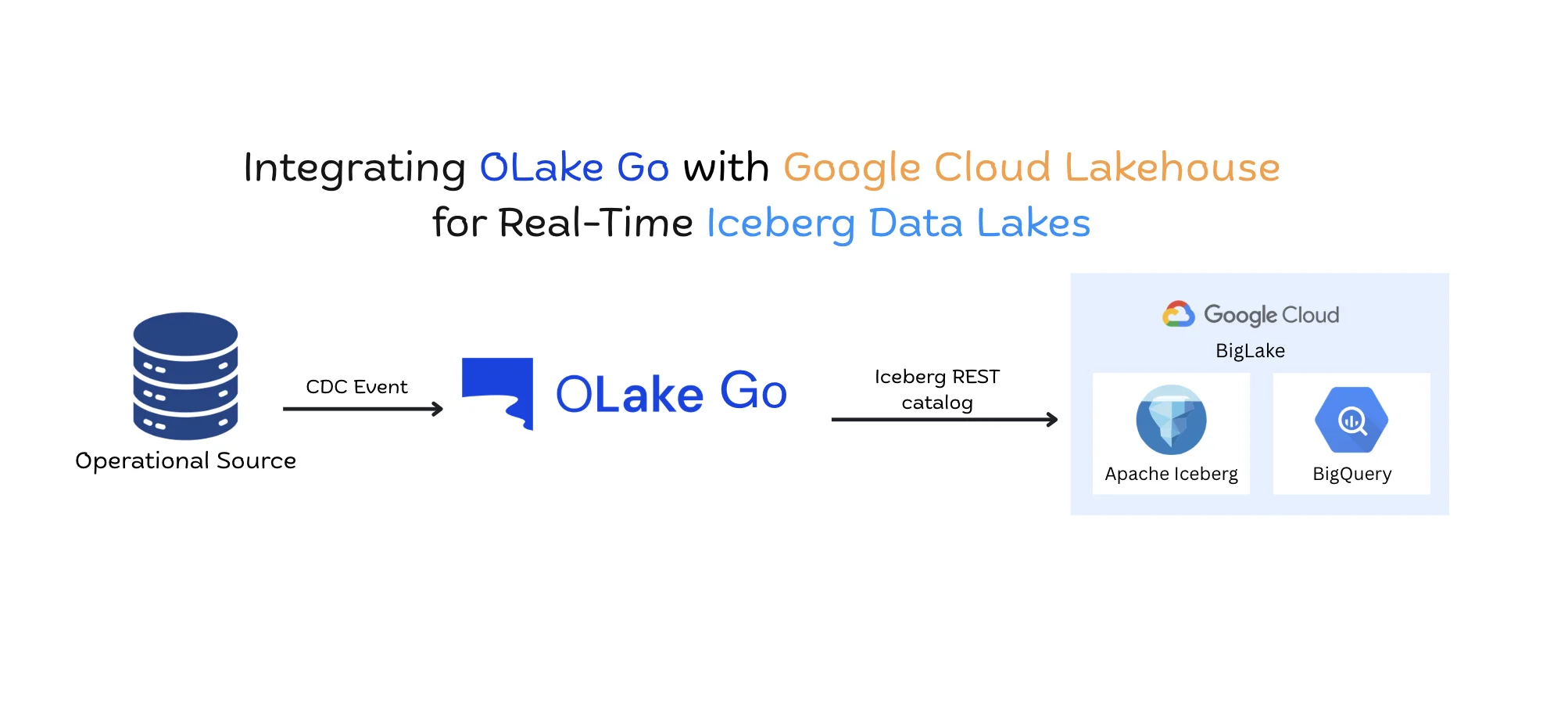
That's where OLake Go comes in. Instead of forcing you into one way of working, OLake Go focuses on making replication into Apache Iceberg (and other destinations) straightforward, fast, and adaptable. You can choose between a guided UI experience for simplicity or a Docker CLI flow for automation and DevOps-style control.
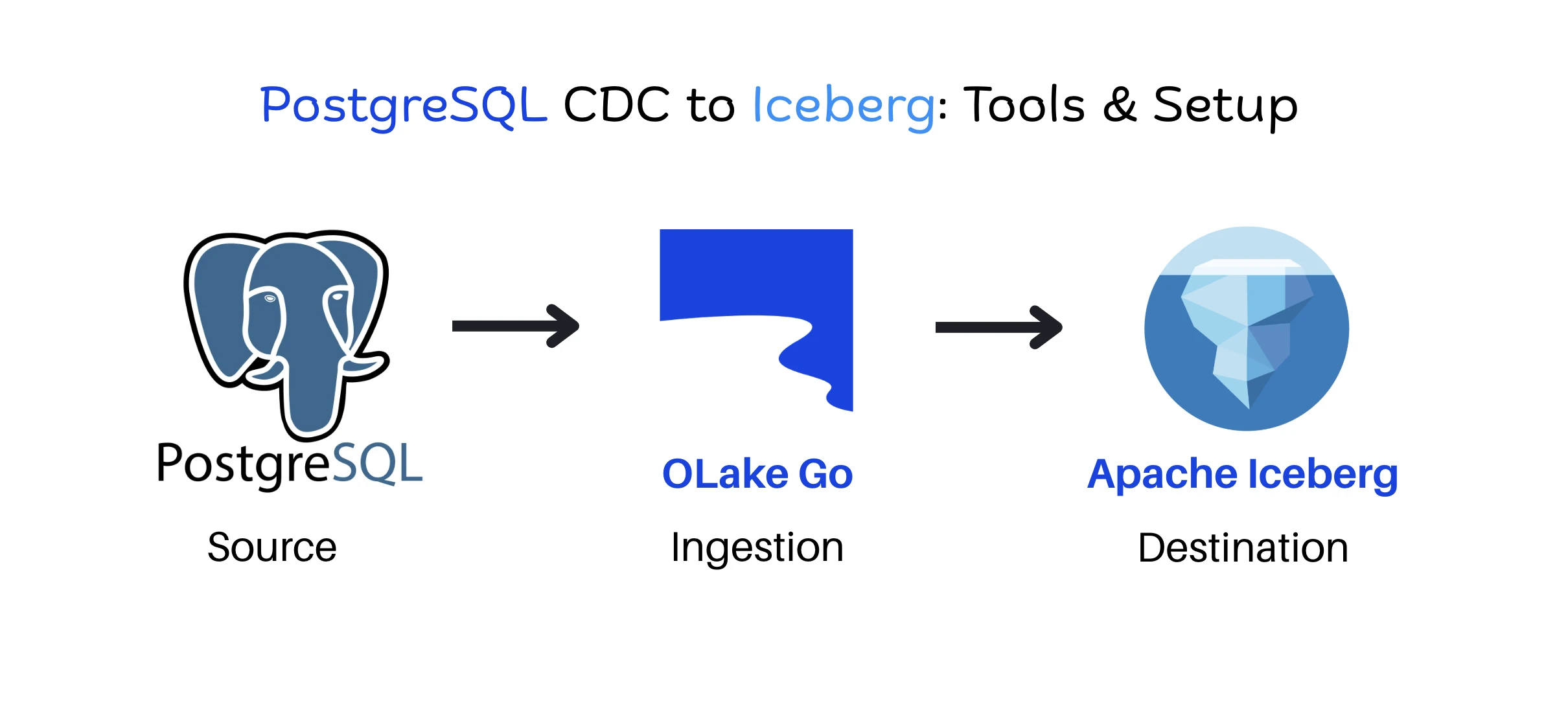
In this blog, we'll walk through how to set up a replication job in OLake Go, step by step. We'll start with the UI wizard for those who prefer a visual setup, then move on to the CLI-based workflow for teams that like to keep things in code. By the end, you'll have a job that continuously replicates from Postgres to Apache Iceberg (Glue Catalog) with CDC, normalization, filters, partitioning, and scheduling—all running seamlessly.
Two Setup Styles (pick what fits you)
Option A — UI "Job-first" (guided, all-in-one)
Perfect if you want a clear wizard and visual guardrails.
Option B — CLI (Docker)
Great if you prefer terminal, versioned JSON, or automation.
Both produce the same result. Choose the path that matches your workflow today.
Option A — OLake UI (Guided)
We'll take the "job-first" approach. It's straightforward and keeps you in one flow.
1) Create a Job
From the left nav, go to Jobs → Create Job.
You'll land on a wizard that starts with the source.

2) Configure the Source (Postgres)
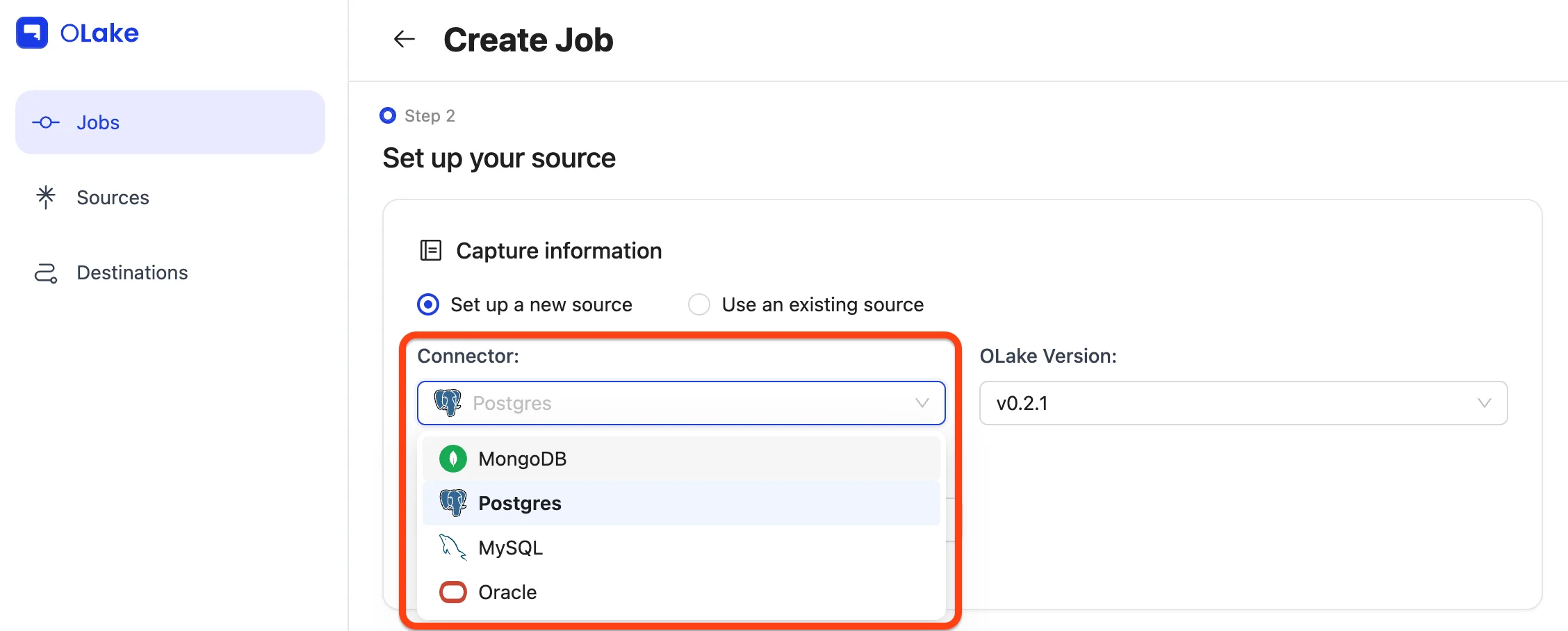
Choose Set up a new source → select Postgres → keep OLake version at the latest stable.
Name it clearly, fill the Postgres endpoint config, and hit Test Connection.
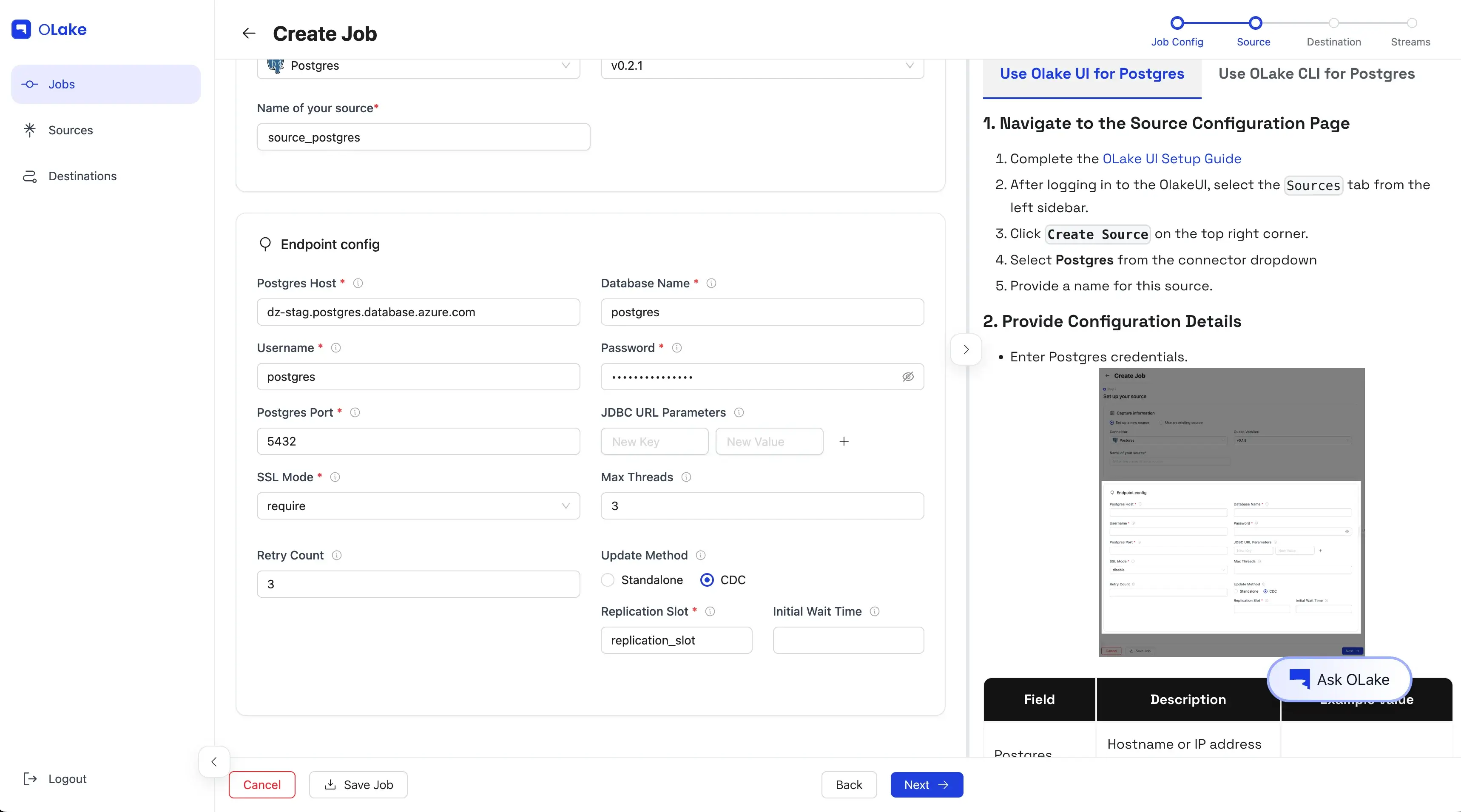
📝 Planning for CDC?
Make sure a replication slot exists in Postgres.
See: Replication Slot Guide.
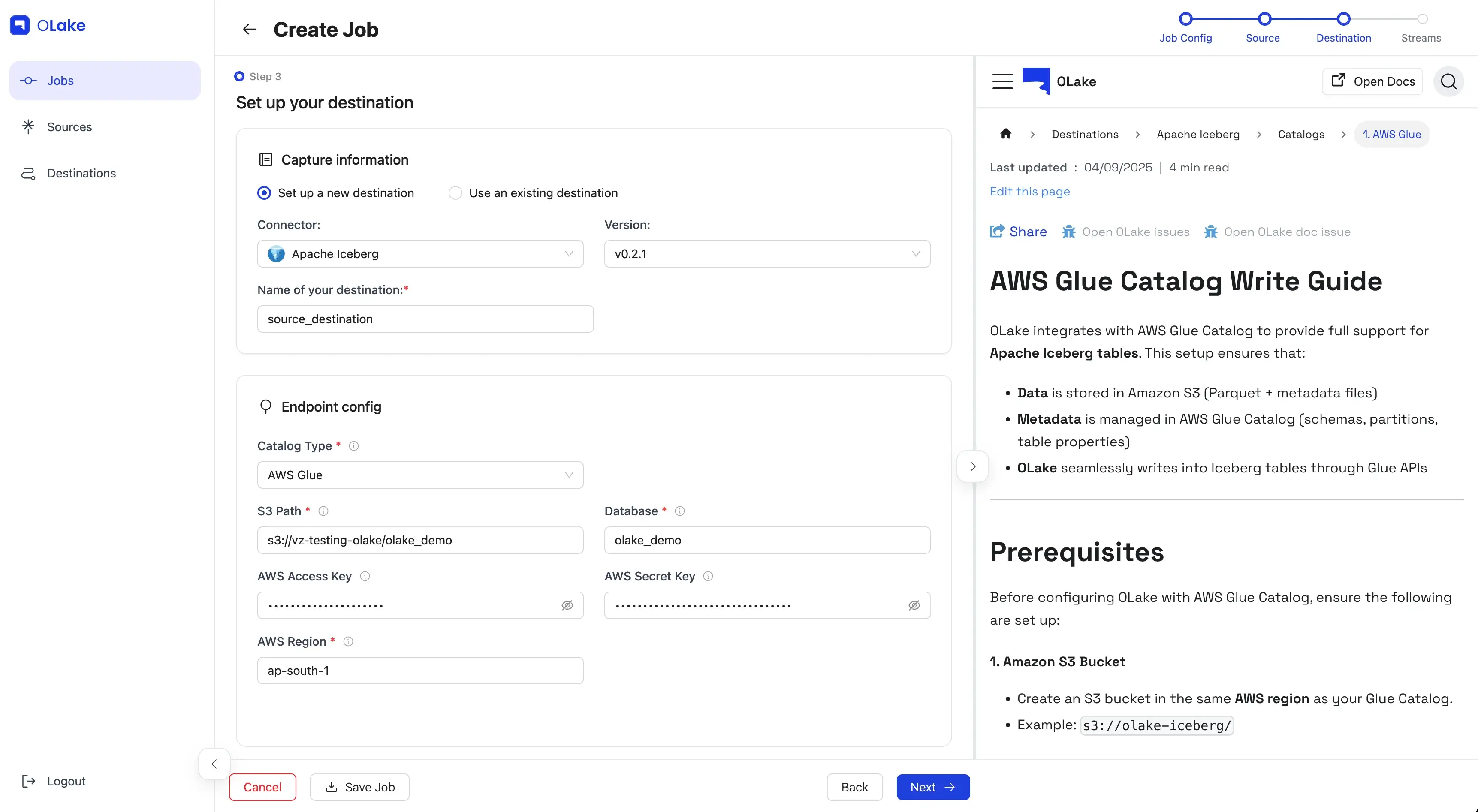
3) Configure the Destination (Iceberg + Glue)
Now we set where the data will land.
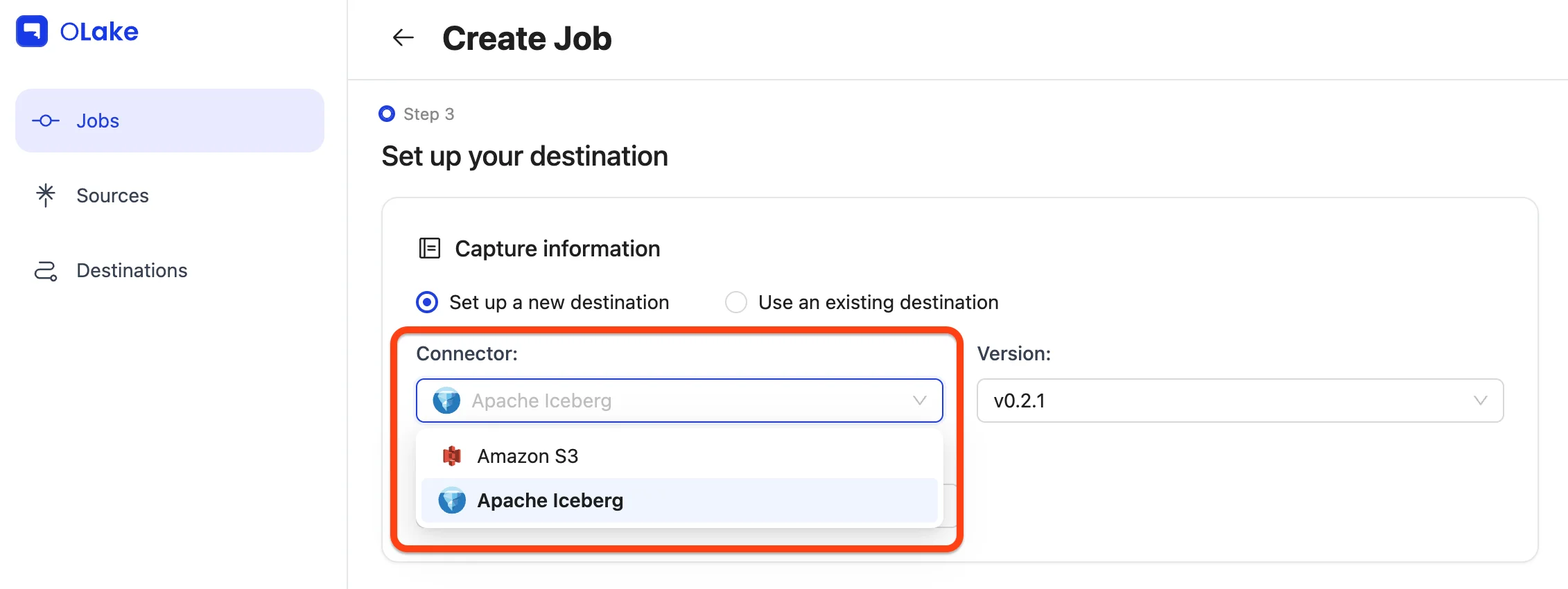
Pick Apache Iceberg as the destination, and AWS Glue as the catalog.
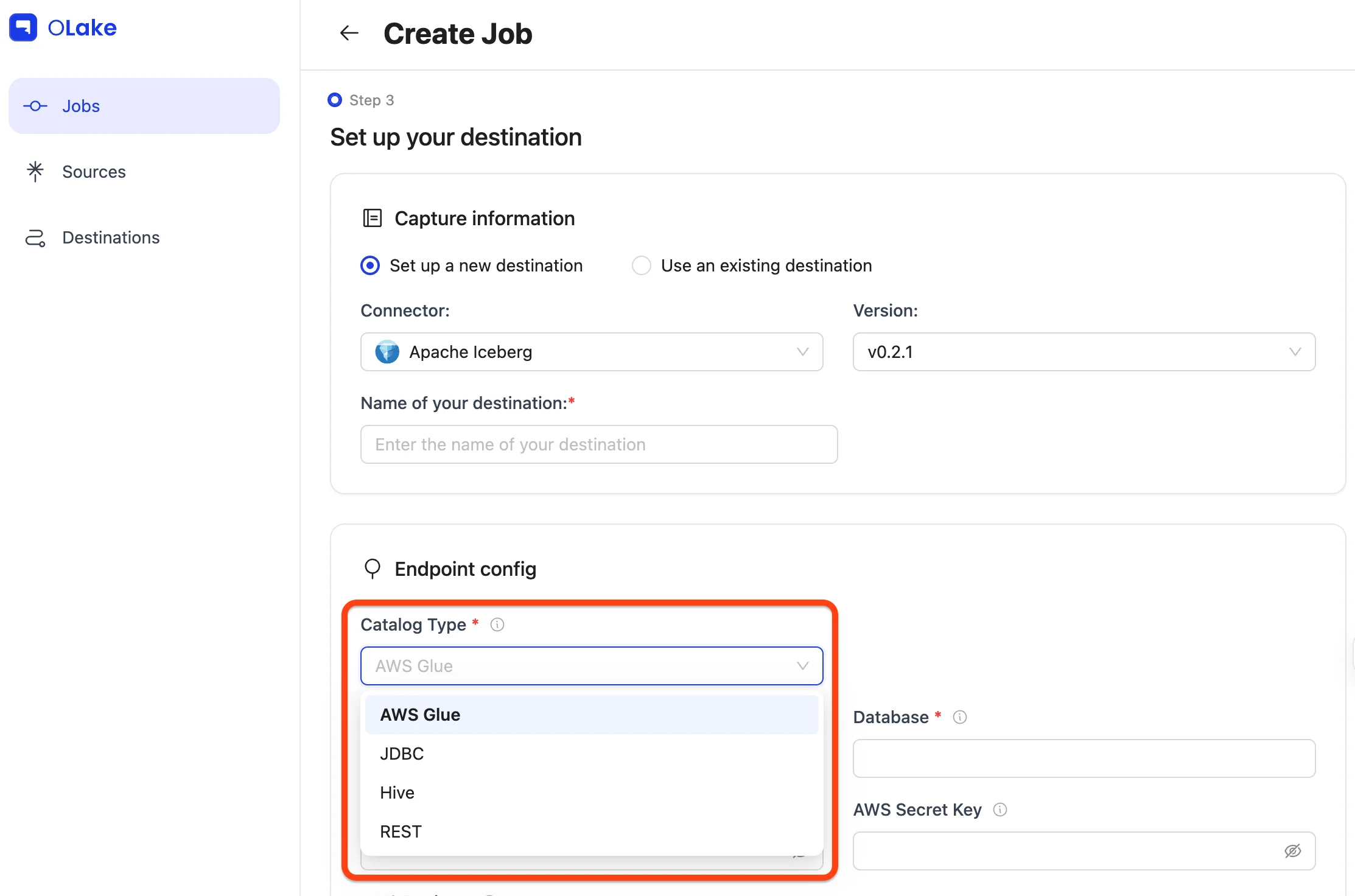
Provide the connection details and Test Connection.
4) Configure Streams
This is where we dial in what to replicate and how.
For this walkthrough, we'll:
- Include stream
fivehundred - Sync mode: Full Refresh + CDC
- Normalization: On
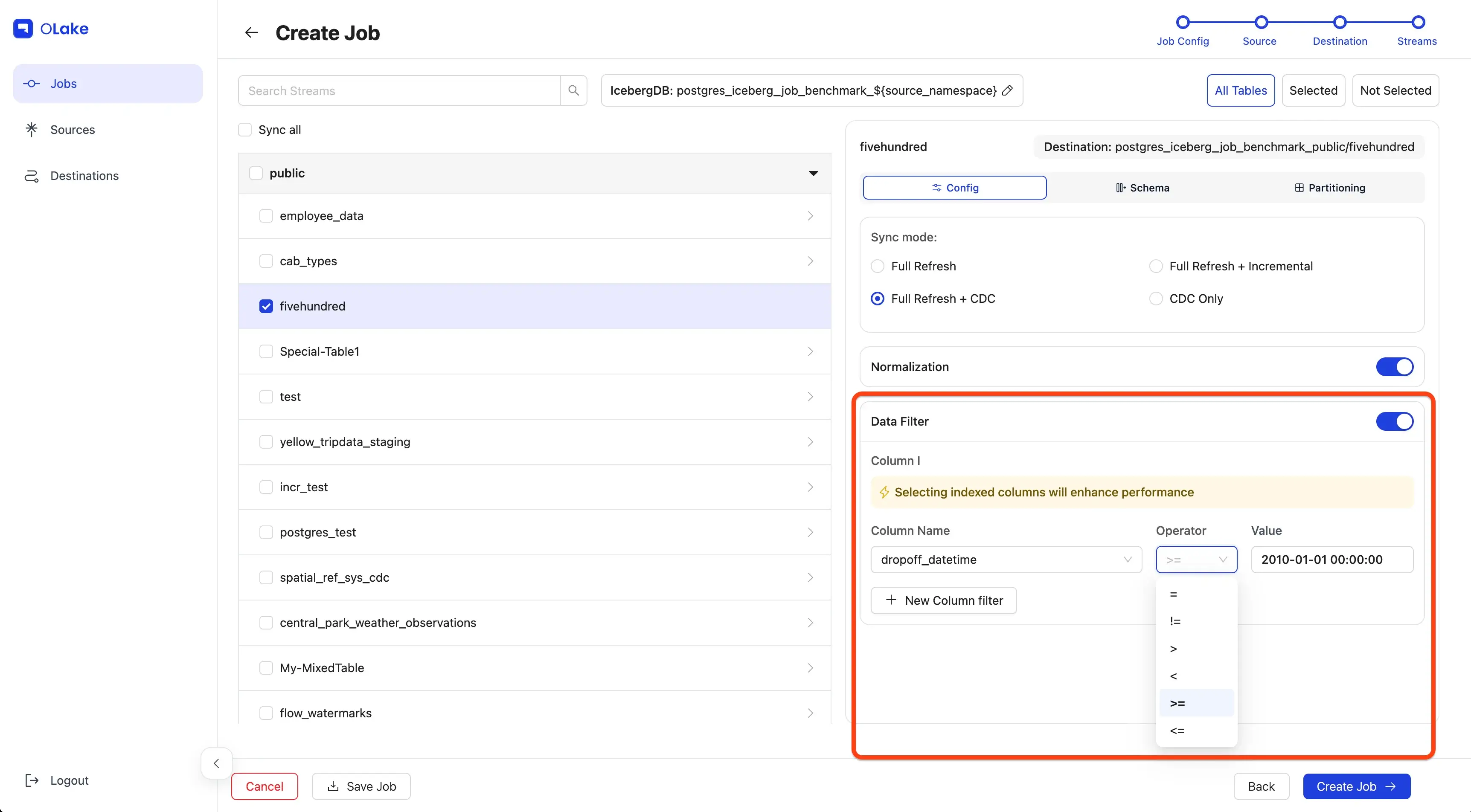
- Filter:
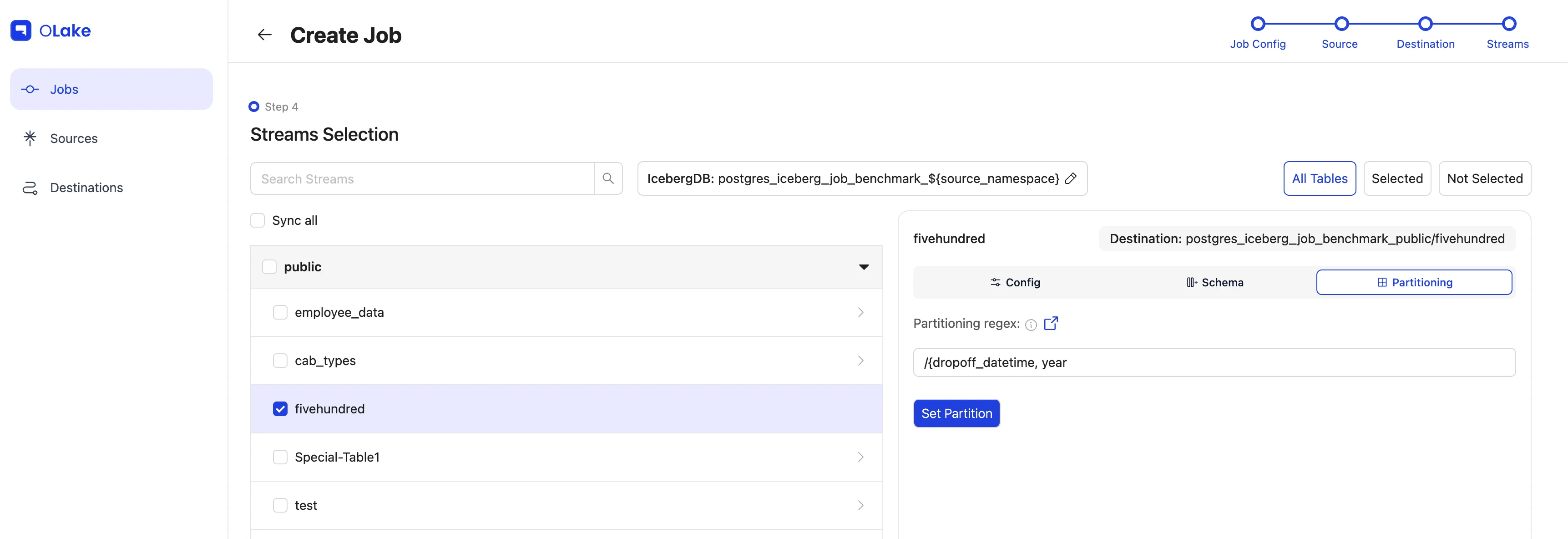
dropoff_datetime >= "2010-01-01 00:00:00" - Partitioning: by year extracted from
dropoff_datetime - Schedule: every day at 12:00 AM
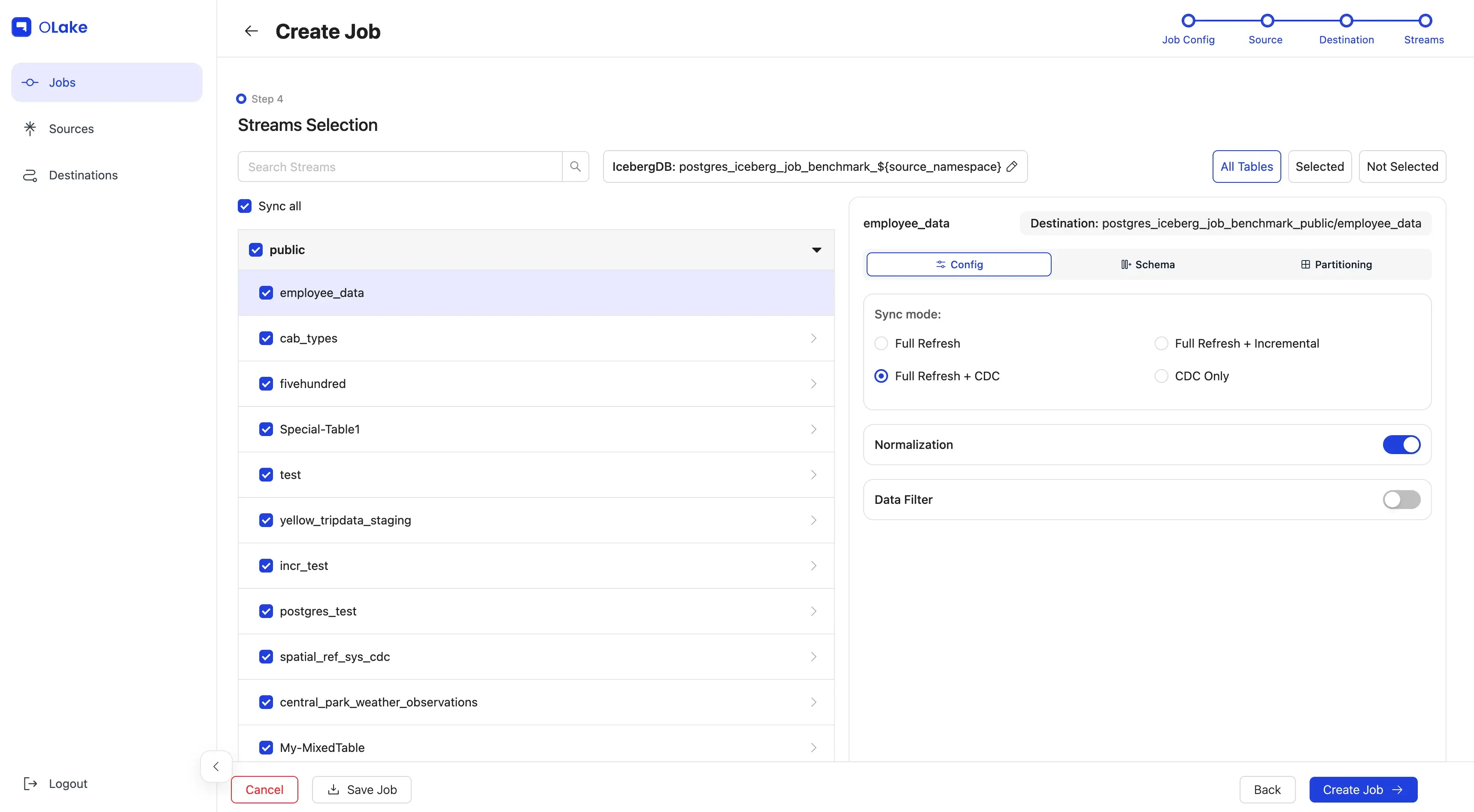
Select the checkbox for fivehundred, then click the stream name to open stream settings.
Pick the sync mode and toggle Normalization.

Let's make the destination query-friendly. Open Partitioning → choose dropoff_datetime → year.
Want more? Read the Partitioning Guide.
Add the Data Filter so we only move rows from 2010 onward.
Click Next to continue.
5) Schedule the Job
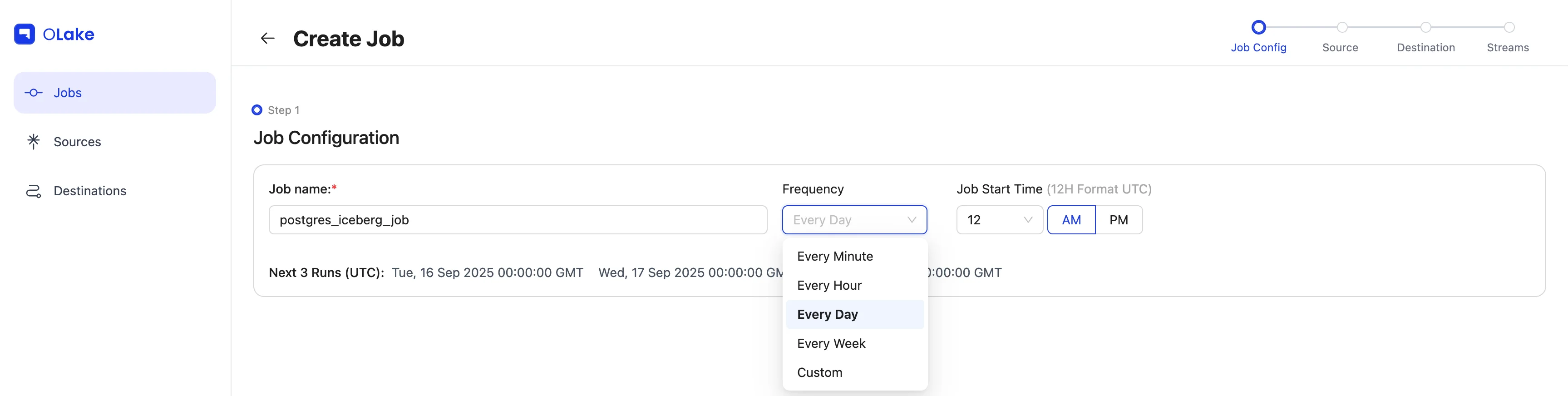
Give the job a clear name, set Every Day @ 12:00 AM, and hit Create Job.
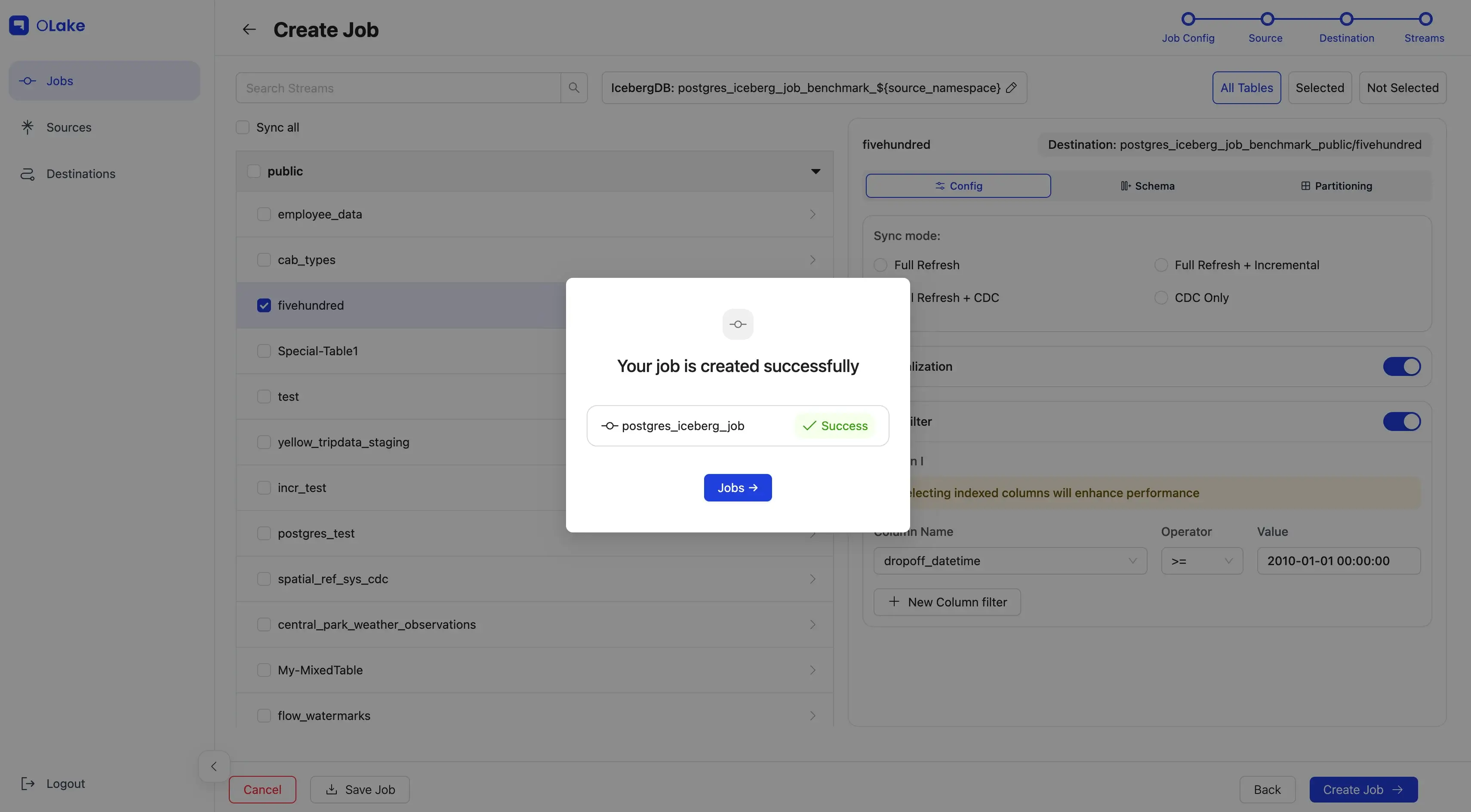
You're set! 🎉
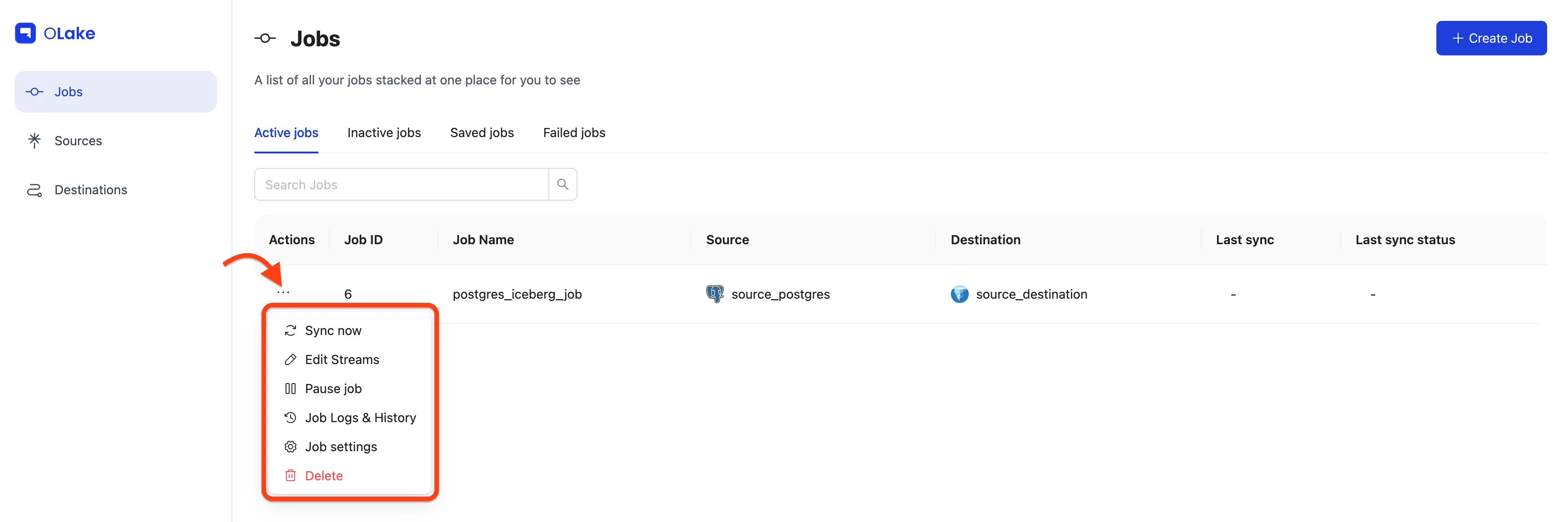
Want results right away? Start a run immediately with Jobs → (⋮) → Sync Now.
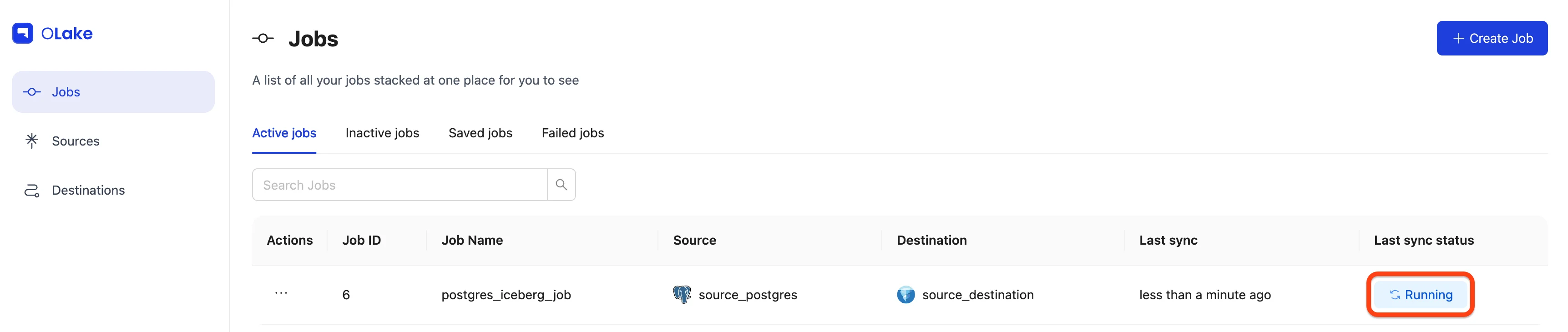
You'll see status badges on the right (Running / Failed / Completed).
For more details, open Job Logs & History.
-
Running
-
Completed
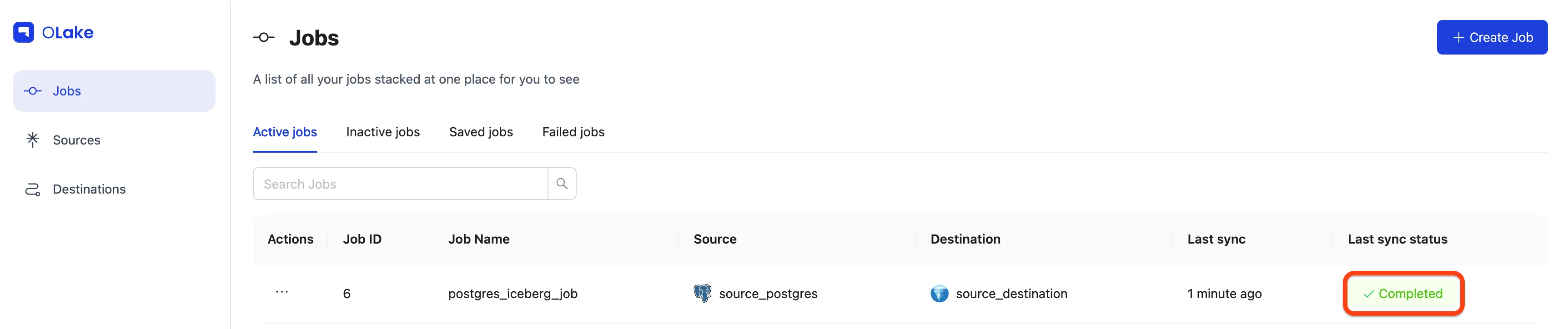
Finally, verify that data landed in S3/Iceberg as configured:

6) Manage Your Job (from the Jobs page)
Sync Now — Trigger a run without waiting.
Edit Streams — Change which streams are included and tweak replication settings.
Use the stepper to jump between Source and Destination.
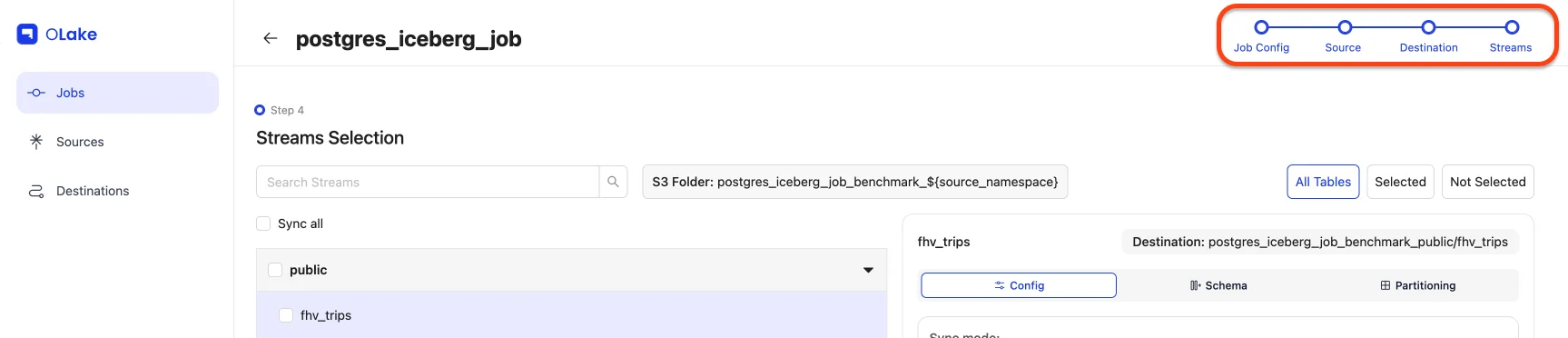
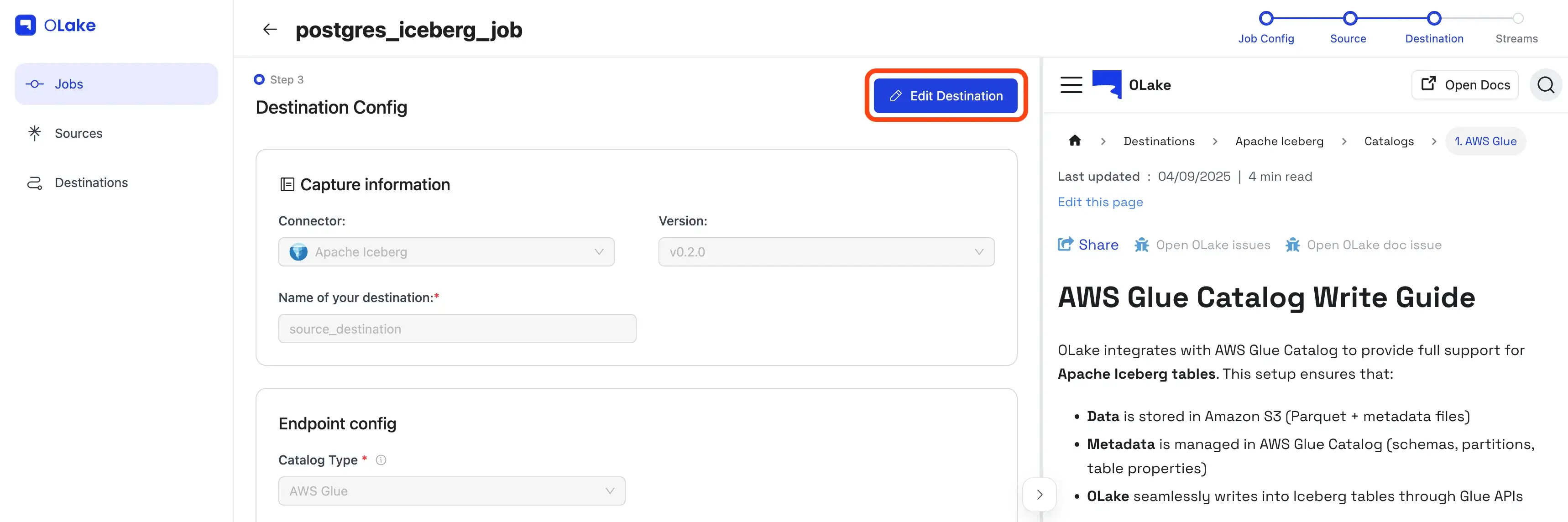
By default, source/destination editing is locked. Click Edit to unlock.
🔄 Need to change Partitioning / Filter / Normalization for an existing stream?
Unselect the stream → Save → reopen Edit Streams → re-add it with new settings.
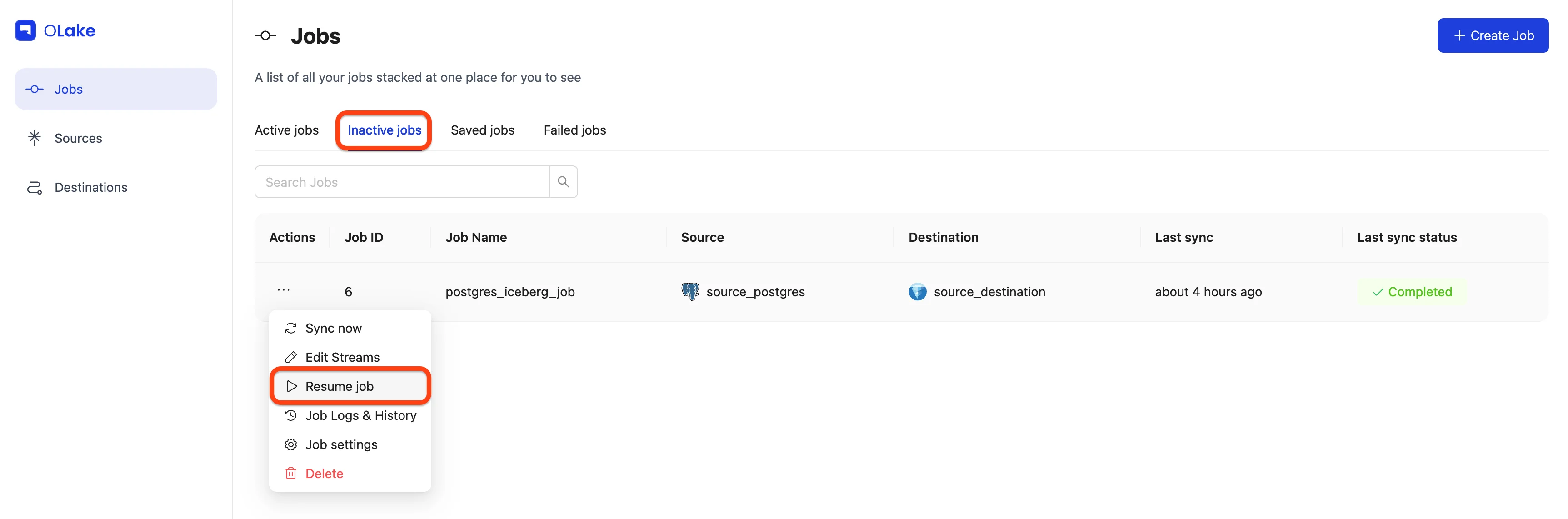
Pause Job — Temporarily stop runs. You'll find paused jobs under Inactive Jobs, where you can Resume any time.
Job Logs & History — See all runs. Use View Logs for per-run details.


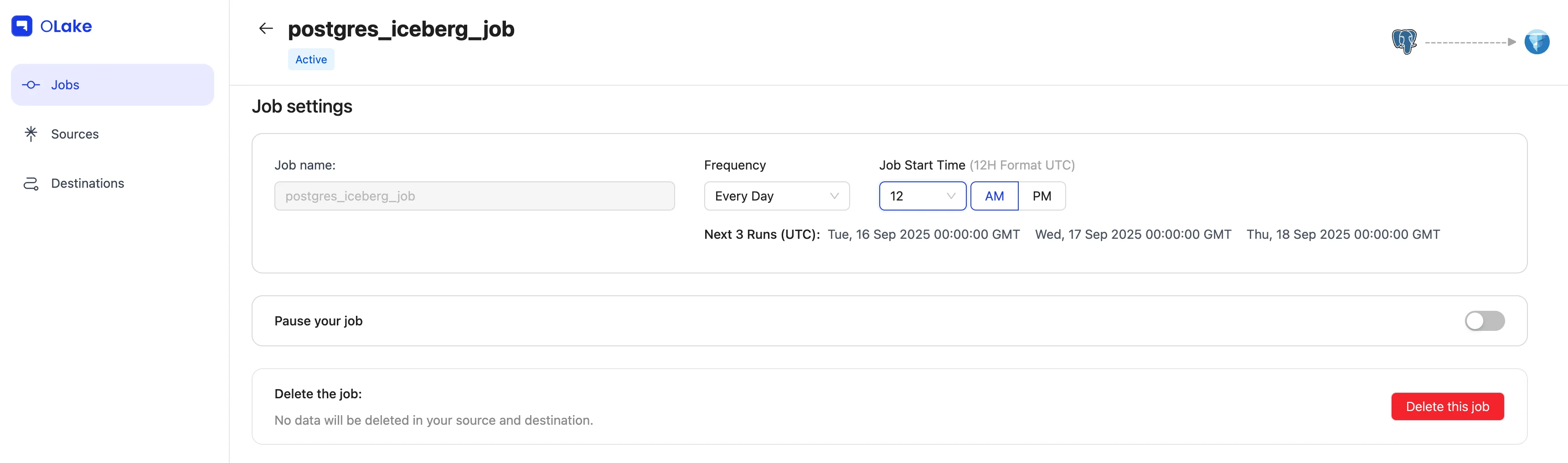
Job Settings — Rename, change frequency, pause, or delete.
Deleting a job moves its source/destination to inactive (if not used elsewhere).
Option B — OLake CLI (Docker)
Prefer terminals, PR reviews, and repeatable runs? Let's do the same pipeline via Docker.
Prerequisites
- Docker installed and running
- OLake images: Docker Hub →
olakego/*
How the CLI flow works
- Configure source & destination (JSON files)
- Discover streams → writes a
streams.json - Edit stream configuration (normalization, filters, partitions, sync mode)
- Run the sync
- Monitor with
stats.json
What we'll build
- Source: Postgres
- Destination: Apache Iceberg (Glue catalog)
- Table:
fivehundred - CDC mode + Normalization
- Filter:
dropoff_datetime >= "2010-01-01 00:00:00" - Partition by year from
dropoff_datetime
1) Create Config Files
We'll put everything under /path/to/config/.
Source — source.json
{
  "host": "dz-stag.postgres.database.azure.com",
  "port": 5432,
  "database": "postgres",
  "username": "postgres",
  "password": "XXX",
  "jdbc_url_params": {},
  "ssl": { "mode": "require" },
  "update_method": {
    "replication_slot": "replication_slot",
    "intital_wait_time": 120
  },
  "default_mode": "cdc",
  "max_threads": 6
}
📝 If you plan to run CDC, ensure a Postgres replication slot exists. See: Replication Slot Guide.
Destination — destination.json
{
  "type": "ICEBERG",
  "writer": {
    "iceberg_s3_path": "s3://vz-testing-olake/olake_cli_demo",
    "aws_region": "XXX",
    "aws_access_key": "XXX",
    "aws_secret_key": "XXX",
    "iceberg_db": "olake_cli_demo",
    "grpc_port": 50051,
    "sink_rpc_server_host": "localhost"
  }
}
2) Discover Streams
This pulls available tables and writes streams.json.
docker run --pull=always \
  -v "/path/to/config:/mnt/config" \
  olakego/source-postgres:latest \
  discover \
  --config /mnt/config/source.json
Start logs

Completion

ℹ️ Logs are also written to:
/path/to/config/logs/sync_[YYYY-MM-DD]_[HH-MM-SS]/olake.log
3) Edit streams.json
Select exactly what to move and how.
- Select streams → keep only
fivehundredunder"selected_streams". - Normalization →
"normalization": true - Filter →
"filter": "dropoff_datetime >= \"2010-01-01 00:00:00\"" - Partitioning →
"partition_regex": "/{dropoff_datetime, year}" - Sync mode → set the stream's
"sync_mode"to"cdc"
Minimal selection block
{
  "selected_streams": {
    "public": [
      {
        "partition_regex": "/{dropoff_datetime, year}",
        "stream_name": "fivehundred",
        "normalization": true,
        "filter": "dropoff_datetime >= \"2010-01-01 00:00:00\""
      }
    ]
  }
}
Full stream entry (showing supported modes)
{
  "streams": [
    {
      "stream": {
        "name": "fivehundred",
        "namespace": "public",
        "type_schema": {
          "properties": {
            "dropoff_datetime": { "type": ["timestamp", "null"] }
          }
        },
        "supported_sync_modes": [
          "strict_cdc",
          "full_refresh",
          "incremental",
          "cdc"
        ],
        "source_defined_primary_key": [],
        "available_cursor_fields": ["id", "pickup_datetime", "rate_code_id"],
        "sync_mode": "cdc"
      }
    }
  ]
}
📚 Need a refresher on how modes differ? Check out our documentation on sync modes.
4) Run the Sync
Kick off replication:
docker run --pull=always \
  -v "/path/to/config:/mnt/config" \
  olakego/source-postgres:latest \
  sync \
  --config /mnt/config/streams.json \
  --catalog /mnt/config/catalog.json \
  --destination /mnt/config/destination.json
Sync start
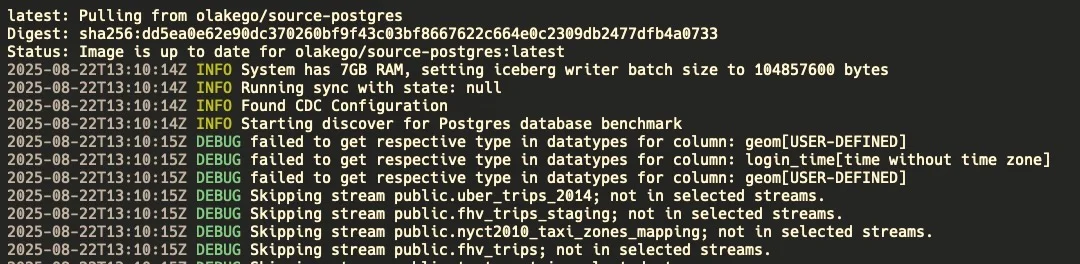
Sync completed

5) Monitor Progress with stats.json
A stats.json appears next to your configs:
{
  "Estimated Remaining Time": "0.00 s",
  "Memory": "367 mb",
  "Running Threads": 0,
  "Seconds Elapsed": "34.01",
  "Speed": "14.70 rps",
  "Synced Records": 500
}
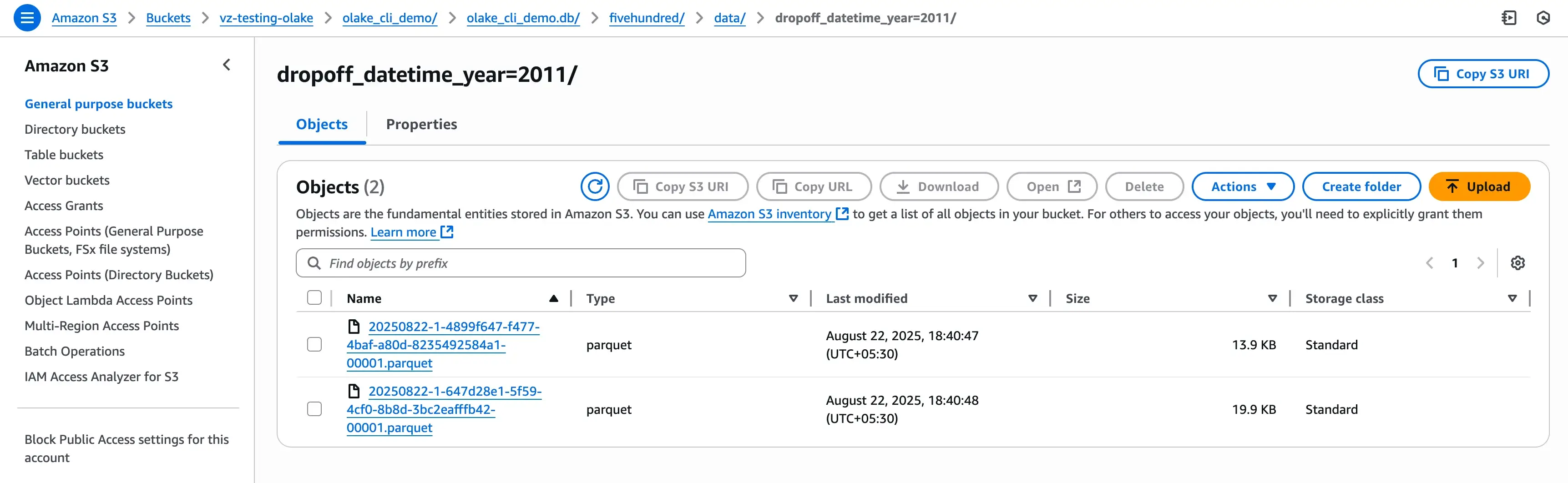
Confirm the data in your destination (S3 / Iceberg):
6) About the state.json (Resumable & CDC-friendly)
When a sync starts, OLake Go writes a state.json that tracks progress and CDC offsets (e.g., Postgres LSN).
This lets you resume without duplicates and continue CDC seamlessly.
To resume / keep streaming:
docker run --pull=always \
  -v "/path/to/config:/mnt/config" \
  olakego/source-postgres:latest \
  sync \
  --config /mnt/config/streams.json \
  --catalog /mnt/config/catalog.json \
  --destination /mnt/config/destination.json \
  --state /mnt/config/state.json
More details: Check out our Postgres connector documentation for state file configuration.
FAQs
Q1. UI or CLI, how should I choose?
If you're new to OLake Go or prefer a guided setup, start with UI.
If you're automating, versioning configs, or scripting in CI, use CLI.
Q2. Why Full Refresh + CDC?
You get a baseline snapshot and continuous changes, ideal for keeping downstream analytics fresh.
Q3. Can I change partitioning later?
- UI: Edit the partitioning on the stream directly. You can delete or update a partition without unselecting and re-adding the stream.
- CLI: Edit
streams.jsonand re-run.
Q4. What prerequisites do I need before creating a Postgres-to-Iceberg replication job in OLake Go?
You need:
- Docker installed and running
- PostgreSQL 10 or higher with WAL level set to
logicalfor CDC - An Apache Iceberg catalog - AWS Glue, Hive, REST/Nessie, JDBC, or Polaris
- An S3-compatible object store - AWS S3, MinIO, etc. - for data storage
For CDC specifically, a Postgres replication slot must exist before the connector starts.
Important: Each OLake Go job must have its own dedicated replication slot and publication. Never share a replication slot across multiple OLake Go jobs - doing so will result in data loss and inconsistencies.
If you cannot modify WAL settings (for example, on a read replica), OLake Go also supports JDBC-based Full Refresh and bookmark-based Incremental modes that work with standard credentials and do not require a replication slot.
Q5. What sync modes does OLake Go support for Postgres replication?
OLake Go supports four modes for Postgres:
- Full Refresh - Re-loads the entire table on every run. Best for small, infrequently changing tables.
- Full Refresh + Incremental - Performs an initial full load of the table, then captures new rows using a cursor column. Which changes get captured depends on the cursor you pick: a monotonically increasing column like
idcaptures inserts only, since updated rows keep their old cursor value and are skipped. For updates to be captured, the cursor must be a column that changes when the row changes, such asupdated_at. Deletes are never captured in this mode. - Full Refresh + CDC - Performs an initial full backfill, then switches to real-time WAL-based CDC for all subsequent changes (inserts, updates, deletes). This is the most common production mode.
- Strict CDC - Streams only changes from the current WAL position with no initial full load. Use when you only want forward changes from a specific point in time.
Q6. What does 'Normalization' do in OLake Go, and should I enable it?
Normalization in OLake Go automatically expands level-0 nested JSON fields, meaning top-level JSON objects, into individual columns for easier querying. It preserves all data while simplifying structure and reduces the need for complex JSON parsing in downstream SQL queries. Flattening stops at that first level; anything nested deeper remains as a stringified value.
Normalization only controls JSON flattening. It does not control whether rows are appended or upserted, that is a separate Append/Upsert mode setting.
Enable normalization when your source tables contain nested JSON fields that you want to query as flat columns.
Q7. How do I monitor sync progress when running OLake Go from the CLI?
OLake Go writes a stats.json file alongside your config files during a sync run. It contains real-time metrics:
{
"Estimated Remaining Time": "1642.00",
"Memory": "2228 mb",
"Running Threads": 21,
"Seconds Elapsed": "186.00",
"Speed": "76542.20 rps",
"Synced Records": 14236868
}
The stats.json file remains available after sync completion for post-run inspection.
Detailed logs are also written to:
/path/to/config/logs/sync_[YYYY-MM-DD]_[HH-MM-SS]/olake.logFor the UI, per-run logs are accessible via Jobs → Job Logs & History → View Logs.
Q8. How do I change the filter or normalization settings for an existing stream?
Most stream-level settings can be updated directly without removing and re-adding the stream:
- Normalization: A toggle. Turn it on or off for the stream.
- Filter: Edit the filter conditions on the stream directly.
- Partitioning: See "Can I change partitioning later?" (Q3) above.
For the CLI, update streams.json directly with the new settings and re-run the sync command.