How To Move Data from MySQL to Apache Iceberg and Query It
19 min read
Introduction
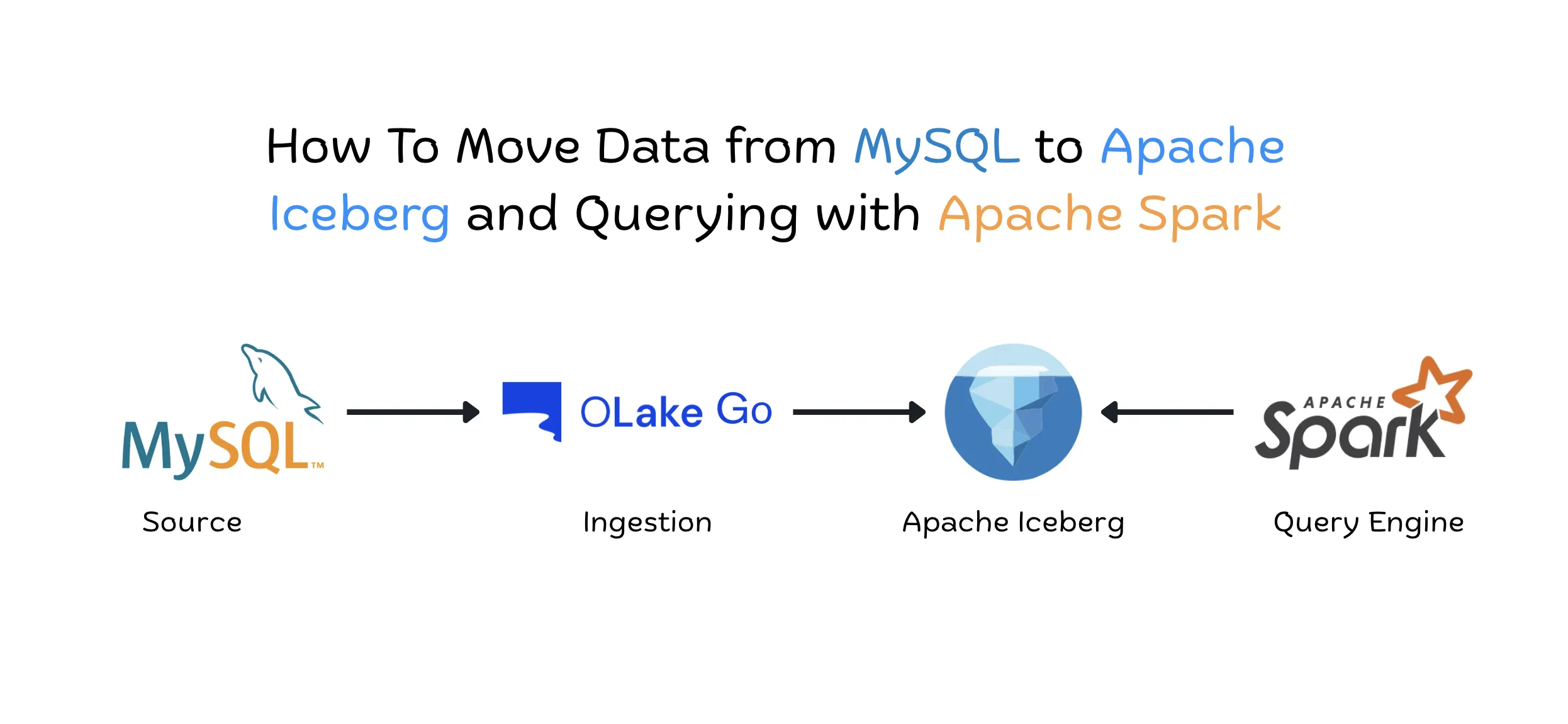
MySQL is built to serve your application one row at a time: a login, a checkout, a profile update. Analytical engines are built for the opposite job, scanning millions of rows to power dashboards, reports and ad hoc analysis. Pointing those scans at a production MySQL instance competes with the transactions your users are waiting on, and maintaining a separate pipeline per engine means one more copy of the data that only one engine can read.
Apache Iceberg sits neatly between the two. You land MySQL data once as open Iceberg tables in object storage, registered in the catalog you already use, and engines like ClickHouse, Presto, Apache Spark, Trino and DuckDB read them directly, with no reloading into engine-specific storage.
OLake Go handles the replication from MySQL into Iceberg, including ongoing CDC, and writes the tables in a format your chosen query engines can read. In this guide, you'll connect MySQL, replicate the data to Iceberg tables in the catalog of your choice, pick your query engine, choose which tables to ingest, run the sync, and then query the data. The steps are the same for every engine until the final query step, where you can switch to the tab for your engine.
Step 1: Set Up the Source and Destination
The OLake Go docs explain how to set up MySQL and Iceberg, so follow the links below for each one. Pick the catalog you want to use and follow the link below to help you set it up. To see which engines work with which catalogs, check Compatibility with Query Engines.
When both Sources and Destinations are created, you can move on to the next step.
| Source | Setup Guide |
|---|---|
| MySQL | Link |
| Destination | Catalog | Link |
|---|---|---|
| Apache Iceberg | HIVE | Link |
| REST | Link | |
| NESSIE | Link | |
| AWS GLUE | Link | |
| JDBC | Link | |
| Polaris | Link | |
| BigLake | Link | |
| Lakekeeper | Link | |
| Unity | Link | |
| S3 tables | Link | |
| Horizon | Link |
Step 2: Create a Job and Select the Query Engine
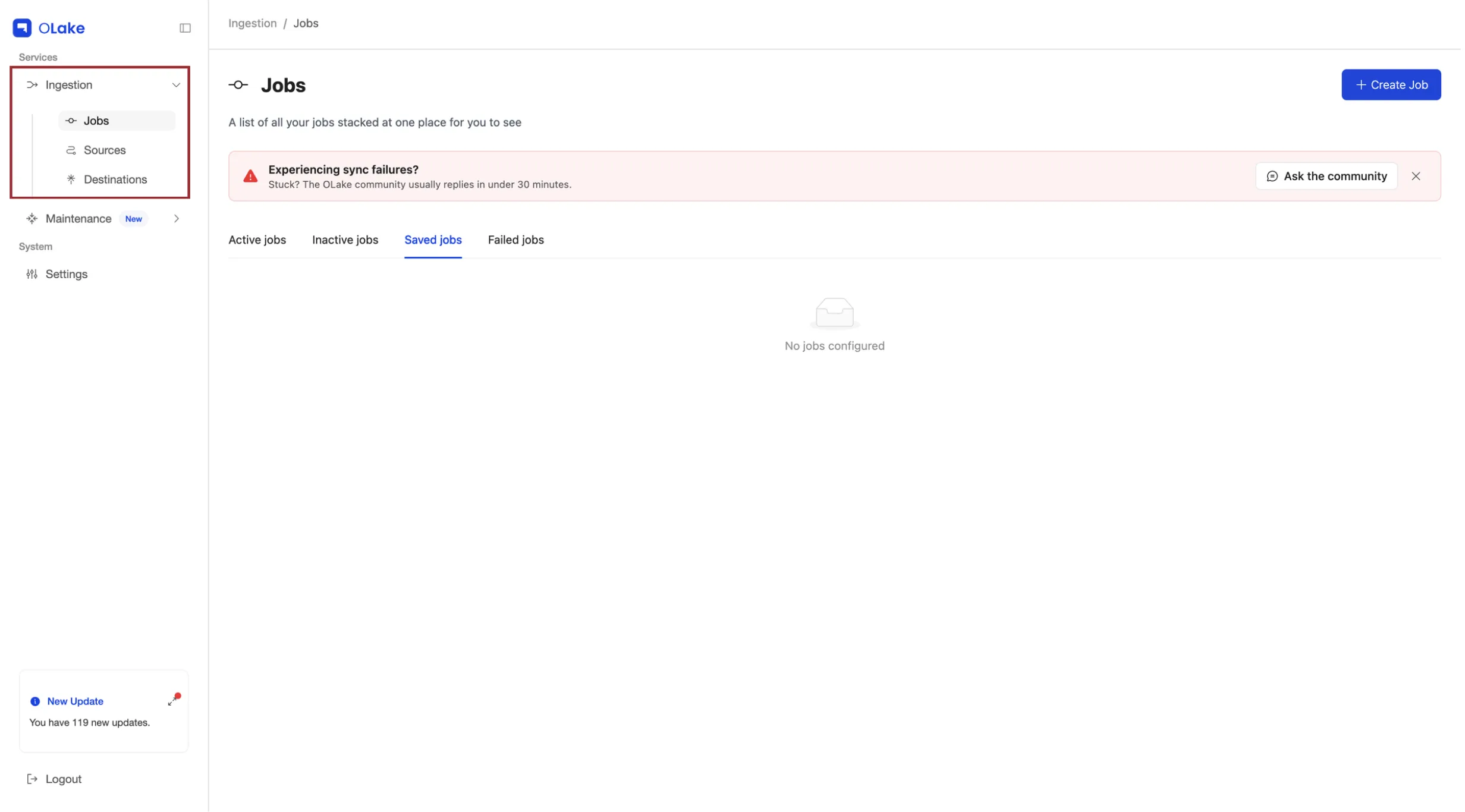
In the left menu, go to Ingestion > Jobs.
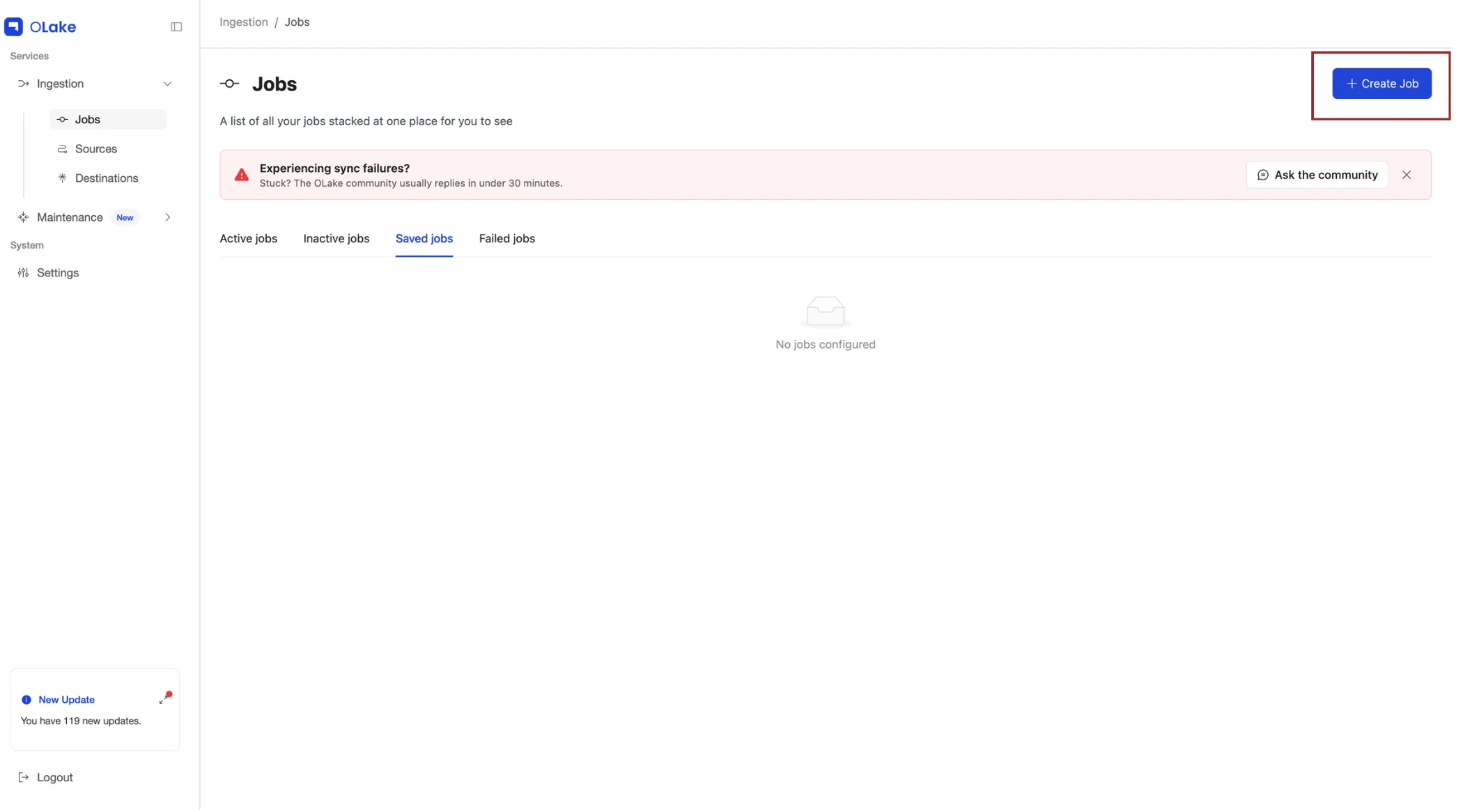
Click + Create Job at the top right.
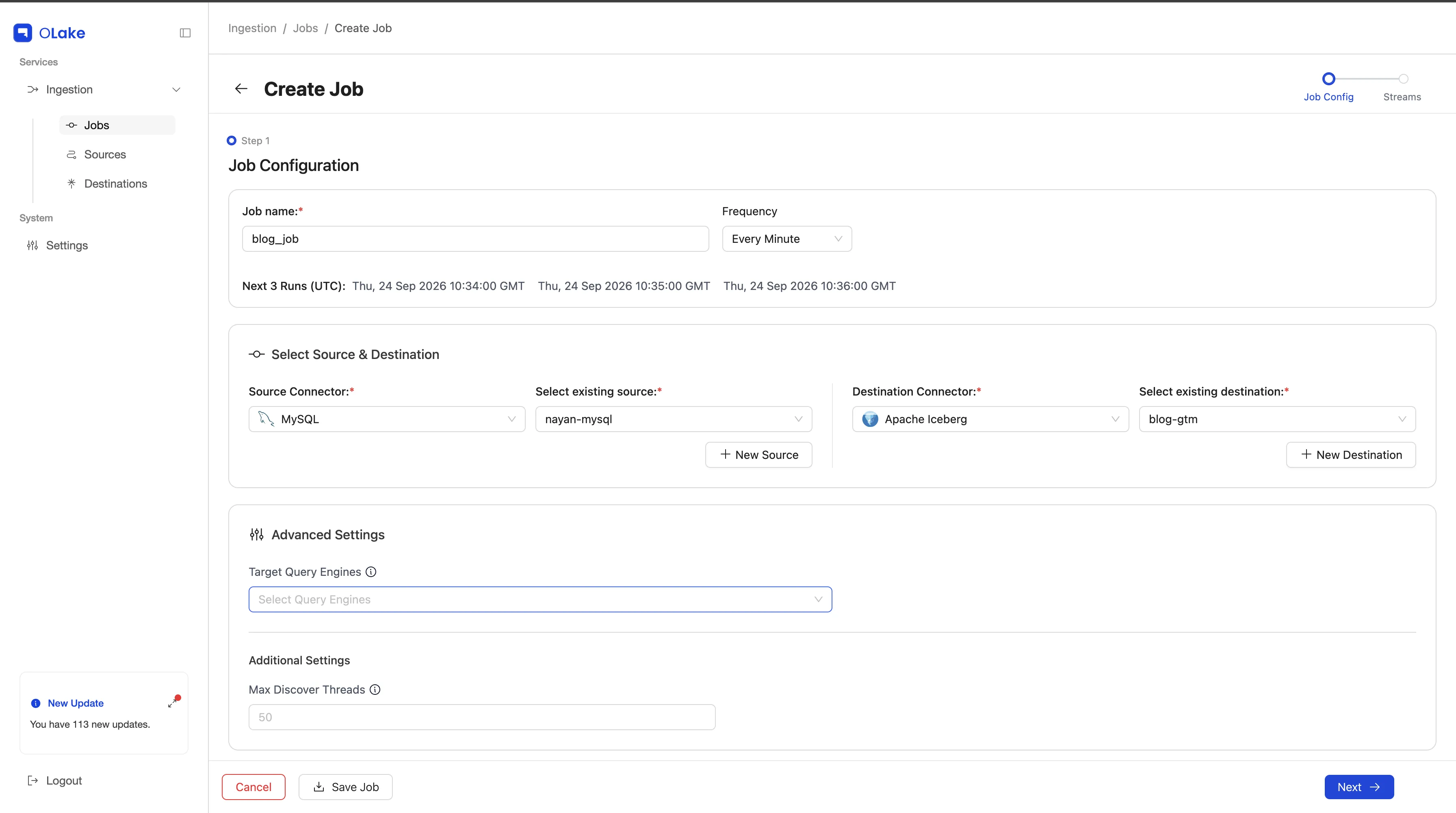
On the Job Configuration page, give your job a name (for example, blog_job) and choose how often it should run from the Frequency dropdown. Then pick MySQL as the source connector and select the source you created in Step 1, and do the same for the Iceberg destination.
Step 2a: Select Query Engine
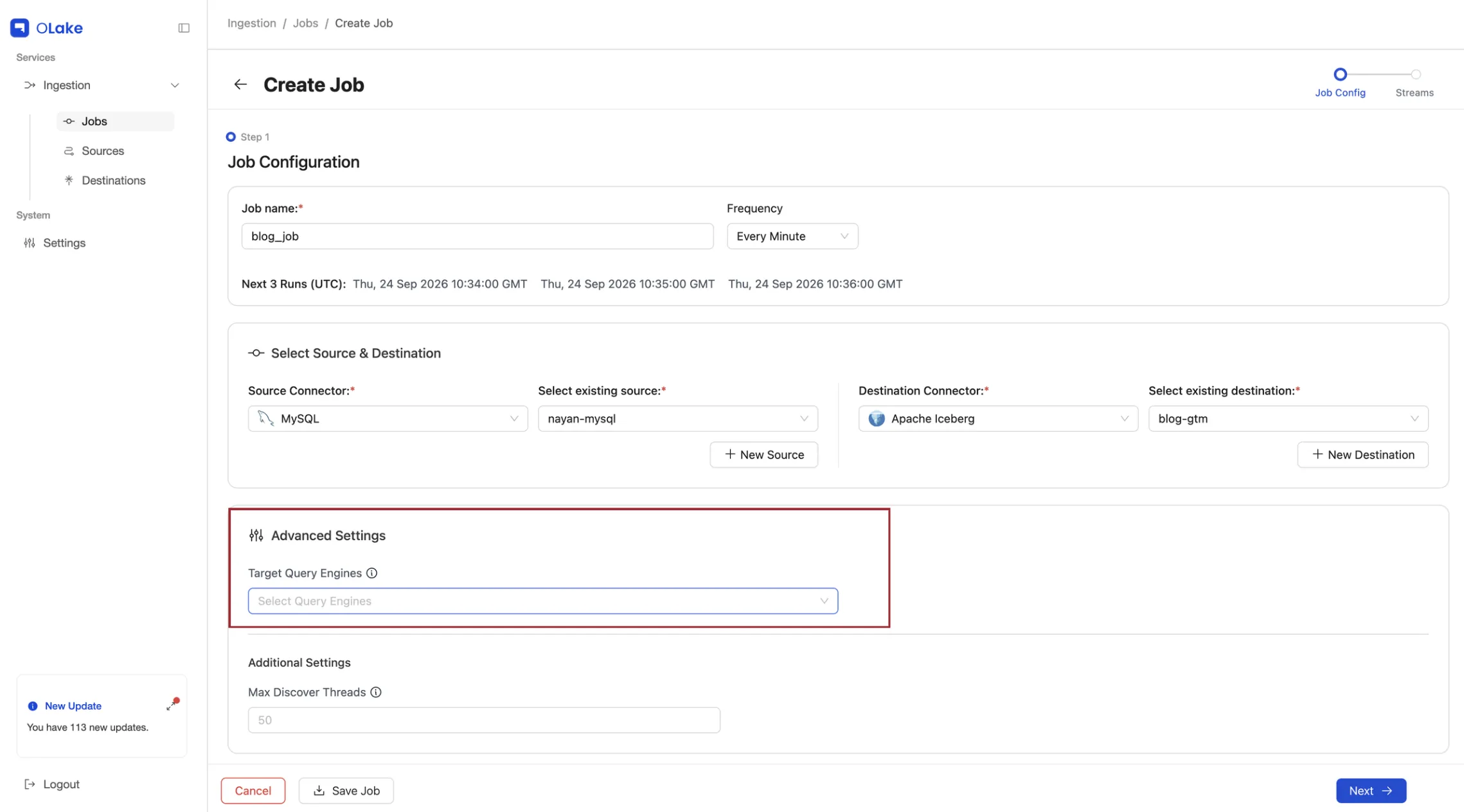
Under Advanced Settings, open the Target Query Engines dropdown and select the engine you'll query with: ClickHouse, Presto, Apache Spark, Trino or DuckDB. You can pick more than one engine if several teams will read the same tables.
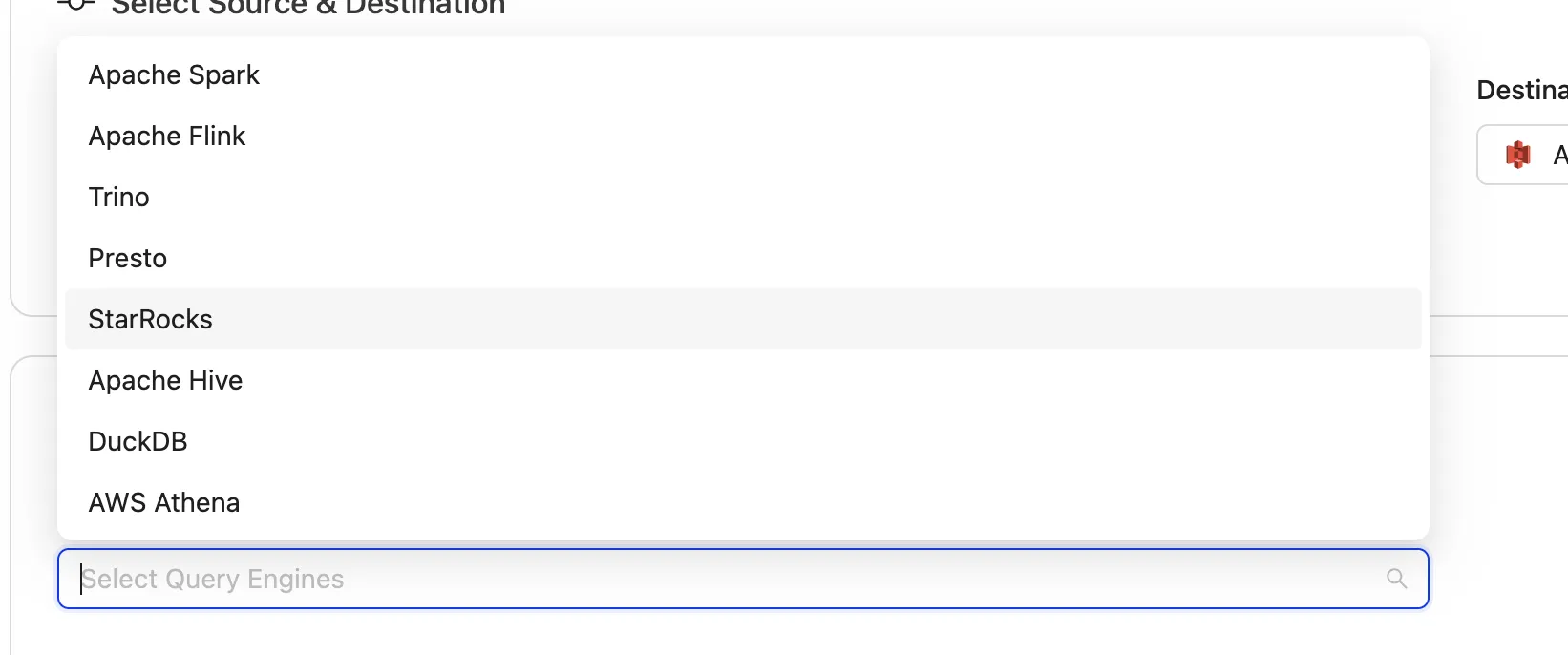
Click Next and you'll be redirected to the Stream configuration page.
Steps 3 to 5: Configure Streams, Sync and Query
From here, the steps depend on your query engine: each engine has its own default Iceberg delete mode and its own way of connecting to the catalog. Pick your engine below and follow the steps in its tab. Each tab connects the engine to the AWS Glue catalog and queries the tables OLake Go created. To see which delete formats each engine can read, check the delete format support table.
- ClickHouse
- Presto
- Apache Spark
- Trino
- DuckDB
Step 3: Configure Streams
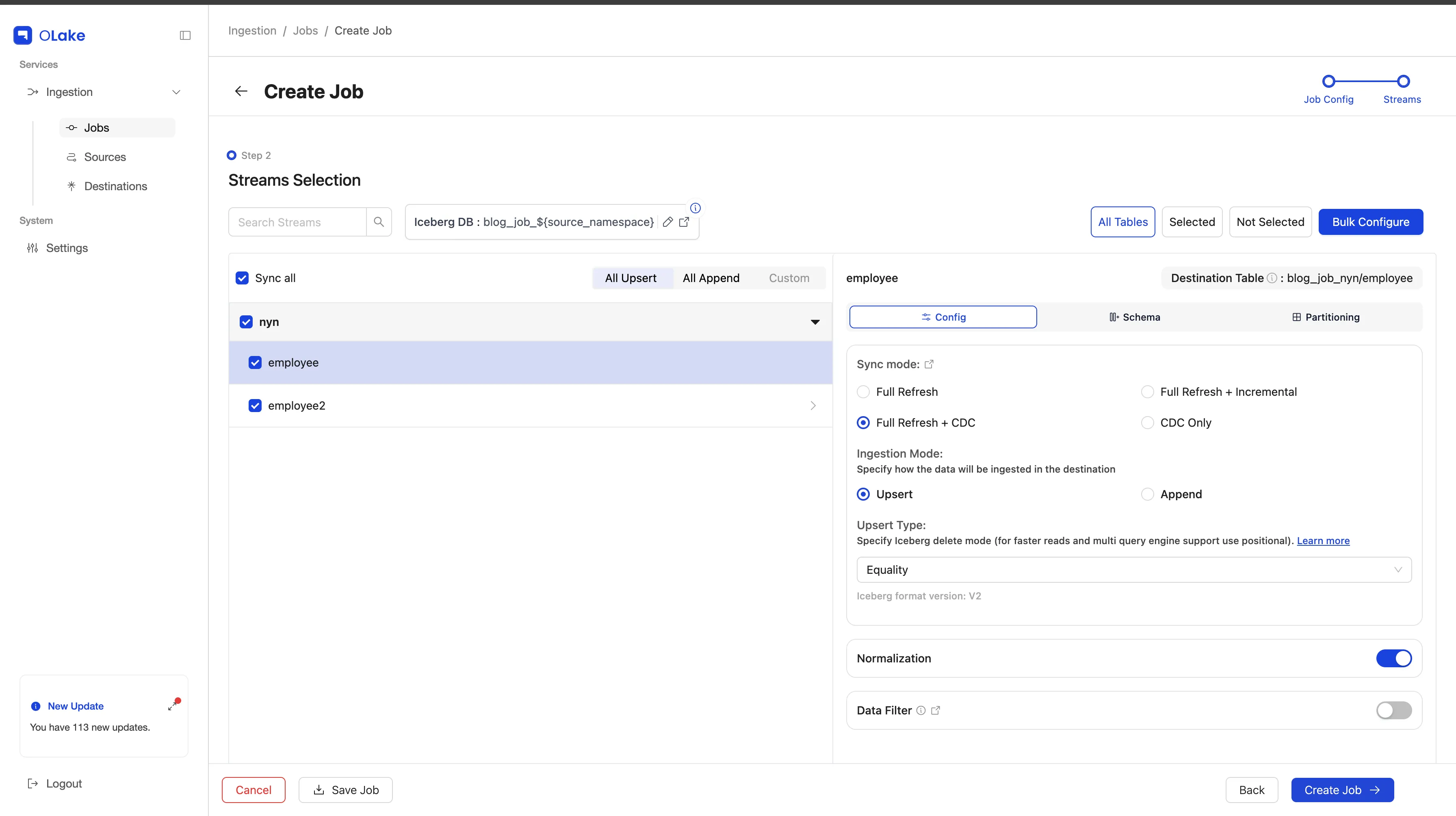
The Streams page lists every table in your MySQL database. Check the box next to each table you want to copy, or use Sync all to select everything. The Iceberg DB field at the top shows the database name your tables will land in, and you can click the edit icon to change it.
Click a table name to open its settings on the right. On the Config tab, you can:
- Pick a sync mode. Full Refresh + CDC copies all current rows first and then keeps copying new changes
- Choose an Ingestion Mode. Upsert updates existing rows when they change, while Append adds every change as a new row
- Turn on Normalization to store nested data as regular columns
The Schema tab shows the table's columns, and the Partitioning tab lets you group data by a column so queries run faster.
Step 3a: Specify Iceberg Delete Mode
When the ingestion mode is Upsert, you can choose which type of delete file OLake Go writes to Iceberg.
Open the Upsert Type dropdown and select the delete type you want: Equality, Positional, or Deletion.
Equality is by default selected for ClickHouse. You can change the delete mode to the one you prefer via the drop-down.

When you're done, click Create Job at the bottom right. A confirmation shows that your job was created, and clicking Jobs takes you back to the main Jobs page.
Step 4: Run the Sync
Your new job appears in the Active jobs tab. The Last Run status column shows whether each run is Running, Completed, or Failed.
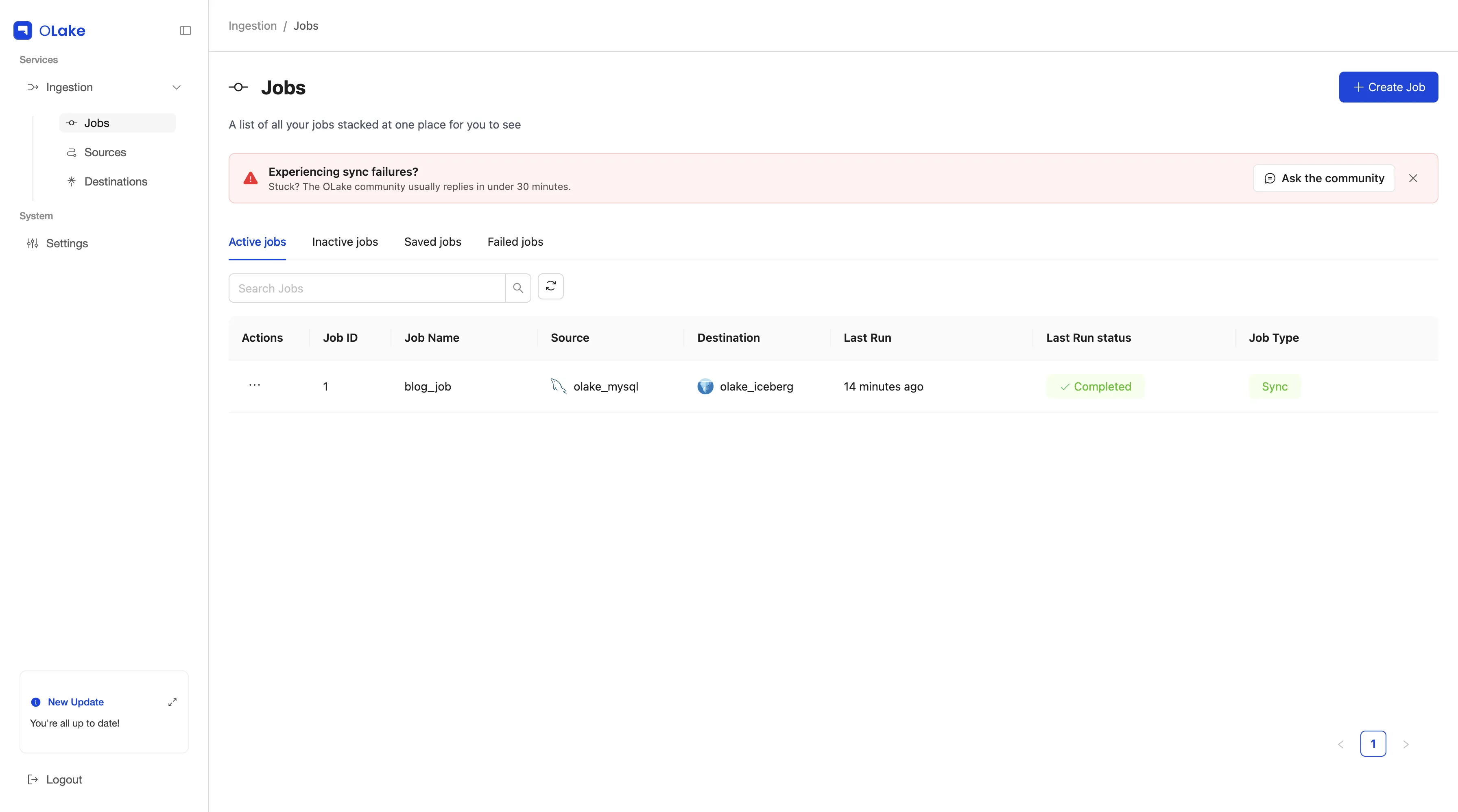
The job will run at its next scheduled time. To start it now, click the three dots in the Actions column next to your job and select Sync now.
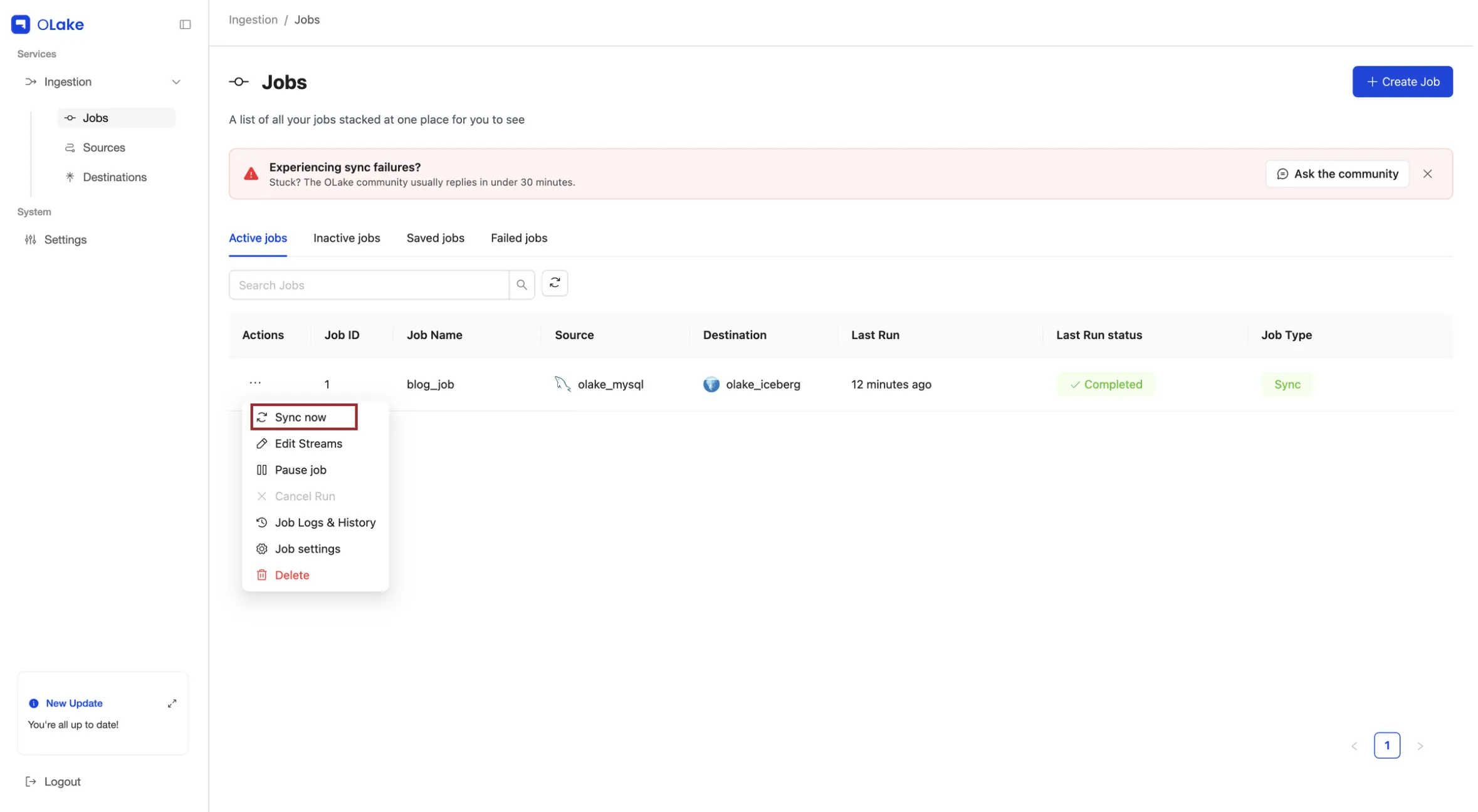
To see how each run went, under Actions, select Job Logs & History. This page lists every run with its start time, runtime, and status.
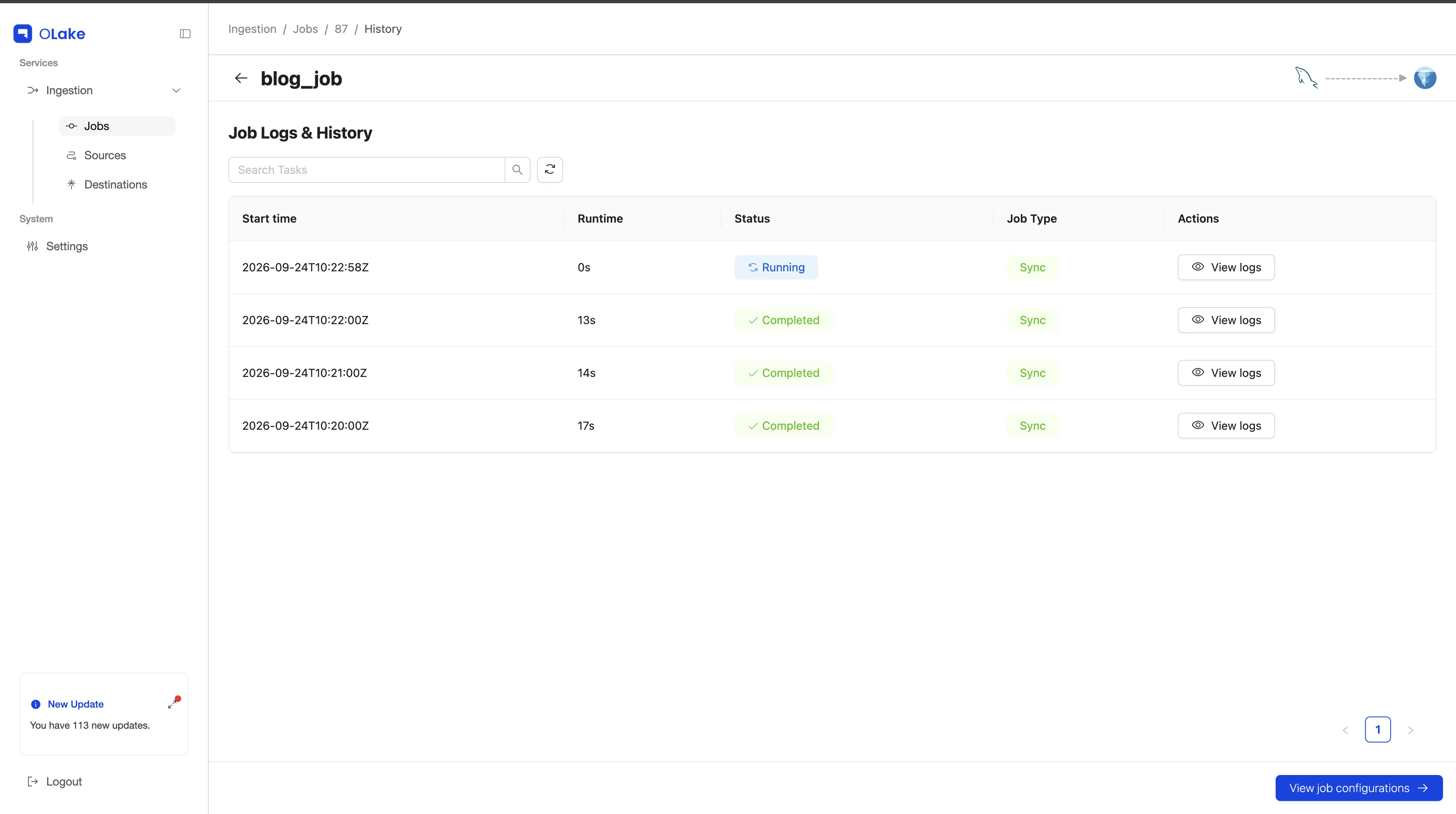
Click View logs next to any run to see its full log, including when MySQL CDC started, the total records read, and when the sync finished.
Once the sync finishes, the new Iceberg tables will be registered in your catalog and the data files will show up in your S3 bucket.
Step 5: Query with ClickHouse
Open the ClickHouse client and connect it to your AWS Glue catalog by creating a database with the DataLakeCatalog engine:
SET allow_experimental_database_glue_catalog = 1;

CREATE DATABASE <database-name>
ENGINE = DataLakeCatalog
SETTINGS
    catalog_type = 'glue',
    region = '<region>',
    aws_access_key_id = '<access-key>',
    aws_secret_access_key = '<secret-key>';
See the tables OLake Go created:
SELECT * FROM <database-name>.`<namespace>.<table>` LIMIT 10;
Step 3: Configure Streams
The Streams page lists every table in your MySQL database. Check the box next to each table you want to copy, or use Sync all to select everything. The Iceberg DB field at the top shows the database name your tables will land in, and you can click the edit icon to change it.
Click a table name to open its settings on the right. On the Config tab, you can:
- Pick a sync mode. Full Refresh + CDC copies all current rows first and then keeps copying new changes
- Choose an Ingestion Mode. Upsert updates existing rows when they change, while Append adds every change as a new row
- Turn on Normalization to store nested data as regular columns
The Schema tab shows the table's columns, and the Partitioning tab lets you group data by a column so queries run faster.
Step 3a: Specify Iceberg Delete Mode
When the ingestion mode is Upsert, you can choose which type of delete file OLake Go writes to Iceberg.
Open the Upsert Type dropdown and select the delete type you want: Equality, Positional, or Deletion.
Equality is by default selected for Presto. You can change the delete mode to the one you prefer via the drop-down. Presto doesn't read Deletion vectors, so pick Equality or Positional.
When you're done, click Create Job at the bottom right. A confirmation shows that your job was created, and clicking Jobs takes you back to the main Jobs page.
Step 4: Run the Sync
Your new job appears in the Active jobs tab. The Last Run status column shows whether each run is Running, Completed, or Failed.
The job will run at its next scheduled time. To start it now, click the three dots in the Actions column next to your job and select Sync now.
To see how each run went, under Actions, select Job Logs & History. This page lists every run with its start time, runtime, and status.
Click View logs next to any run to see its full log, including when MySQL CDC started, the total records read, and when the sync finished.
Once the sync finishes, the new Iceberg tables will be registered in your catalog and the data files will show up in your S3 bucket.
Step 5: Query with Presto
Connect Presto (v0.288+) to your AWS Glue catalog by creating a catalog file at etc/catalog/<catalog-name>.properties:
connector.name=iceberg
iceberg.catalog.type=hive
hive.metastore=glue
hive.metastore.glue.region=<region>
hive.metastore.glue.aws-access-key=<access-key>
hive.metastore.glue.aws-secret-key=<secret-key>
hive.s3.aws-access-key=<access-key>
hive.s3.aws-secret-key=<secret-key>
Restart Presto to load the catalog, then open the Presto CLI:
presto --catalog <catalog-name> --schema <namespace>
See the tables OLake Go created:
SELECT * FROM <table> LIMIT 10;

Step 3: Configure Streams
The Streams page lists every table in your MySQL database. Check the box next to each table you want to copy, or use Sync all to select everything. The Iceberg DB field at the top shows the database name your tables will land in, and you can click the edit icon to change it.
Click a table name to open its settings on the right. On the Config tab, you can:
- Pick a sync mode. Full Refresh + CDC copies all current rows first and then keeps copying new changes
- Choose an Ingestion Mode. Upsert updates existing rows when they change, while Append adds every change as a new row
- Turn on Normalization to store nested data as regular columns
The Schema tab shows the table's columns, and the Partitioning tab lets you group data by a column so queries run faster.
Step 3a: Specify Iceberg Delete Mode
When the ingestion mode is Upsert, you can choose which type of delete file OLake Go writes to Iceberg.
Open the Upsert Type dropdown and select the delete type you want: Equality, Positional, or Deletion.
When you're done, click Create Job at the bottom right. A confirmation shows that your job was created, and clicking Jobs takes you back to the main Jobs page.
Step 4: Run the Sync
Your new job appears in the Active jobs tab. The Last Run status column shows whether each run is Running, Completed, or Failed.
The job will run at its next scheduled time. To start it now, click the three dots in the Actions column next to your job and select Sync now.
To see how each run went, under Actions, select Job Logs & History. This page lists every run with its start time, runtime, and status.
Click View logs next to any run to see its full log, including when MySQL CDC started, the total records read, and when the sync finished.
Once the sync finishes, the new Iceberg tables will be registered in your catalog and the data files will show up in your S3 bucket.
Step 5: Query with Apache Spark
Open Spark SQL and connect it to your AWS Glue catalog with this command:
spark-sql --packages org.apache.iceberg:iceberg-spark-runtime-3.5_2.12:1.12.0,org.apache.iceberg:iceberg-aws-bundle:1.12.0 \
    --conf spark.sql.defaultCatalog=my_catalog \
    --conf spark.sql.catalog.my_catalog=org.apache.iceberg.spark.SparkCatalog \
    --conf spark.sql.catalog.my_catalog.warehouse=s3://my-bucket/my/key/prefix \
    --conf spark.sql.catalog.my_catalog.type=glue \
    --conf spark.sql.catalog.my_catalog.io-impl=org.apache.iceberg.aws.s3.S3FileIO
See the tables OLake Go created:
SELECT * FROM <catalog-name>.<namespace>.<table> LIMIT 10

Step 3: Configure Streams
The Streams page lists every table in your MySQL database. Check the box next to each table you want to copy, or use Sync all to select everything. The Iceberg DB field at the top shows the database name your tables will land in, and you can click the edit icon to change it.
Click a table name to open its settings on the right. On the Config tab, you can:
- Pick a sync mode. Full Refresh + CDC copies all current rows first and then keeps copying new changes
- Choose an Ingestion Mode. Upsert updates existing rows when they change, while Append adds every change as a new row
- Turn on Normalization to store nested data as regular columns
The Schema tab shows the table's columns, and the Partitioning tab lets you group data by a column so queries run faster.
Step 3a: Specify Iceberg Delete Mode
When the ingestion mode is Upsert, you can choose which type of delete file OLake Go writes to Iceberg.
Open the Upsert Type dropdown and select the delete type you want: Equality, Positional, or Deletion.
Equality is by default selected for Trino. You can change the delete mode to the one you prefer via the drop-down.
When you're done, click Create Job at the bottom right. A confirmation shows that your job was created, and clicking Jobs takes you back to the main Jobs page.
Step 4: Run the Sync
Your new job appears in the Active jobs tab. The Last Run status column shows whether each run is Running, Completed, or Failed.
The job will run at its next scheduled time. To start it now, click the three dots in the Actions column next to your job and select Sync now.
To see how each run went, under Actions, select Job Logs & History. This page lists every run with its start time, runtime, and status.
Click View logs next to any run to see its full log, including when MySQL CDC started, the total records read, and when the sync finished.
Once the sync finishes, the new Iceberg tables will be registered in your catalog and the data files will show up in your S3 bucket.
Step 5: Query with Trino
Connect Trino to your AWS Glue catalog by creating a catalog file at etc/catalog/<catalog-name>.properties:
connector.name=iceberg
iceberg.catalog.type=glue
hive.metastore.glue.region=<region>
hive.metastore.glue.aws-access-key=<access-key>
hive.metastore.glue.aws-secret-key=<secret-key>
fs.native-s3.enabled=true
s3.region=<region>
s3.aws-access-key=<access-key>
s3.aws-secret-key=<secret-key>
Restart Trino to load the catalog, then open the Trino CLI:
trino --catalog <catalog-name> --schema <namespace>
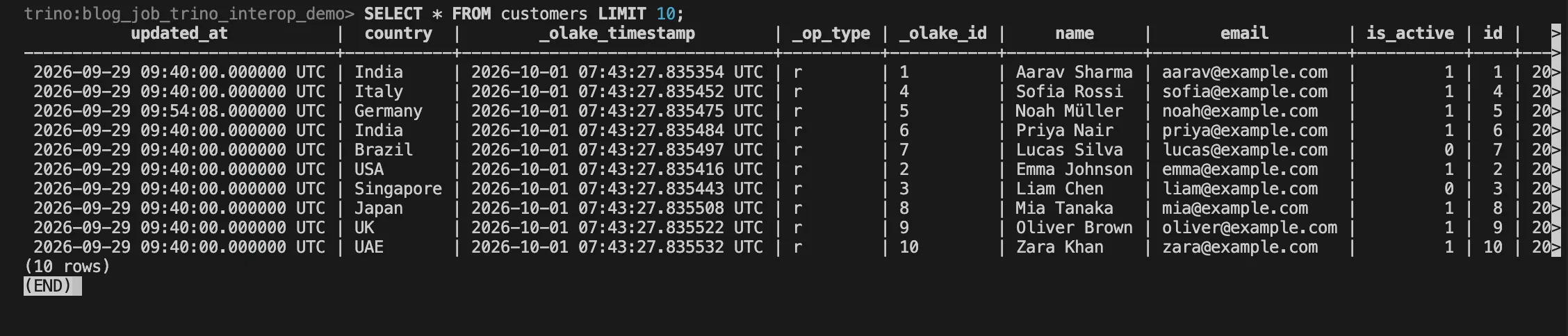
See the tables OLake Go created:
SELECT * FROM <table> LIMIT 10;
Step 3: Configure Streams
The Streams page lists every table in your MySQL database. Check the box next to each table you want to copy, or use Sync all to select everything. The Iceberg DB field at the top shows the database name your tables will land in, and you can click the edit icon to change it.
Click a table name to open its settings on the right. On the Config tab, you can:
- Pick a sync mode. Full Refresh + CDC copies all current rows first and then keeps copying new changes
- Choose an Ingestion Mode. Upsert updates existing rows when they change, while Append adds every change as a new row
- Turn on Normalization to store nested data as regular columns
The Schema tab shows the table's columns, and the Partitioning tab lets you group data by a column so queries run faster.
Step 3a: Specify Iceberg Delete Mode
When the ingestion mode is Upsert, you can choose which type of delete file OLake Go writes to Iceberg.
Open the Upsert Type dropdown and select the delete type you want: Equality, Positional, or Deletion.
Positional is by default selected for DuckDB. You can change the delete mode to the one you prefer via the drop-down.

When you're done, click Create Job at the bottom right. A confirmation shows that your job was created, and clicking Jobs takes you back to the main Jobs page.
Step 4: Run the Sync
Your new job appears in the Active jobs tab. The Last Run status column shows whether each run is Running, Completed, or Failed.
The job will run at its next scheduled time. To start it now, click the three dots in the Actions column next to your job and select Sync now.
To see how each run went, under Actions, select Job Logs & History. This page lists every run with its start time, runtime, and status.
Click View logs next to any run to see its full log, including when MySQL CDC started, the total records read, and when the sync finished.
Once the sync finishes, the new Iceberg tables will be registered in your catalog and the data files will show up in your S3 bucket.
Step 5: Query with DuckDB
Open DuckDB and create a secret so it can read from your object storage:
INSTALL httpfs;
LOAD httpfs;

CREATE SECRET (
    TYPE s3,
    KEY_ID '<ACCESS_KEY>',
    SECRET '<SECRET_KEY>',
    REGION '<REGION>',
    ENDPOINT '<ENDPOINT>',   -- remove for AWS S3
    URL_STYLE 'path',        -- required for MinIO and most S3-compatible stores
    USE_SSL false            -- set to true for AWS S3 or HTTPS endpoints
);
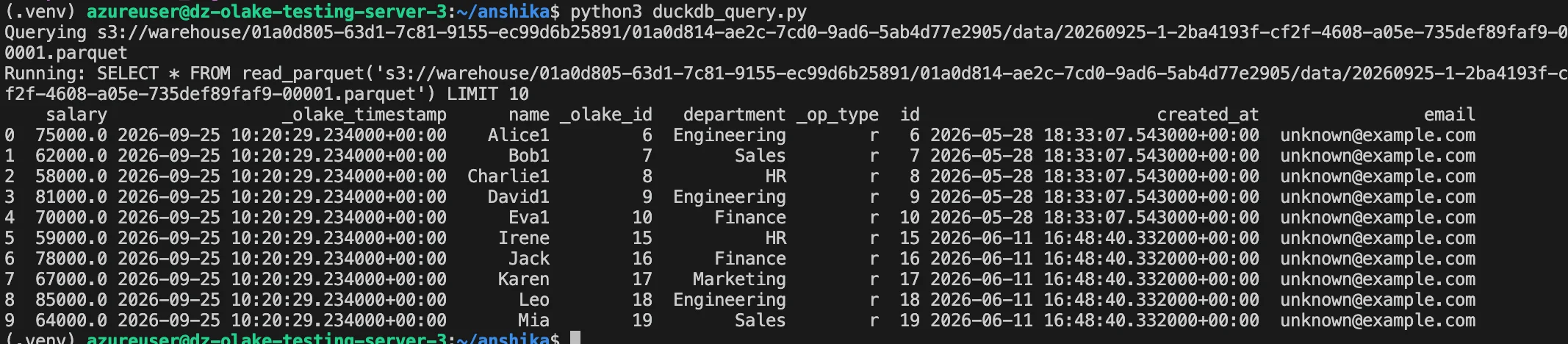
See the tables OLake Go created:
INSTALL iceberg;
LOAD iceberg;

SELECT * FROM iceberg_scan('<TABLE_LOCATION>') LIMIT 10;
Conclusion
MySQL keeps serving your application, OLake Go keeps its changes flowing into Iceberg on the schedule you set, and your query engine runs analytical queries on those tables without touching the production database. Joins, aggregations and long-range scans that would strain MySQL now run against a separate copy in object storage.
Because the tables are standard Iceberg, you aren't locked into one engine. Use DuckDB for quick local exploration, Trino or Presto for interactive SQL, ClickHouse for fast dashboards, and Spark for heavy batch jobs, all reading the same data through the same catalog with no re-ingestion. Check the compatibility guide to see which engines support which catalogs and delete formats. Have questions? Join the OLake Slack community.