Sync MSSQL to Your Lakehouse with OLake

If you're trying to sync Microsoft SQL Server (MSSQL) into Apache Iceberg using OLake, this guide is meant to feel like we're setting it up together—no heavy docs energy, just the things you actually need to know to get a clean, reliable pipeline running.
SQL Server shows up everywhere: product databases, internal tools, ERP-ish systems, customer dashboards, finance ops… and a lot of teams today want one thing:
"Keep my operational SQL Server data flowing into my lakehouse, without babysitting it."
That's exactly what the OLake MSSQL connector is for.
We'll cover what the connector does, which sync mode to pick, how to enable CDC properly (super interesting part), how schema changes work, the limitations you should know upfront, and the practical setup steps in the OLake UI. I'll also call out CLI/Docker flows along the way so you can match this to your workflow.
Overview: what the OLake MSSQL connector does
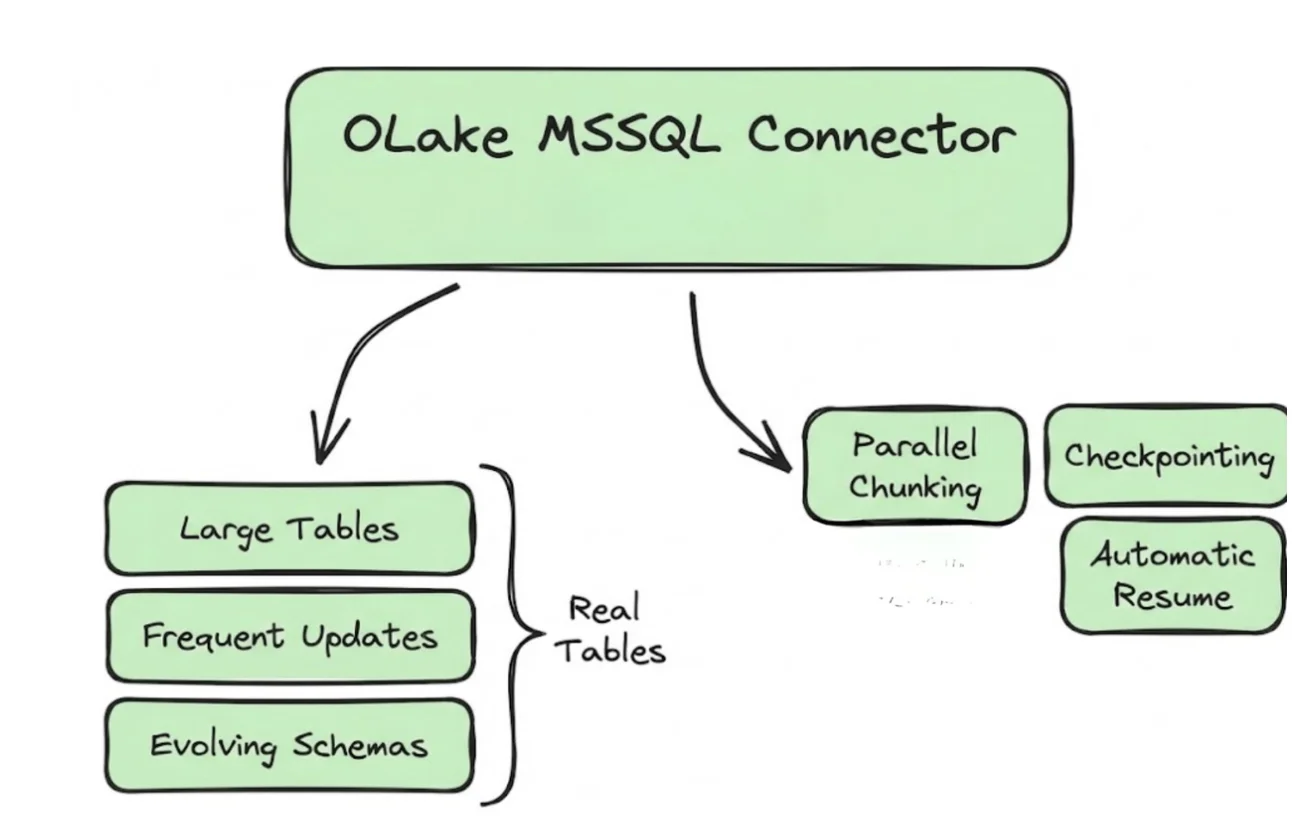
At a high level, the OLake MSSQL Source connector supports multiple synchronization modes and is built for "real tables" (large row counts, frequent updates, evolving schemas).
A few features you'll feel immediately when you run it are:
- Parallel chunking helps OLake move large tables faster by reading in pieces instead of one slow scan.
- Checkpointing means OLake remembers progress so if something fails mid-way, it doesn't behave like "oops, start again from the beginning."
- Automatic resume for failed full loads is exactly what it sounds like: if a full refresh fails, OLake can resume instead of re-copying everything.
And you can run this connector in two ways:
- Inside the OLake UI (most common for teams getting started)
- Locally via Docker / CLI flows (handy for OSS workflows or if you want everything as code)
Quick note: in this blog, I'm going to explain the setup from the UI point of view, because it's the easiest way to get to a working pipeline. If you prefer CLI, the same configuration fields apply and you can follow the matching CLI guide in the docs.
Sync modes supported (and how to choose)
OLake supports multiple sync modes for MSSQL. The names are technical, but the decision is usually simple if you map them to what you're trying to achieve.
1) Full Refresh
This copies the current state of your table(s). It's your "day 0 snapshot."
Use this when:
- you're onboarding a new SQL Server database into OLake,
- you want a clean baseline,
- or you're okay with "copy everything again" as your model.
2) Full Refresh + Incremental
This is a very practical pattern: take the snapshot first, then keep pulling only new/changed rows after that.
Use this when:
- you want an ongoing pipeline,
- but you don't want CDC complexity (or CDC isn't available/enabled).
3) Full Refresh + CDC
This is the "serious production" setup for many SQL Server environments. Full refresh gets you the baseline, and CDC keeps you updated with changes reliably.
Use this when:
- your tables have lots of updates/deletes,
- you care about change accuracy,
- you want the system to reflect reality, not just "new rows."
4) CDC Only
This assumes you already have a baseline (maybe created earlier, or managed separately), and now you only want changes.
Use this when:
- you have an existing snapshot elsewhere,
- or you're migrating pipelines and only want to continue from a point forward.
If you're unsure: start with Full Refresh or Full Refresh + Incremental, then graduate to CDC when you're ready.
Prerequisites (don't skip these)
Before you configure OLake, make sure your SQL Server environment meets a few basics.
Version prerequisite
- SQL Server 2017 or higher
Connection prerequisite
- The SQL Server user you provide should have read access to the tables you want to sync.
CDC prerequisite (only if you plan to use CDC modes)
CDC is not "on by default" in SQL Server. You need to enable it at:
- the database level, and then
- the table level for each table you want to capture changes from.
Let's walk through that properly because it's the number one source of confusion.
CDC setup
What CDC actually is
SQL Server CDC (Change Data Capture) records row-level changes (inserts/updates/deletes) into special "change tables." OLake reads those changes and applies them downstream so your destination stays aligned with what happened in the source.
CDC is powerful but only if it's enabled correctly.
Step 1: Enable CDC on the database
Run this in your database:
USE MY_DB;
EXEC sys.sp_cdc_enable_db;
That turns CDC on for the database.
Cloud provider versions (RDS / Cloud SQL)
If you're using hosted SQL Server, you may need provider-specific commands:
Amazon RDS:
EXEC msdb.dbo.rds_cdc_enable_db;
Google Cloud SQL:
EXEC msdb.dbo.gcloudsql_cdc_enable_db;
If you're in the cloud, use the provider command because the standard sys.sp_cdc_enable_db may not be allowed or may behave differently depending on how the service manages permissions.
Step 2: Enable CDC on each table
Once the database is CDC-enabled, you still need to enable CDC per table:
EXEC sys.sp_cdc_enable_table
    @source_schema = 'schema_name',
    @source_name = 'my_table',
    @role_name = 'my_role',
    @capture_instance = 'dbo_my_table';
Here's what those parameters really mean:
@source_schema: schema of the table (oftendbo)@source_name: table name@role_name: role that controls access to CDC data@capture_instance: a name for this CDC capture configuration
A small practical tip: keep your capture instance naming consistent, because it becomes important during schema changes.
Handling schema changes (DDL) when CDC is enabled
This is a very SQL Server-specific reality:
If you change the schema of a source table (add/drop columns, change types, etc.), SQL Server does not automatically update the CDC change table to reflect those changes.
So if your team does a schema evolution, CDC doesn't magically "follow along."
The right fix: create a new capture instance
After a schema change, you should create a new capture instance that matches the new shape of the source table.
Example:
EXEC sys.sp_cdc_enable_table
    @source_schema = 'schema_name',
    @source_name = 'my_table',
    @role_name = 'my_role',
    @capture_instance = 'dbo_my_table_v2'; -- new name
The important thing is: give it a new capture instance name (different from the old one).
What OLake does during CDC capture-instance transitions
When a new CDC capture instance is created for a table (usually after a schema change), OLake automatically detects that a newer capture instance exists.
OLake will continue reading from the older capture instance and will switch over to the newest one only when the event stream reaches a point where both capture instances are valid. This ensures continuity and avoids duplicate or out-of-order events.
In practice, this means you don't need to manually "cut over" pipelines at the exact right moment. OLake handles the transition safely and automatically once the timeline makes it safe to do so.
Important CDC caveat during schema changes
There is one important limitation to be aware of when working with SQL Server CDC and schema evolution.
If inserts, updates, or deletes occur between the time a DDL change is applied and the time the new CDC capture instance is created, those CDC events related to the newly added or modified columns will not be captured.
For example, if a user adds a new column X to a table, and rows are inserted or updated before a new capture instance is created, changes to column X during that window will not appear in CDC events. This behavior is inherent to how SQL Server CDC works and is not specific to OLake.
To minimize data gaps, it's best practice to:
- apply schema changes during low-write windows, and
- create the new capture instance immediately after the DDL change.
OLake will then pick up from the correct point and transition cleanly once the stream is aligned.
Columnstore indexes
- CDC cannot be enabled on tables with a clustered columnstore index.
- Starting with SQL Server 2016, CDC can be enabled on tables with a nonclustered columnstore index.
So if you're using columnstore heavily, you might need to adjust indexing strategy (or choose a different sync mode).
CDC does not support values for computed columns (even if persisted).
If computed columns are included in a capture instance, they will show as NULL in CDC output.
That's not OLake—it's how SQL Server CDC behaves.
Configuration (UI-first, but the same fields apply to CLI)
Once prerequisites are met (and CDC enabled if you need it), setting up the source in OLake is straightforward.
Step 1: Navigate to the source setup screen
- Log in to OLake after you have done the setup using docs
- Go to Sources (left sidebar)
- Click Create Source (top right)
- Select MSSQL from the connector list
- Give your source a clear name (example:
mssql-prod,mssql-crm,mssql-analytics)
Step 2: Provide configuration details
Here are the fields you'll see and what to put in them:
| Field | Description | Example |
|---|---|---|
| Host (required) | Hostname or IP of SQL Server | mssql-host |
| Port (required) | TCP port for SQL Server | 1433 |
| Database Name (required) | Database you want to sync from | olake-db |
| Username (required) | SQL Server user | mssql-user |
| Password (required) | Password for that user | ******** |
| Max Threads | Parallel workers for faster reads | 10 |
| SSL Mode | SSL config (disable, etc.) | disable |
| Retry Count | Retries on timeouts/transient errors | 3 |
A quick human take on "Max Threads"
Threads help with speed, but don't treat it like a benchmark contest. In production, the "best" number is the one that keeps SQL Server healthy while maintaining steady throughput.
If your DB team is sensitive about load, start with 5, validate stability, and then go up slowly.
Step 3: Test Connection
Click Test Connection.
If it works, great—you've cleared the biggest hurdle.
Once the source is created, you can configure jobs on top of it (choose tables, choose sync mode, schedule runs, etc.).
Data type mapping
This is how your columns are treated downstream and OLake maps MSSQL types into predictable destination types so downstream systems don't get messy surprises.
| MSSQL Data Types | Destination Type |
|---|---|
tinyint, smallint, int, bigint | INT |
decimal, numeric, float, smallmoney, money | DOUBLE |
real | FLOAT |
bit | BOOLEAN |
char, varchar, text, nchar, nvarchar, ntext, sysname, json, binary, varbinary, image, rowversion, timestamp, uniqueidentifier, geometry, geography, sql_variant, xml, hierarchyid | STRING |
date, smalldatetime, datetime, datetime2, datetimeoffset | TIMESTAMP |
If you're syncing into a lakehouse and later querying through engines like Trino/Spark/DuckDB, this kind of stable mapping makes life easier.
Date and time handling
Dates are one of those things that feel normal until one row breaks your job.
During transfer, OLake normalizes values in date, time, and timestamp columns to ensure valid calendar ranges and destination compatibility.
Case I: Year = 0000
Most destinations don't accept year 0000, so we change it to epoch start.
Example:
0000-05-10→1970-01-01
Case II: Year > 9999
Very large years get capped to 9999. Month and day stay the same.
Example:
10000-03-12→9999-03-12
Case III: Invalid month/day
If the month/day exceeds valid ranges—or the date is invalid—we replace it with epoch start.
Examples:
2024-13-15→1970-01-012023-04-31→1970-01-01
This keeps pipelines stable even if your source contains "historical weirdness" or legacy data quirks.
Troubleshooting tips
If something goes wrong, you can usually bucket it quickly:
Test Connection fails
This is usually:
- wrong host/port
- firewall or network route issues
- wrong username/password
- SSL mismatch (enabled/disabled incorrectly)
Sync fails after starting
This is usually:
- missing read privileges on certain tables
- CDC not enabled on the database or table (for CDC modes)
- schema changes happened but capture instance wasn't recreated
- hitting CDC limitations (columnstore/computed columns)
If you paste the exact error and mention whether it happened during Test Connection or during Sync, we can usually point to the fix quickly.
Wrap-up
If you're wiring up SQL Server → OLake, you're already doing the most important thing right: keeping the first version simple and stable.
A good flow is to start with a full refresh so you know the connection, permissions, and table selection are all solid. Once that baseline is in place, you can move to incremental or CDC depending on how often your tables change (and how important updates/deletes are for your downstream use cases).
And if you do go the CDC route, just keep these two practical rules in mind because they prevent most "why did this break?" moments:
- CDC must be enabled at both the database and table level
- if the source table schema changes, create a new CDC capture instance for the updated schema
When you're ready to bring in more systems, you can follow our other connector walkthroughs as well here.
OLake
Achieve 5x speed data replication to Lakehouse format with OLake, our open source platform for efficient, quick and scalable big data ingestion for real-time analytics.