Overview
The OLake Go MongoDB Source connector supports multiple synchronization modes. It offers features like parallel chunking, checkpointing, and automatic resume for failed full loads. This connector can be used within the OLake UI or run locally via Docker for open-source workflows.
Sync Modes Supported
- Full Refresh
- Full Refresh + Incremental
- Full Refresh + CDC
- CDC Only
Prerequisites
Version Prerequisites
MongoDB Version 4.0 or higher
CDC Prerequisites
For Change Data Capture (CDC) mode, MongoDB must meet the following requirements:
- MongoDB must be running in replica set mode (
--replSet rs0) - oplog must be enabled (automatic in replica sets)
-
CDC in OLake Go is not a continuous always-on process. It requires execution through the Orchestrator.
-
If you don’t have access to enable CDC (replica sets + oplog), OLake Go also supports Incremental sync.
To set up MongoDB for CDC, please refer to the MongoDB and Atlas CDC Setup guide.
For local setup, follow MongoDB via Docker Compose.
Connection Prerequisites
- Read access to the tables for the MongoDB user.
After initial Prerequisites are fulfilled, the configurations for MongoDB can be configured.
Configuration
- Use OLake UI for MongoDB
- Use OLake CLI for MongoDB
1. Navigate to the Source Configuration Page
- Complete the OLake UI Setup Guide
- After logging in to the OLake UI, select the
Sourcestab from the left sidebar. - Click
Create Sourceon the top right corner. - Select MongoDB from the connector dropdown
- Provide a name for this source.
2. Provide Configuration Details
- Enter MongoDB credentials.
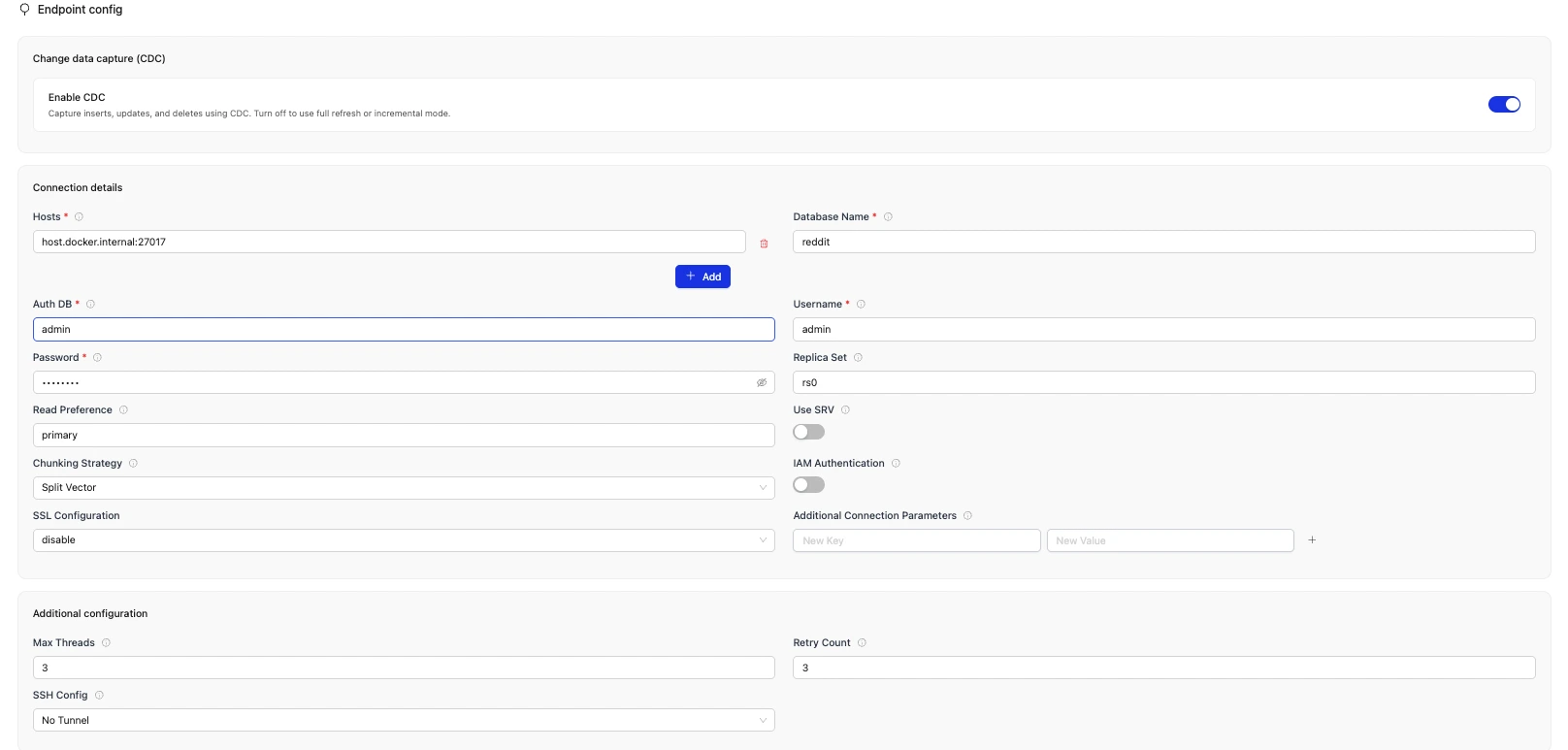
Change data capture (CDC)
| Field | Description | Example Value |
|---|---|---|
| Enable CDC | Enables change data capture to sync like inserts, updates, and deletes. When disabled, supports only Full Refresh and Incremental sync modes. | Enabled (default) |
Connection details
| Field | Description | Example Value |
|---|---|---|
Hosts required | List of MongoDB hosts. Use DNS SRV format if srv = true | x.xxx.xxx.120:27017, x.xxx.xxx.133:27017 (multiple hosts supported) |
Database Name required | Target MongoDB database name to replicate | my-db |
Auth DB required | Authentication database name. Optional when IAM Authentication is enabled. | admin-db |
Username required | MongoDB authentication username. Optional when IAM Authentication is enabled. | mongo-user |
Password required | MongoDB authentication password. Optional when IAM Authentication is enabled. | mongo-pwd |
| Replica Set | Name of the replica set (if applicable) | rs0 |
| Read Preference | MongoDB read preference setting | secondaryPreferred |
| Use SRV | Enable DNS SRV connection strings. When true, only one host allowed in hosts field | false |
| Chunking Strategy | Data chunking strategy: timestamp, splitVector. Defaults to splitVector if empty | splitVector |
| IAM Authentication | Turn on to use IAM credentials stored in host machine instead of Username and Password | off |
| Additional Connection Parameters | Additional MongoDB connection string parameters (e.g., authMechanism).Each parameter will be added to the connection URI | authMechanism=SCRAM-SHA-256 |
| SSL Mode | Defines whether the connection to the database is encrypted over TLS/SSL. Needed to meet security requirements and connect to databases that do not allow plain-text traffic. |
|
Additional configuration
| Field | Description | Example Value |
|---|---|---|
| Max Threads | Maximum parallel threads for chunk-based snapshotting | 3 |
| Retry Count | Number of retry attempts with exponential backoff. | 3 |
| SSH Config | Configure OLake Go to connect through an SSH tunnel. |
|
3. Test Connection
-
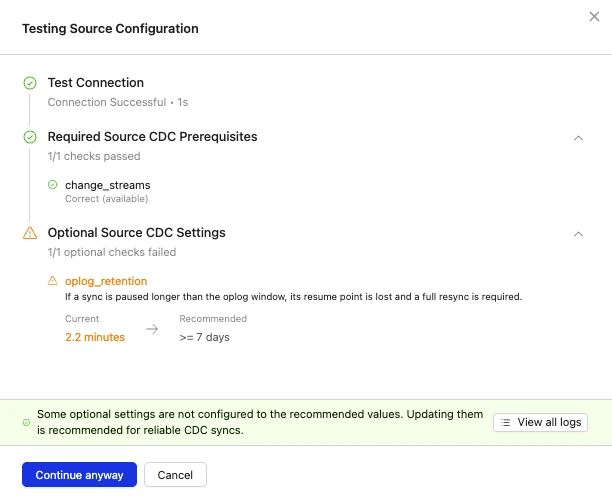
Click Set up source to validate the configuration. The test performs three checks:
-
Connection validation: Verifies that OLake Go can reach the MongoDB deployment using the provided hosts, credentials, SSL settings, and other connection options.
-
Required CDC prerequisites validation (when CDC is enabled): Evaluates required server-side settings to ensure reliable CDC operation:
change_streams: Change streams must be available
-
Optional CDC prerequisites validation (when CDC is enabled): Evaluates optional server-side settings:
oplog_retention: Oplog retention must be sufficient for expected sync pauses
-
-
If any required check fails, the test connection will show the current and recommended values. Fix the server-side settings and retry the connection.
-
If any optional check fails, the test connection will show the current and recommended values. You can fix the server-side settings and retry, or continue and create the source without making changes.
-
If all checks pass, the MongoDB source is created successfully. Jobs can then be configured using this source.
-
In case of connection failure, refer to the Troubleshooting section.
1. Create Configuration File
- Once the OLake CLI is setup, create a folder to store configuration files such as
source.jsonanddestination.json.
2. Provide Configuration Details
An example source.json file will look like this:
{
  "hosts": ["host1:27017", "host2:27017", "host3:27017"],
  "username": "your_username",
  "password": "your_password",
  "authdb": "admin",
  "replica_set": "rs0",
  "read_preference": "secondaryPreferred",
  "srv": false,
  "database": "your_db",
  "ssl": {
        "mode": "disable"
  },
  "use_iam": false,
  "chunking_strategy": "",
  "max_threads": 3,
  "backoff_retry_count": 3,
  "update_method": {
    "type": "CDC"
  },
  "ssh_config": {
        "host": "my-tunnel-host",
        "port": 22,
        "username": "my-tunnel-user",
        "password": "tunnel-password"
    }
}
| Field | Description | Example Value | Type |
|---|---|---|---|
hosts required | List of MongoDB hosts. Use DNS SRV format if srv = true | ["x.xxx.xxx.120:27017", "x.xxx.xxx.133:27017"] | STRING [] |
username required | MongoDB authentication username. Optional when use_iam is set to true. | "mongo-user" | STRING |
password required | MongoDB authentication password. Optional when use_iam is set to true. | "mongo-pwd" | STRING |
authdb required | Authentication database name. Optional when use_iam is set to true. | "admin-db" | STRING |
| replica_set | Name of the replica set (if applicable) | "rs0" | STRING |
| read_preference | MongoDB read preference setting | "secondaryPreferred" | STRING |
| srv | Enable DNS SRV connection strings. When true, only one host allowed in hosts field | false | BOOLEAN |
database required | Target MongoDB database name to replicate | "my-db" | STRING |
update_method required | Configures how OLake Go captures changes from MongoDB. |
| OBJECT |
| max_threads | Maximum parallel threads for chunk-based snapshotting | 3 | INTEGER |
| backoff_retry_count | Number of retry attempts with exponential backoff. | 3 | INTEGER |
| chunking_strategy | Data chunking strategy: timestamp, splitVector. Defaults to splitVector | "splitVector" | STRING |
| use_iam | Use IAM credentials stored in host machine instead of username and pasword | false | BOOLEAN |
| additional_params | Additional MongoDB connection string parameters (e.g., authMechanism).Each parameter will be added to the connection URI | authMechanism=SCRAM-SHA-256 | DICTIONARY |
| ssh_config | Configure OLake Go to connect through an SSH tunnel. | {"host": "my-tunnel-host", "port": 22 , "username": "my-tunnel-user", "password": "tunnel-password"} | OBJECT |
| ssl* | Defines whether the connection to the database is encrypted over TLS/SSL. Needed to meet security requirements and connect to databases that do not allow plain-text traffic. |
| OBJECT |
* See SSL Mode Details below for supported modes and example configurations. The following SSL modes are supported: No TLS/SSL encryption. Suitable for databases that allow plain-text connections. Example Configuration: Encrypted connection without certificate verification. Example Configuration: Encrypted connection with CA certificate verification. Example Configuration: Encrypted connection with CA and hostname verification. Example Configuration: SSL Mode Details
SSL Mode
1. Disable
disable2. Require
require3. Verify-CA
verify-caserver_caclient_cert, client_key4. Verify-Full
verify-fullserver_caclient_cert, client_key
Similarly, destination.json file can be created inside this folder. For more information, see destination documentation.
3. Check Source Connection
To verify the database connection following command needs to be run:
docker run --pull=always \
-v "[PATH_OF_CONFIG_FOLDER]:/mnt/config" \
olakego/source-mongodb:latest \
check \
--config /mnt/config/source.json
-
The
checkcommand runs three validations:-
Connection validation: Verifies that OLake Go can reach the MongoDB deployment using the settings in
source.json(hosts, credentials, SSL, and related connection options). -
Required CDC prerequisites validation (when CDC is configured via
update_method): Evaluates required server-side settings to ensure reliable CDC operation:change_streams: Change streams must be available
-
Optional CDC prerequisites validation (when CDC is configured via
update_method): Evaluates optional server-side settings:oplog_retention: Oplog retention must be sufficient for expected sync pauses
-
-
If connection validation and all required checks pass, OLake Go returns a connection status payload that includes each prerequisite check and
status: SUCCEEDED. For example:json{"connectionStatus": {"prerequisites": [{"current_value": "1.2 minutes","description": "If a sync is paused longer than the oplog window, its resume point is lost and a full resync is required.","name": "oplog_retention","passed": false,"recommended_value": ">= 7 days","required": false},{"current_value": "available","description": "OLake cannot open a change stream, so CDC cannot run.","name": "change_streams","passed": true,"recommended_value": "replica set or sharded cluster, read role on the database","required": true}],"status": "SUCCEEDED"},"type": "CONNECTION_STATUS"} -
If a required CDC prerequisite check fails, the response includes the current and recommended values for the failing settings. Update the server configuration and run
checkagain. -
If an optional CDC prerequisite check fails, the response includes the current and recommended values for the failing settings. You can update the server configuration and run
checkagain, or proceed to create the source without making changes. -
In case of connection failure, refer to the Troubleshooting section.
Data Type Mapping
| MongoDB Data Types | Destination Data Type |
|---|---|
| int, timestamp | int |
| long | bigint |
| double | double |
| boolean | boolean |
| date | timestamptz |
| string, object, objectId, binData (binary), code, regex (BSONRegExp), decimal128, maxKey, minKey, array, undefined | string |
OLake Go always ingests timestamp data in UTC format, independent of the source timezone.
Date and Time Handling
During transfer, values in date, time, and timestamp columns are modified to ensure valid calendar ranges and destination compatibility.
- Case I (Year 0000):
Source dates with year0000are not valid in most destinations, so we change them to the epoch start date.
Example:0000-05-10 → 1970-01-01 - Case II (Year > 9999):
Extremely large years are capped at9999. The month and date are not affected.
Examples:10000-03-12 → 9999-03-12 - Case III (Invalid month/day):
When the month or day exceeds valid ranges (i.e. month > 12 or day > 31), or the combined date is invalid, the value is replaced with the epoch start date.
Examples:2024-13-15 → 1970-01-01,2023-04-31 → 1970-01-01
These rules apply to date, time, and timestamp columns during transfer.
Troubleshooting
1. Connection Failed (UI/CLI):
Cause: Wrong host/port, MongoDB not running.
Solution: Check the port number entered is correct and MongoDB is up and accessible.
2. CDC Not Working:
Cause: MongoDB not in replica set / oplog not accessible
Solution: Verify replica set is active by running rs.status()
3. File not found (CLI):
Cause: Not in correct directory while running commands
Solution: Make sure both source.json is present in correct directory and the commands are executed while inside the directory
4. file name too long & FATAL error occurred while reading records: failed to finish backfill chunk 381: main writer closed:
Cause: The generated file or directory name exceeded the Linux limit of 255 bytes (often happens when partitioning on very long string values).
2025-02-17T07:03:00Z ERROR main writer closed, with error: failed to create parititon file: failed to create directories[output/otter_db/stream_8/H.
Solution: The max filename length is 255 bytes and this error shows that you have excceded that limit for file creation (might happen if you partion based on STRING field that contain values that are too large). Usually in a linux system, these limits are defined at:
cat /usr/include/linux/limits.h

...
#define NAME_MAX         255    /* # chars in a file name */
#define PATH_MAX        4096    /* # chars in a path name including nul */
...
Changelog
| Date of Release | Version | Description |
|---|---|---|
| Aug 27, 2025 | v0.1.11 | override default timeout in Discover |