Configuring Table Cleanup
Cleanup in OLake Fusion removes old snapshots from an Iceberg table's history. Snapshot expiry is the only cleanup action available right now.
The current snapshot is never expired, only the snapshot history is trimmed.
Cleanup needs these versions or newer:
- OLake UI v0.9.2 and above
- OLake Fusion v0.2.1 and above
Cleanup Settings
| Setting | What it does | Default |
|---|---|---|
| Remove snapshots older than | Snapshots older than this period are expired on each cleanup run. Set the period in Days, Hours or Minutes. | 7 days |
| Minimum snapshots to keep | Cleanup never drops below this many snapshots, even if they are older than the limit. The newest snapshots are the ones that are preserved. The value must be 10 or more. | 30 |
| Cleanup Cron | How often cleanup runs. Pick a predefined frequency or choose Custom to enter your own cron expression. | Every 12 hours |
1. Table Level Configuration
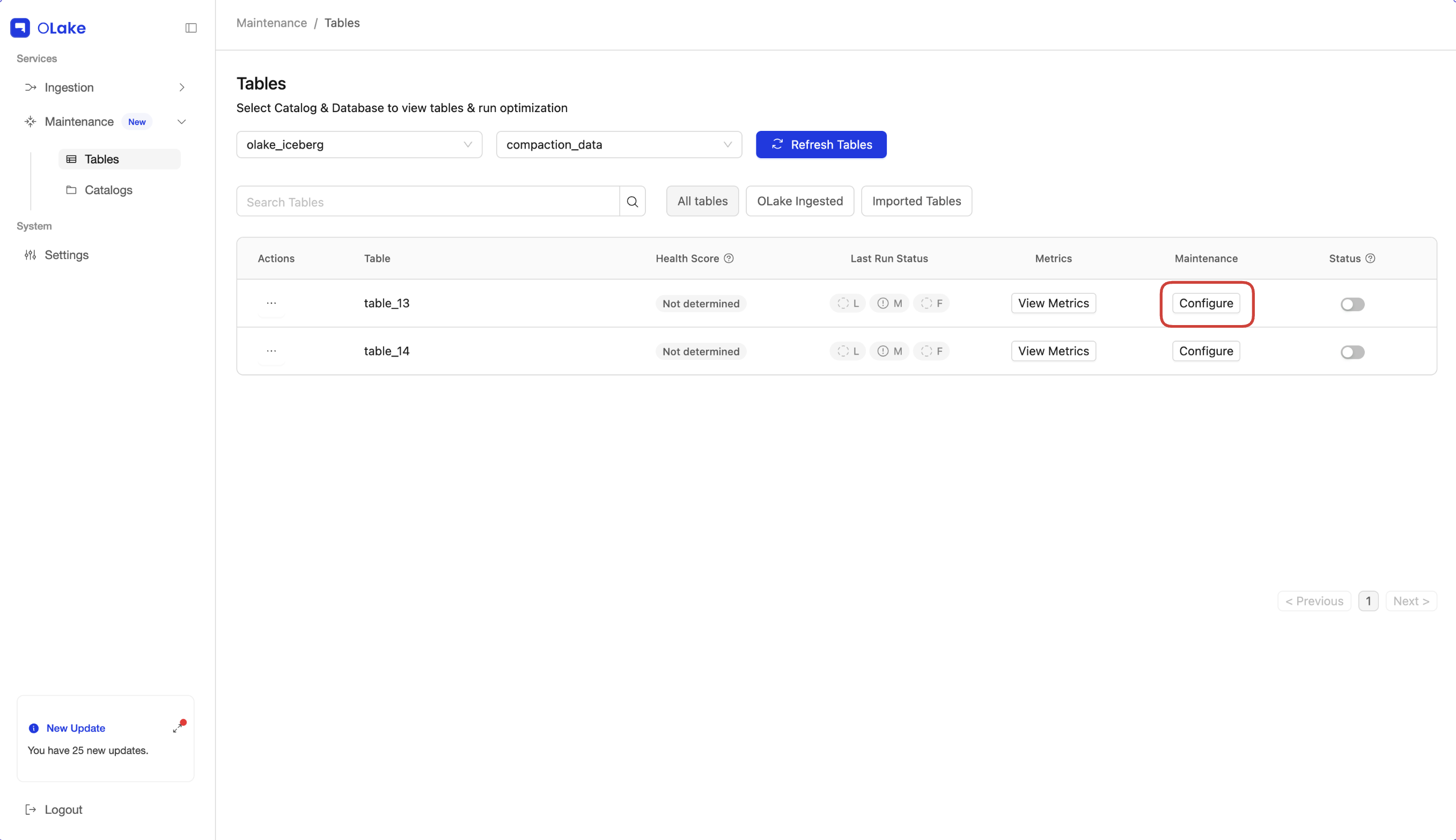
Step 1. Click the Configure Button
Click the Configure button next to the table you want to clean up. This opens the Configure Optimization modal.
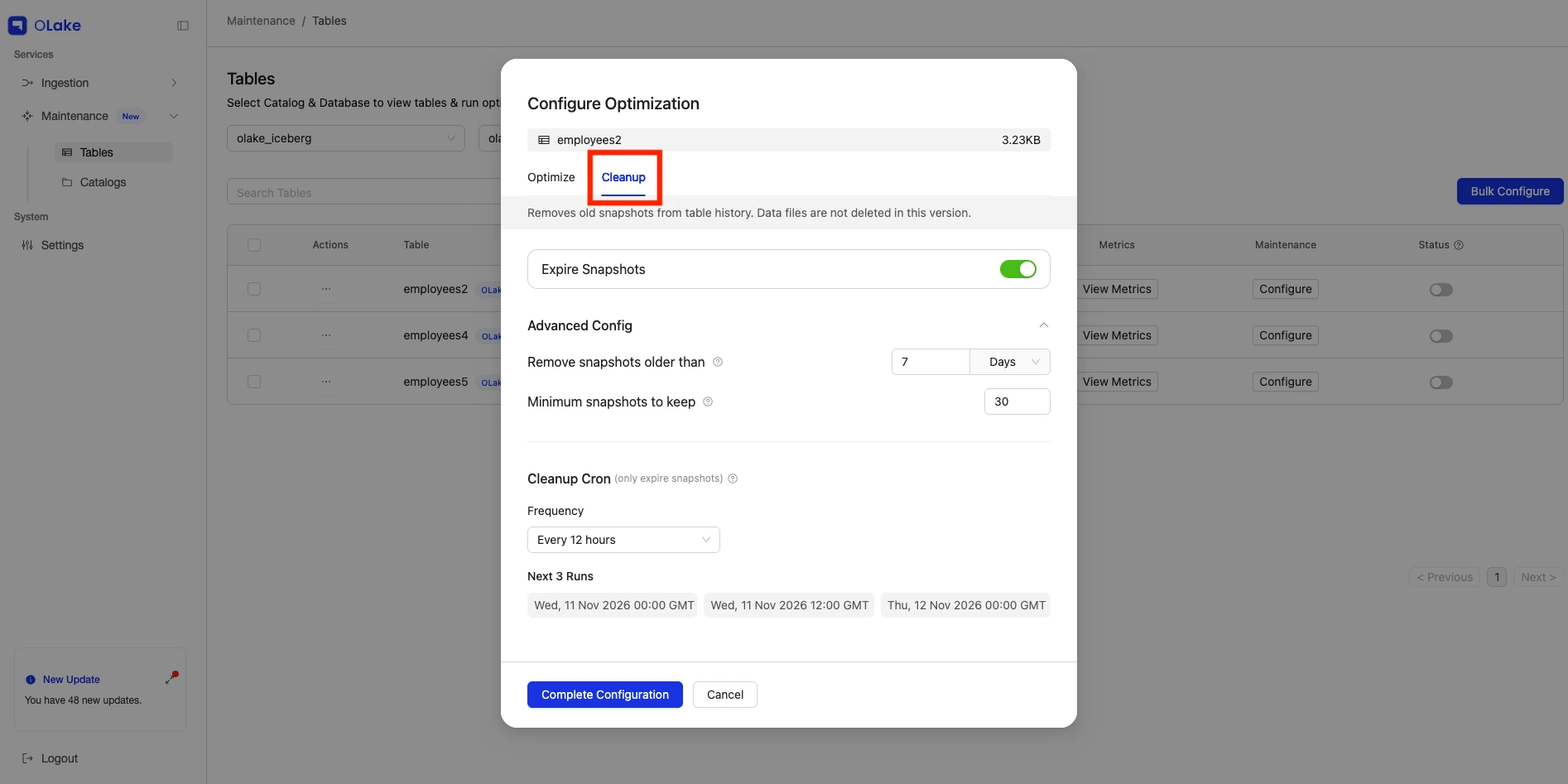
Step 2. Open the Cleanup Tab
- Select the Cleanup tab.
- Make sure the Expire Snapshots toggle is on.
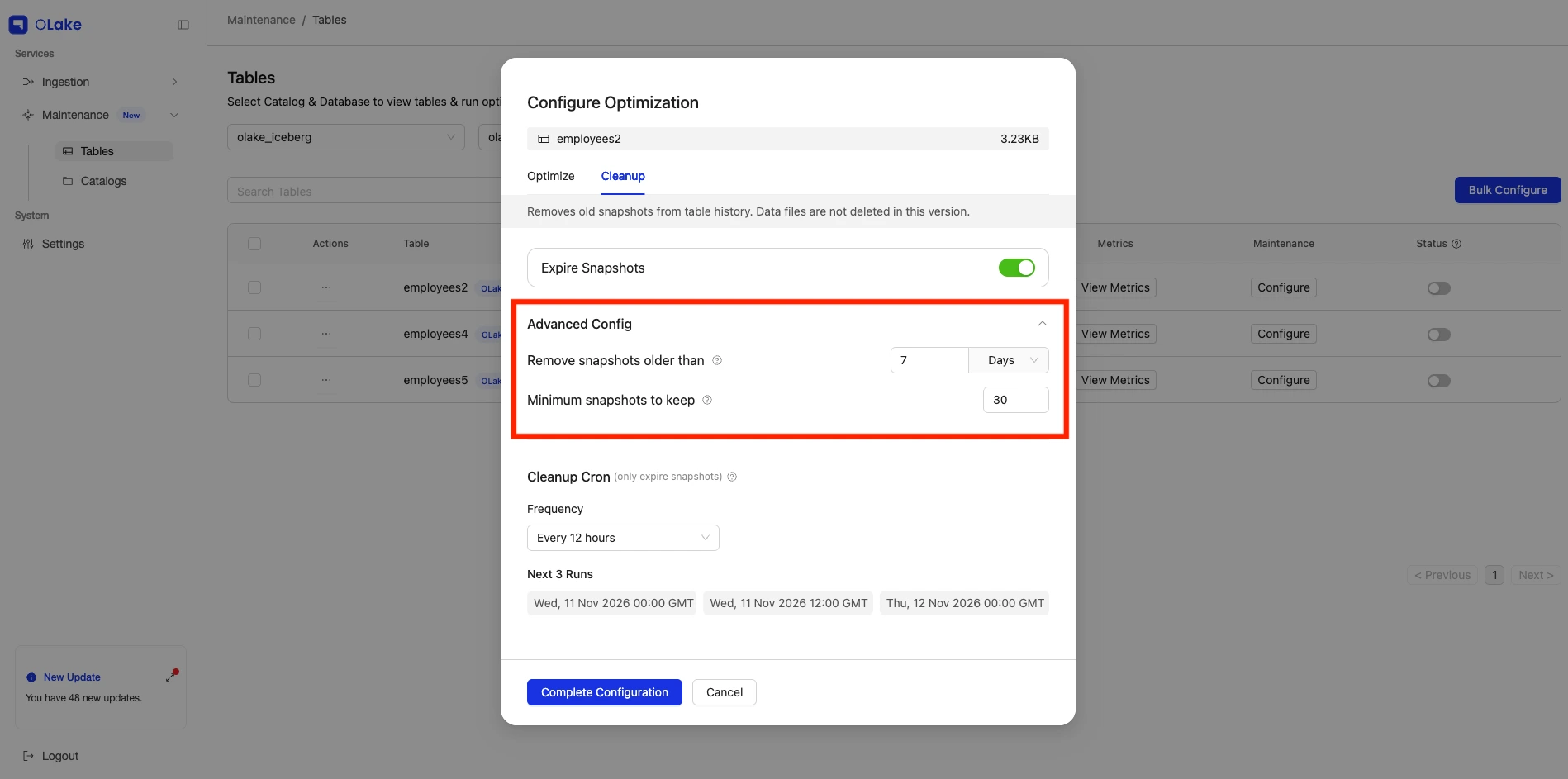
Step 3. Advanced Config: Snapshot Retention
- Expand the Advanced Config panel.
- Set Remove snapshots older than and pick the unit (Days, Hours or Minutes).
- Set Minimum snapshots to keep. Fusion requires at least 10.
Step 4. Set the Cleanup Cron
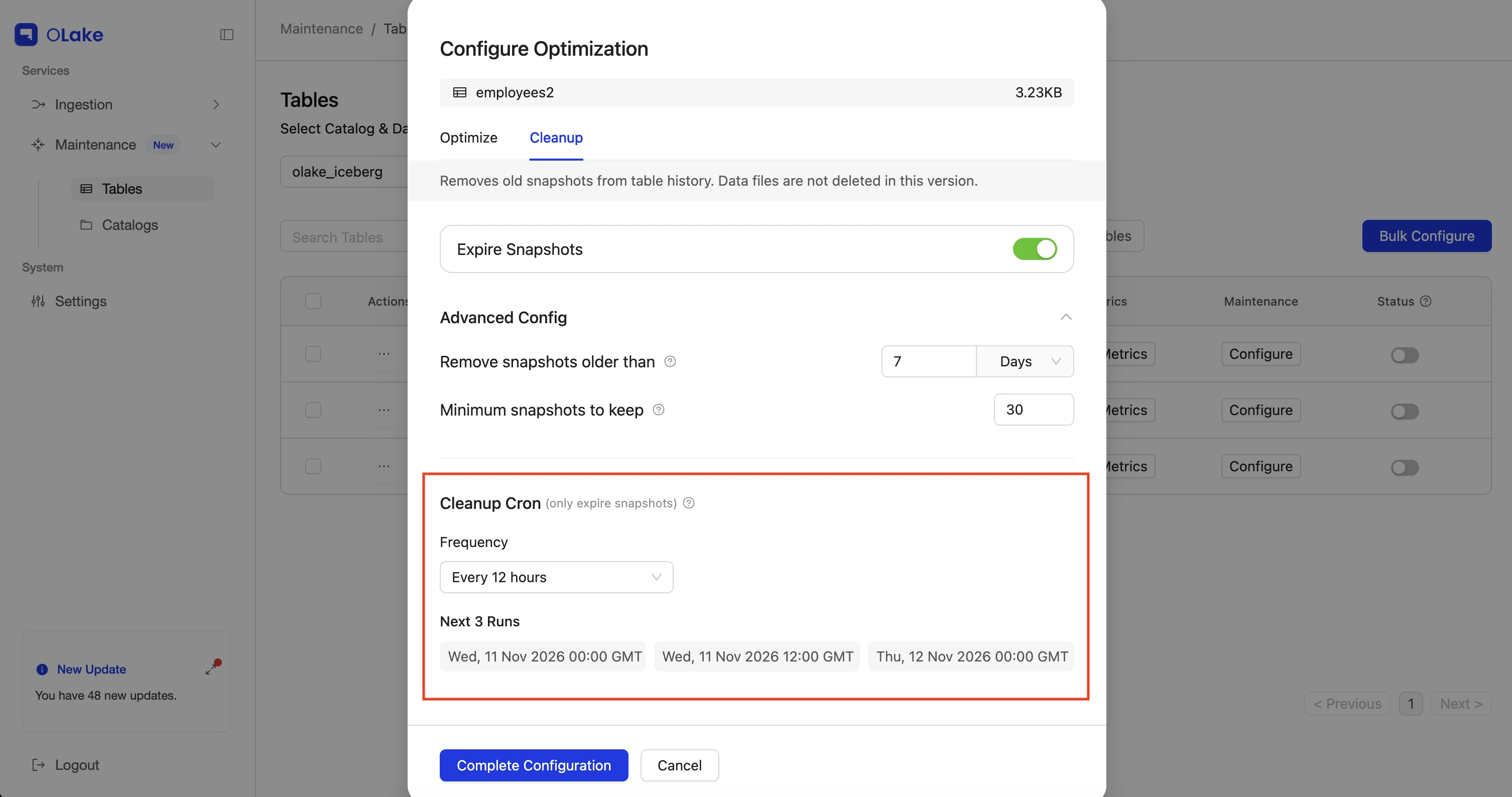
- Under Cleanup Cron, select a Frequency from the dropdown, or choose Custom to enter your own cron expression.
- The modal shows the Next 3 Runs so you can check the schedule before saving.
Step 5. Save the Configuration
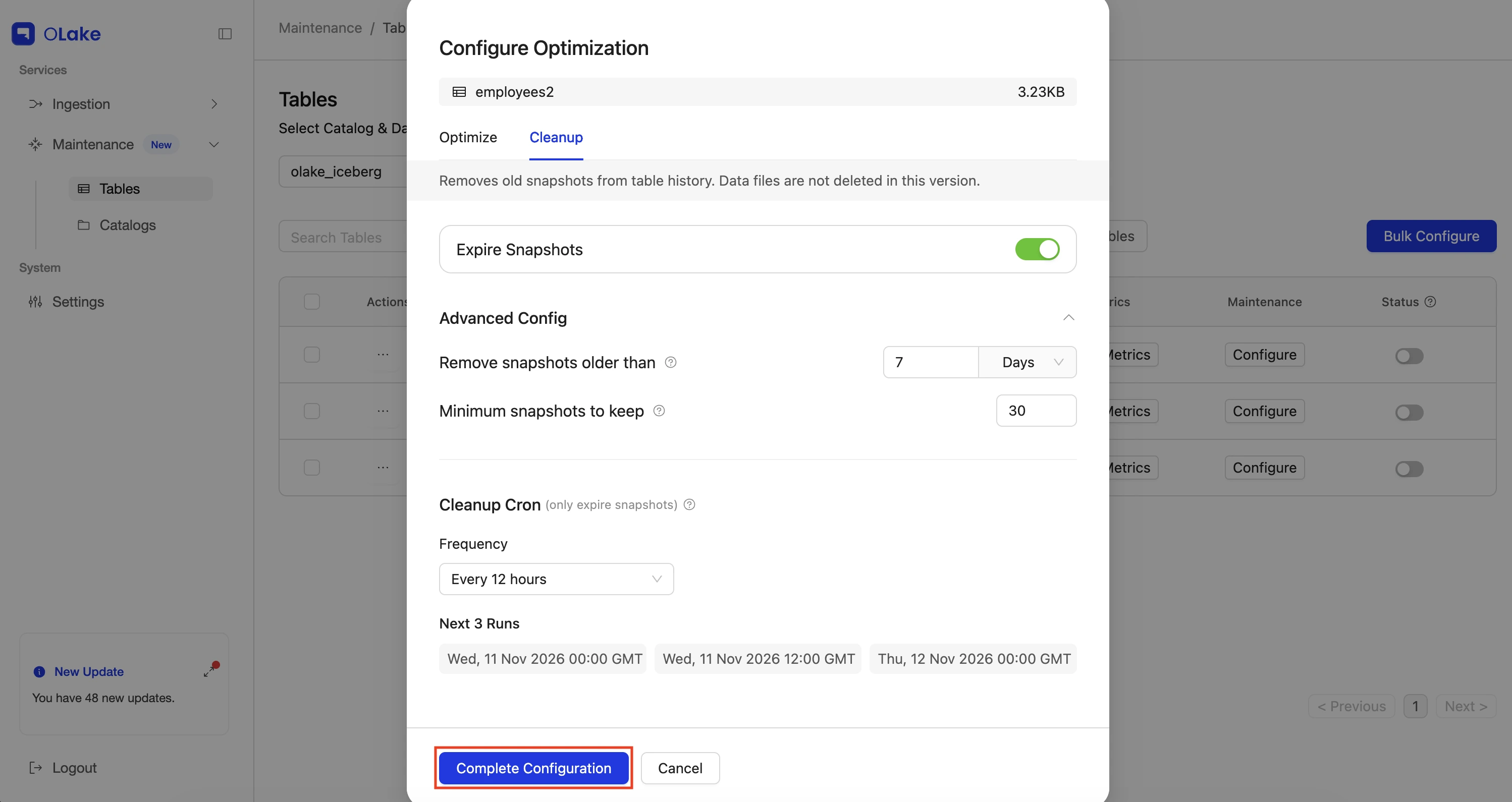
- Click Complete Configuration.
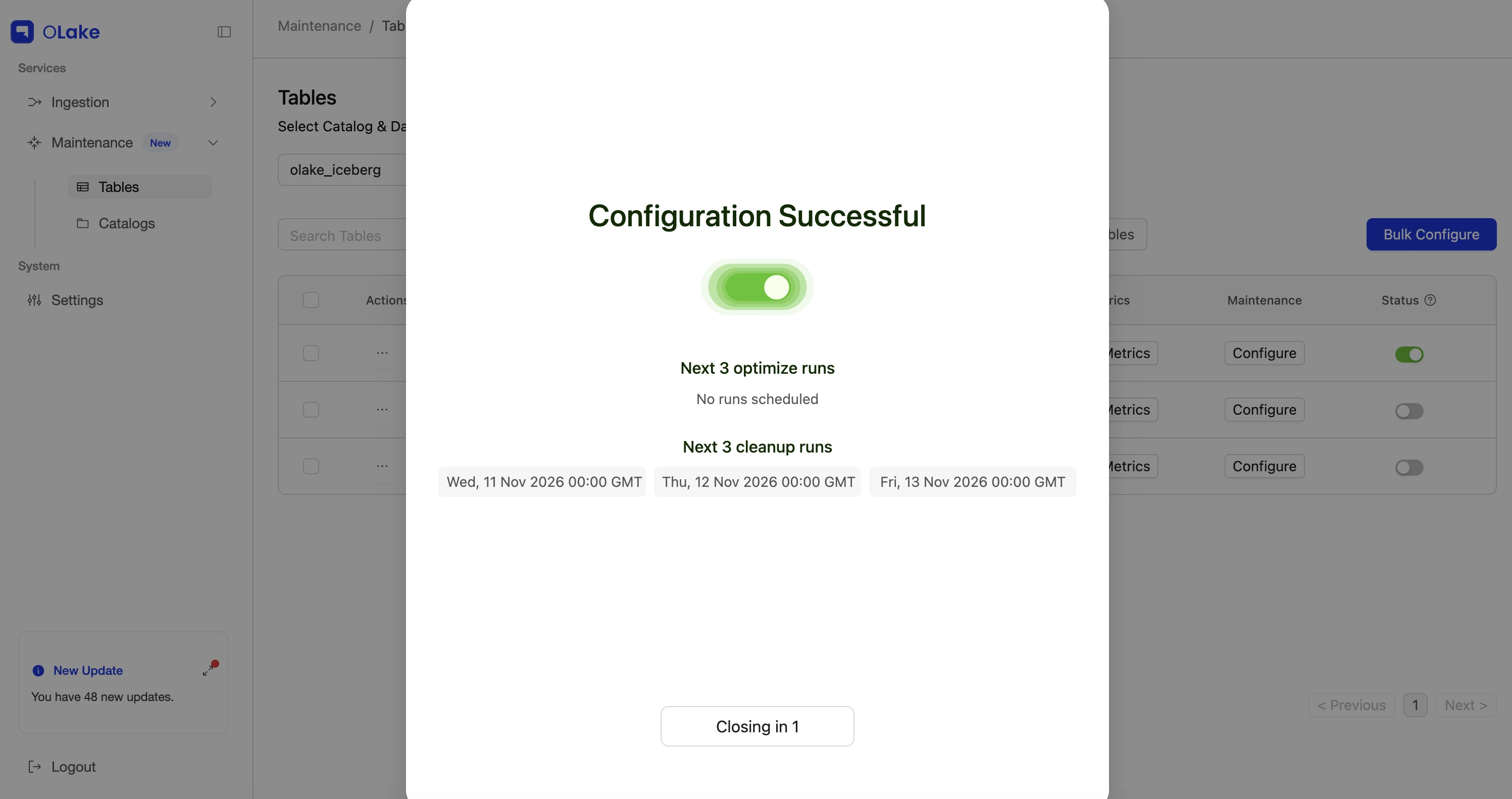
- A dialog box confirms that the configuration was successful.
- Once saved, the Status toggle for that table turns on automatically and cleanup runs on the schedule you configured. Confirm this in the Status column as the toggle should appear active.
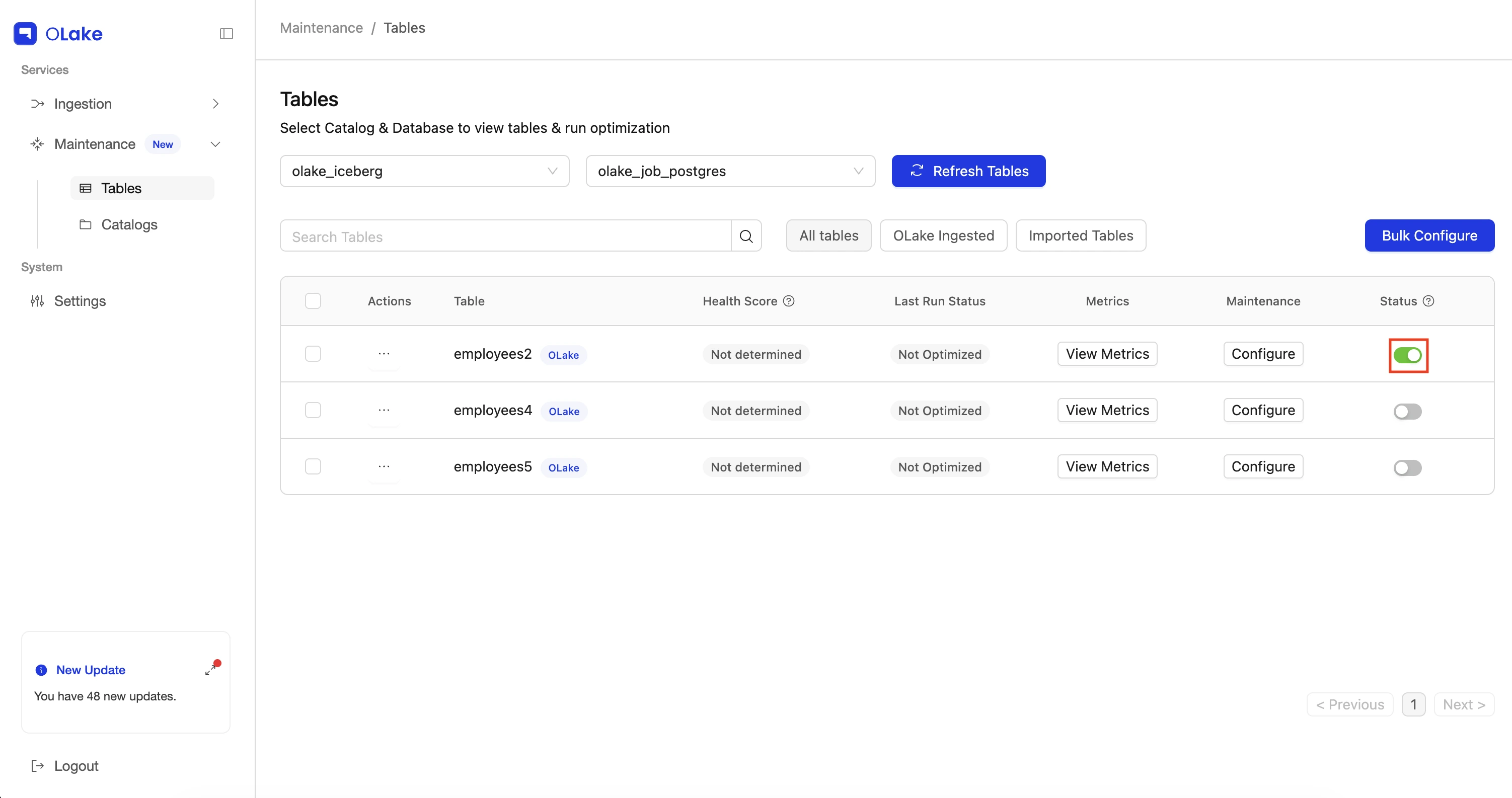
The Status toggle on the Tables page is on when either cleanup or compaction is on for that table. It does not show which one.
To check whether cleanup is on, click Configure and look at the Expire Snapshots toggle on the Cleanup tab.
2. Bulk Configuration
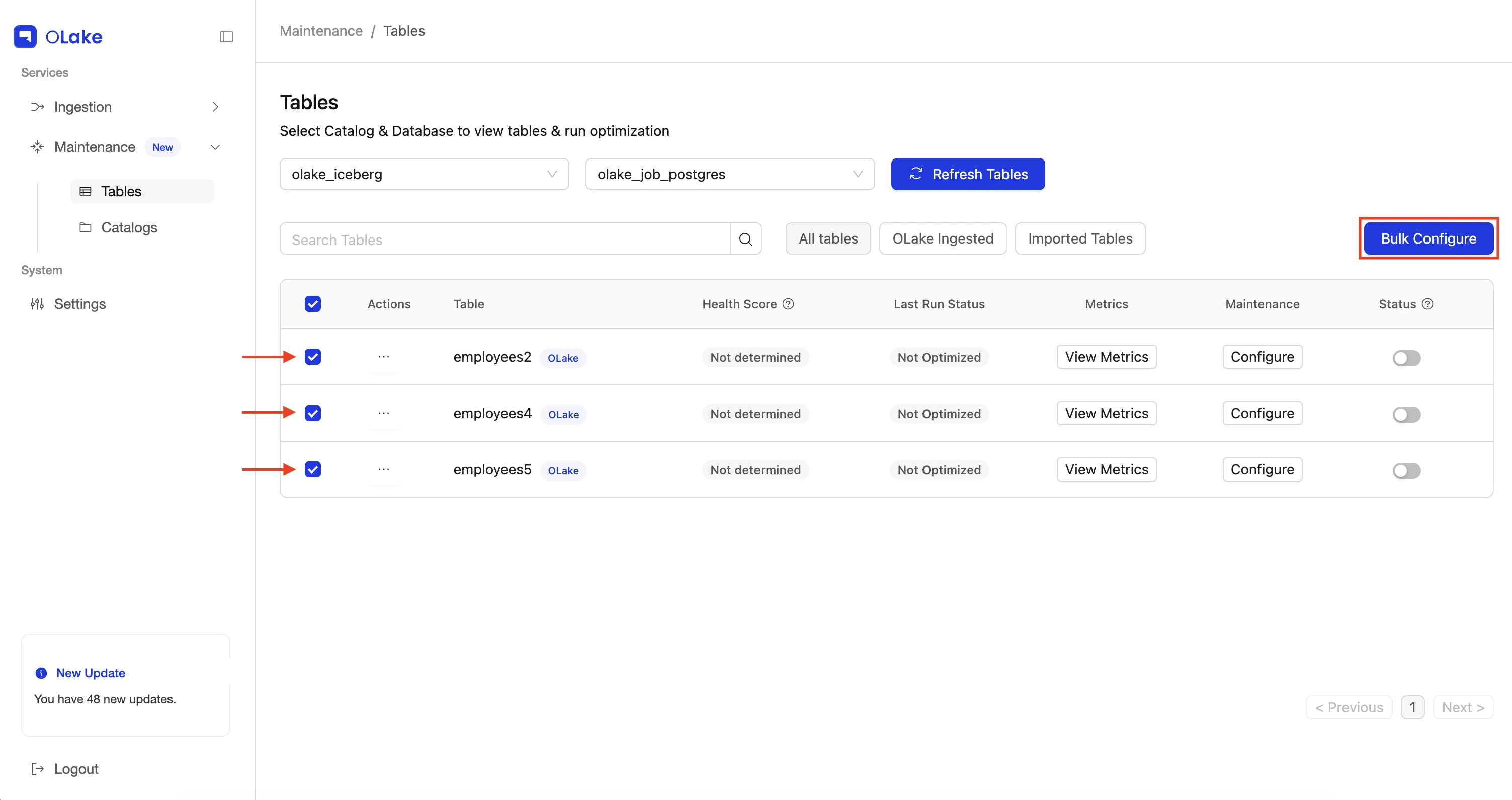
Bulk configuration applies the same cleanup settings to many tables in one go, instead of configuring each table individually.
Select the tables you want to configure from the Tables page using their checkboxes, then click Bulk Configure. In the modal that opens, select the Cleanup tab and follow Steps 2 to 5 of Single Table Configuration.