OLake Fusion Kubernetes Installation with Helm
This guide details the process for deploying OLake ingestion and Fusion maintenance together on Kubernetes using the official Helm chart. Fusion is installed alongside the core OLake ingestion stack and provides Iceberg table maintenance and ingestion services.
To use Fusion, please ensure the following minimum versions are met:
- If the installed OLake Helm chart is older than
olake-0.0.15(orv0.3.4), upgrade to the latest version. See Upgrading Chart Version for instructions. - If the installed OLake UI version is older than
v0.4.0, upgrade to the latest version. See Updating OLake UI Version for instructions.
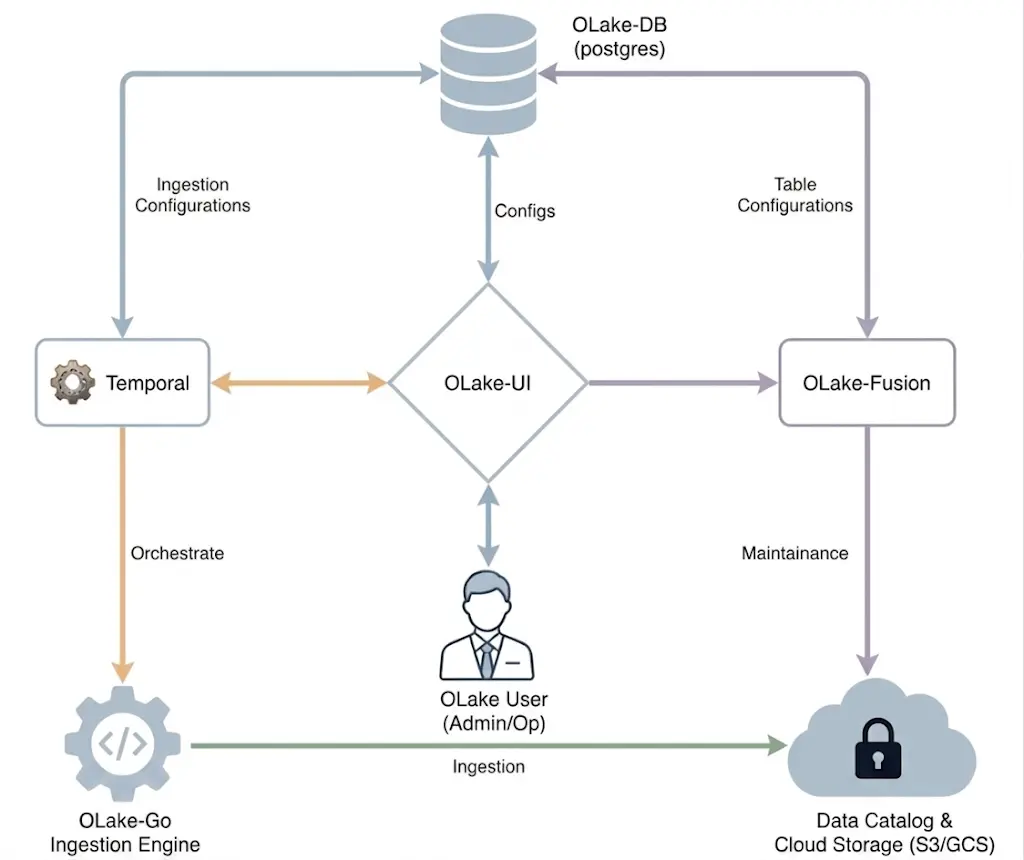
Components & Architecture
- OLake UI: Main web interface for job management and configuration
- OLake Worker: Background worker for processing data replication jobs
- PostgreSQL: Primary database for storing job data, configurations, sync state, and Temporal visibility data
- Temporal: Workflow orchestration engine for managing job execution
- Signup Init: One-time initialization service that creates the default admin user
- Fusion: Maintenance control plane and API server
- Fusion Spark Optimizer: Spark-on-Kubernetes execution layer for Maintenance jobs. It runs as a Kubernetes Deployment and Kubernetes recreates it if it stops
Prerequisites
Ensure the following requirements are met before proceeding:
-
Kubernetes 1.19+: Administrative access to a Kubernetes cluster
-
Helm 3.2.0+: Helm client installed and configured. Installation Guide
-
kubectl: Configured
kubectlcommand-line tool. Installation Guide -
StorageClass: A StorageClass is required by the chart to provision persistent volumes for PostgreSQL and the shared storage volume
bash# List available StorageClasskubectl get storageclass -
System Requirements: Minimum resources per workload:
Component RAM vCPU OLake UI 4 GB 2 Temporal 4 GB 2 OLake Worker 4 GB 2 PostgreSQL 4 GB 2 Sync pod (OLake Go) 8 GB 4 Fusion AMS 8 GB 4 Optimizer 1 GB — Spark executor 4 GB —
Sync pod sizing depends on the data volume to be synced. Use JobID-Based Scheduling to map jobs to nodes with sufficient capacity.
tipNode-class suggestions
OLake will run on mixed capacity, but scheduling the components below on stable, non-preemptible (on-demand) nodes lowers the chance of spot or preemptible churn interrupting core services and compaction work:
- nfs-server (if enabled)
- PostgreSQL (if enabled)
- Temporal
- OLake workers
- OLake UI
- Fusion and Spark optimizer workloads
Quick Start
1. Add OLake Helm Repository
helm repo add olake https://datazip-inc.github.io/olake-helm
helm repo update
2. Install the Chart
- AWS EKS
- Others
Ingestion + Maintenance:
helm install olake olake/olake --set global.storageClass="gp2" --set fusion.enabled=true
Ingestion + Maintenance:
helm install olake olake/olake --set fusion.enabled=true
3. Access OLake UI
Forward the UI service port to local machine:
kubectl port-forward svc/olake-ui 8000:8000
Open browser and navigate to: http://localhost:8000
Default Credentials:
- Username:
admin - Password:
password
If OLake is installed with Ingress enabled, port-forwarding is not necessary. Access the application using the configured Ingress hostname.
With Fusion enabled, follow Configure your first compaction for step-by-step guidance on adding catalogs and scheduling maintenance on the Iceberg tables in the OLake UI.
Configuration Options
Customizing Fusion Spark Optimizer Configuration
The Fusion Spark optimizer can be customized by providing additional Spark configurations via fusion.optimizer.spark.extraConfig. These entries are added to the optimizer's Spark configuration and apply to the optimizer pod and to its executors.
For example, to set spark.sql.shuffle.partitions and give the optimizer pod more memory:
fusion:
  optimizer:
    resources:
      requests:
        # Memory Kubernetes reserves for the optimizer pod.
        # The pod is scheduled only on a node with at least this much memory free. Reservation, not a limit.
        memory: "3Gi"
    spark:
      extraConfig:
        spark.sql.shuffle.partitions: "200"
        # Heap size of the Spark driver, which runs inside the optimizer pod.
        spark.driver.memory: "2g"
fusion.optimizer.spark.properties is no longer used: the chart now sets how the optimizer is launched.
Refer to the Spark documentation for a comprehensive list of configurable properties for Spark containers.
Compaction Scheduling
Configure fusion.nodeSelector, fusion.tolerations, and fusion.affinity in values.yaml to define scheduling behavior for compaction workloads.
These settings are applied to the Fusion pod, the optimizer pod and the Spark executor pods the optimizer creates. The following example shows the expected values structure:
fusion:
  nodeSelector:
    workload: "fusion"
  tolerations: []
  affinity: {}
Updating OLake UI Version
Pull the latest images and restart the deployments without downtime:
# Restart OLake components
kubectl rollout restart deployment/olake-ui
kubectl rollout restart deployment/olake-workers

# Restart Fusion and its optimizer. The optimizer is a separate Deployment:
# restarting only Fusion leaves the optimizer on its old image.
kubectl rollout restart deployment/olake-fusion
kubectl rollout restart deployment/olake-fusion-optimizer
Initial User Setup
Create a Kubernetes secret to replace default credentials:
kubectl create secret generic olake-admin-credentials \
  --from-literal=username='superadmin' \
  --from-literal=password='a-very-secure-password' \
  --from-literal=email='admin@mycompany.com'
Then configure in values.yaml:
olakeUI:
  initUser:
    existingSecret: "olake-admin-credentials"
    secretKeys:
      username: "username"
      password: "password"
      email: "email"
Apply the configuration:
helm upgrade olake olake/olake -f values.yaml --set fusion.enabled=true
Cloud IAM Integration
OLake Fusion's spark optimizer pods can be allowed to securely access cloud resources(AWS Glue or S3) using IAM roles.
global:
  jobServiceAccount:
    create: true
    name: "olake-job-sa"

    # Cloud provider IAM role associations
    annotations:
      # AWS IRSA
      eks.amazonaws.com/role-arn: "arn:aws:iam::123456789012:role/olake-job-role"

      # GCP Workload Identity
      iam.gke.io/gcp-service-account: "olake-job@project.iam.gserviceaccount.com"

      # Azure Workload Identity
      azure.workload.identity/client-id: "12345678-1234-1234-1234-123456789012"
Note: For detailed instructions on the creation of IAM roles and service accounts, the official documentation for AWS IRSA, GCP Workload Identity, or Azure Workload Identity should be referred to. For a minimal Glue and S3 IAM access policy please refer here.
Ingress Configuration
To expose OLake through an ingress controller, create a custom values file:
# values.yaml
olakeUI:
  ingress:
    enabled: true
    className: "nginx"
    hosts:
      - host: olake.example.com
        paths:
          - path: /
            pathType: Prefix
    tls:
      - secretName: olake-tls
        hosts:
          - olake.example.com
Fusion Compaction Scheduling
Fusion runs two kinds of pods with very different resource profiles:
- The Fusion pod and the optimizer pod — a lightweight, always-on orchestrator.
- The executor pod(s) — created on-demand when compaction runs, and typically need much more memory/CPU (larger tables = bigger executors).
Running both on the same node pool means keeping a large node around even when compaction isn't active. To avoid that, the Fusion pod and optimizer can be scheduled independently from the executor pods:
fusion:
  nodeSelector:
    node-type: "olake-standard"
  tolerations:
    - key: "service"
      operator: "Equal"
      value: "olake"
      effect: "NoSchedule"
  affinity: {}

  optimizer:
    # If left empty, falls back to fusion.nodeSelector / tolerations / affinity above.
    nodeSelector: {}
    tolerations: []
    affinity: {}

    spark:
      executor:
        # If left empty, falls back to fusion.nodeSelector / tolerations / affinity above.
        nodeSelector:
          node-type: "olake-compaction-large"
        tolerations:
          - key: "compaction"
            operator: "Equal"
            value: "true"
            effect: "NoSchedule"
        affinity: {}
Persistent Storage Configuration
The OLake application components (UI, Worker, and Activity Pods) require a shared ReadWriteMany (RWX) volume for coordinating pipeline state and metadata.
For production, a robust, highly-available RWX-capable storage solution such as AWS EFS, GKE Filestore, or Azure Files must be used. This is achieved by disabling the built-in NFS server and providing an existing Kubernetes StorageClass that is backed by a managed storage service. An example for using StorageClass is given below:
nfsServer:
  # 1. The development NFS server is disabled
  enabled: false

  # 2. An existing ReadWriteMany PersistentVolumeClaim is specified
  external:
    storageClass: "efs-csi"
For development and quick starts, a simple NFS server is included and enabled by default. This provides an out-of-the-box shared storage solution without any external dependencies. However, because this server runs as a single pod, it represents a single point of failure and is not recommended for production use.
Bottlerocket OS on AWS EKS: The built-in NFS server is incompatible with Bottlerocket OS worker nodes. For such AWS EKS configurations, AWS EFS must be used as an alternative, which requires setting nfsServer.enabled: false and configuring the EFS CSI driver as shown above.
External PostgreSQL Configuration
External PostgreSQL databases can be used instead of the built-in postgresql deployment. It is the primary database for storing job data, configurations, and sync state.
Requirements:
- PostgreSQL 12+ with
btree_ginextension enabled - This can be enabled with
CREATE EXTENSION IF NOT EXISTS btree_gin;, then run\dxto verify if its enabled. - Separate OLake, Temporal and Fusion databases created on the PostgreSQL instance
- Network connectivity from Kubernetes cluster to PostgreSQL instance
There are two ways to configure an external PostgreSQL database:
Option 1: Using existingSecret
Reference a pre-existing Kubernetes Secret containing the database credentials. The secret must be created manually before installing the chart.
1. Create the database secret:
kubectl create secret generic external-postgres-secret \
  --from-literal=host="postgres-host" \
  --from-literal=port="5432" \
  --from-literal=olake_database="olakeDB" \
  --from-literal=temporal_database="temporalDB" \
  --from-literal=fusion_database="fusionDB" \
  --from-literal=username="username" \
  --from-literal=password="password" \
  --from-literal=ssl_mode="require"
2. Configure values.yaml:
postgresql:
  enabled: false
  external:
    existingSecret: "external-postgres-secret"
Option 2: Using properties (Recommended for ArgoCD/GitOps)
Specify the database connection details directly in values.yaml. The chart automatically creates a Kubernetes Secret from these values at template time. This approach is fully compatible with ArgoCD and other GitOps tools that use helm template for rendering.
postgresql:
  enabled: false
  external:
    properties:
      host: "postgres-host"
      port: 5432
      username: "username"
      password: "password"
      olake_database: "olakeDB"
      temporal_database: "temporalDB"
      fusion_database: "fusionDB"
      ssl_mode: "require"
Global Environment Variables
Environment variables defined in global.env are automatically propagated to OLake UI, OLake Workers, and Activity Pods:
global:
  env:
    OLAKE_SECRET_KEY: "your-secret-encryption-key"
    RUN_MODE: "production"
    # Add any custom environment variables here
Private Container Registry
OLake supports pulling all images from a private or self-hosted container registry.
Step 1 — Point OLake at the registry
Setting CONTAINER_REGISTRY_BASE in global.env causes every image reference in the chart to be automatically prefixed with that value — no per-image overrides are needed.
global:
  env:
    CONTAINER_REGISTRY_BASE: "registry.example.com/myproject"
The following images must be mirrored to the registry before deploying:
| Image | Source |
|---|---|
library/busybox:latest | Docker Hub |
curlimages/curl:8.1.2 | Docker Hub |
olakego/ui:latest, olakego/ui-worker:latest | Docker Hub |
olakego/source-* (e.g. olakego/source-mongodb:v0.7.0) | Docker Hub |
temporalio/auto-setup:1.22.3, temporalio/ui:2.16.2 | Docker Hub |
library/postgres:14-alpine | Docker Hub |
olakego/fusion:latest, olakego/fusion-spark:latest | Docker Hub |
sig-storage/nfs-provisioner:v4.0.8 | registry.k8s.io (built-in NFS only) |
Step 2 — Authenticate with the registry
If the registry requires credentials, a Kubernetes docker-registry secret must be created:
kubectl create secret docker-registry my-registry-secret \
  --docker-server=registry.example.com \
  --docker-username=<username> \
  --docker-password=<password>
The secret is then referenced in values.yaml:
global:
  imagePullSecrets:
    - name: my-registry-secret

  env:
    CONTAINER_REGISTRY_BASE: "registry.example.com/myproject"
- For cloud-managed registries (Amazon ECR, Google Artifact Registry, Azure ACR), IAM-based authentication (IRSA / Workload Identity) is preferred over static credentials. See Cloud IAM Integration.
Global Pod Annotations
Annotations defined in global.podAnnotations are applied to every pod managed by this chart — all Deployment pods (OLake UI, OLake Workers, PostgreSQL, Temporal, Elasticsearch, Fusion), Fusion Spark optimizer pods, and connector activity pods (sync, discover, check) spawned by olake-workers.
This is useful for service mesh sidecar injection (Istio, Linkerd) or any admission-webhook-based tooling that requires pod-level annotations.
global:
  podAnnotations:
    sidecar.istio.io/inject: "true"
    linkerd.io/inject: enabled
For OLake Go related configuration options that are not covered in this page, see the OLake Go Kubernetes installation guide.
Upgrading Chart Version
Currently ES Stack does not have an option to upgrade to maintenance Stack, To use maintenance feature upgrade legacy to latest stack first.
Upgrade to Latest Version
helm repo update
helm upgrade olake olake/olake --set fusion.enabled=true
Upgrade with New Configuration
helm upgrade olake olake/olake -f new-values.yaml --set fusion.enabled=true
For conflict free compaction of OLake-Ingested tables, upgrade OLake Go (Ingestion) driver version to v0.7.0 or higher.
Post-Upgrade: Resume Stopped Syncs
After upgrading, perform a rollout restart of the olake-workers:
kubectl rollout restart deployment/olake-workers
Troubleshooting
Check Pod Logs
# OLake UI logs
kubectl logs -l app.kubernetes.io/name=olake-ui -f

# Fusion logs
kubectl logs -l app.kubernetes.io/component=fusion -f

# Temporal server logs
kubectl logs -l app.kubernetes.io/name=temporal-server -f
Common Issues
Pods Stuck in Pending State:
- Check if your cluster has sufficient resources
- Check node selectors or affinity rules
- Verify StorageClass is available and configured correctly
Pods Stuck in CrashLoopBackOff State:
- If pod logs show error like
failed to ping database, check theDatabase Connection Issuessection below - If pod restarts and goes into CrashLoopBackOff state, check for the resource requests and limits defined in Helm Values file
- If pod events show error like
failed to mount volume, check if the nfs-server pod is up and running
Database Connection Issues:
- Verify PostgreSQL pod is running:
kubectl get pods -l app.kubernetes.io/name=postgresql - In case, setup is done with External PostgreSQL Configuration, check the following:
- Check if the host is pointing to Writer instance and not a Reader of the database
- Check if password contains special characters like
@or#etc. If yes, use a different password - Check if
ssl_modeis correctly set in the kubernetes secret for external database
- Check database connectivity from other pods
- Review database credentials in secrets
Migration Guides
Migrating to v0.0.12
When upgrading from a previous version, the olake-signup-init Job must be deleted before running helm upgrade. Kubernetes does not allow modifications to a Job's pod template, and the updated image references in this version will cause the upgrade to fail.
kubectl delete job olake-signup-init -n olake
helm upgrade olake olake/olake --set fusion.enabled=true
Migrating to v0.0.7 (Standard Resources)
Version 0.0.7 introduced a significant change to how ServiceAccount, RBAC, and Secret resources are managed. By default, useStandardResources is now set to true, which converts these from Helm Hooks to standard resources. This improved compatibility with ArgoCD and prevents race conditions during updates.
For New Installations:
No action needed. The new default (true) is the recommended configuration.
For Existing Installations:
Upgrading directly may cause resource already exists errors because Helm tries to adopt resources that were previously created by hooks.
Option 1: Maintain Legacy Behavior (Easiest)
Set the flag to false in custom values.yaml to keep the old hook-based behavior:
useStandardResources: false
Option 2: Migrate to Standard Resources (Recommended) To adopt the new behavior, manually remove the hook annotations and label the resources for Helm adoption before upgrading:
# 1. ServiceAccount
kubectl annotate serviceaccount olake-workers meta.helm.sh/release-name=olake meta.helm.sh/release-namespace=olake helm.sh/hook- helm.sh/hook-weight- helm.sh/hook-delete-policy- -n olake --overwrite
kubectl label serviceaccount olake-workers app.kubernetes.io/managed-by=Helm -n olake --overwrite

# 2. Role
kubectl annotate role olake-workers meta.helm.sh/release-name=olake meta.helm.sh/release-namespace=olake helm.sh/hook- helm.sh/hook-weight- helm.sh/hook-delete-policy- -n olake --overwrite
kubectl label role olake-workers app.kubernetes.io/managed-by=Helm -n olake --overwrite

# 3. RoleBinding
kubectl annotate rolebinding olake-workers meta.helm.sh/release-name=olake meta.helm.sh/release-namespace=olake helm.sh/hook- helm.sh/hook-weight- helm.sh/hook-delete-policy- -n olake --overwrite
kubectl label rolebinding olake-workers app.kubernetes.io/managed-by=Helm -n olake --overwrite

# 4. Secret
kubectl annotate secret olake-workers-secret meta.helm.sh/release-name=olake meta.helm.sh/release-namespace=olake helm.sh/hook- helm.sh/hook-weight- helm.sh/hook-delete-policy- -n olake --overwrite
kubectl label secret olake-workers-secret app.kubernetes.io/managed-by=Helm -n olake --overwrite

# 5. Perform the upgrade
helm upgrade olake olake/olake --set fusion.enabled=true