Job Level Features
Once your job is created in OLake Go, you can manage and control it using various job-level features available through the Actions menu (⋮) on the Jobs page. These features allow you to trigger immediate syncs, modify stream configurations, pause or cancel running jobs, reset destination data, monitor sync history, and adjust job settings. This guide covers all the job-level operations you can perform to manage your data pipelines effectively.
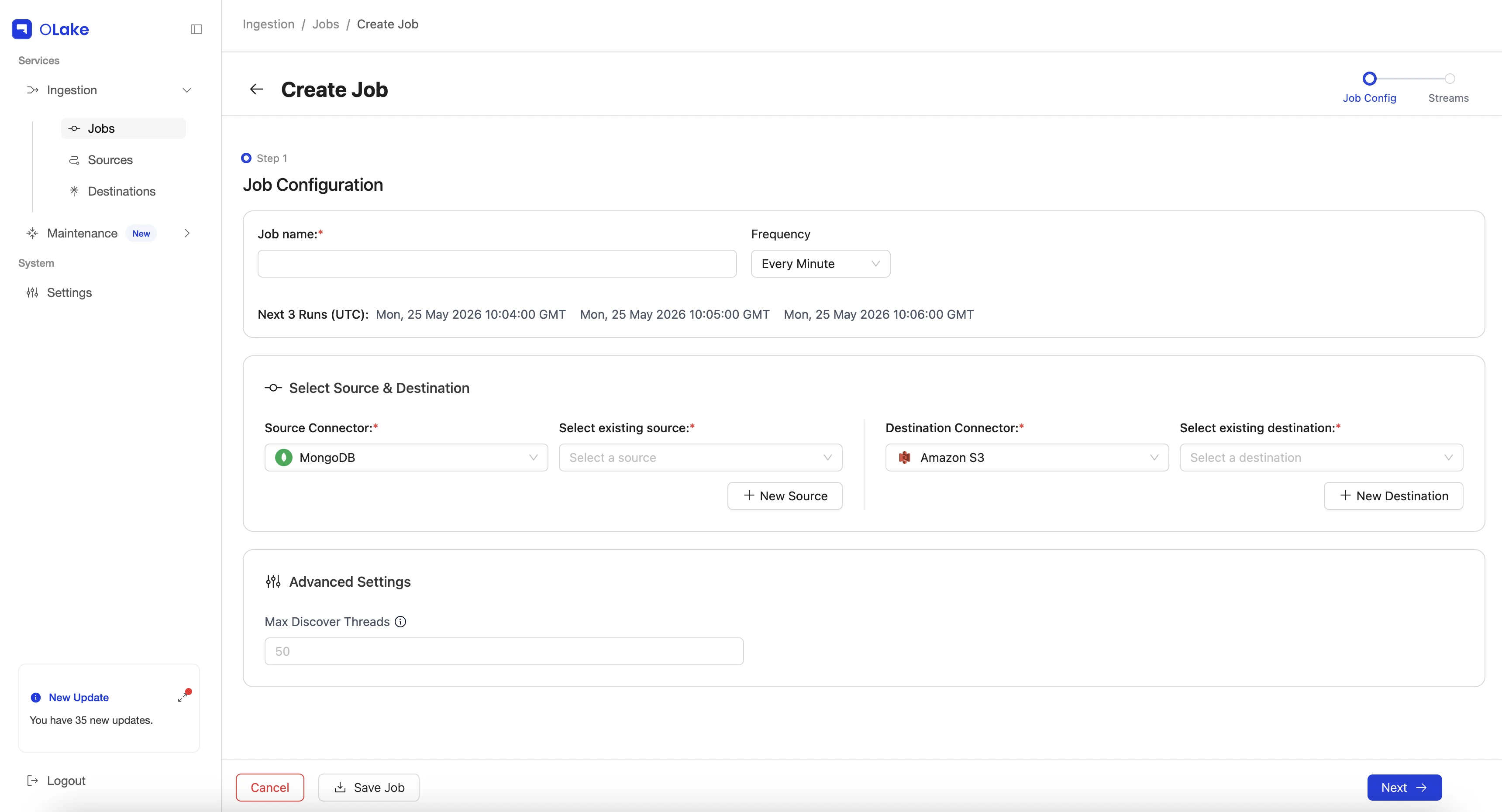
1. Max Parallel Threads for Discovery
This feature allows you to set the maximum number of parallel threads used for discovering table schemas in the database. By default, the value is set to 50. The value can be changed by entering the new value in the Max Discover Threads field. The value must be an integer. For large table collections, try setting a higher value to avoid schema discovery timeout. The maximum number of parallel threads can be at most equal to the total number of streams, any value greater than that has no additional effect.
2. Target Query Engines
The Target Query Engine setting allows you to specify which query engine(s) you plan to use to read the Iceberg tables after data is synced. This is an optional dropdown available in the Advanced Settings during job configuration.
Purpose:
Different query engines support different row-level delete formats in Apache Iceberg. By selecting your target query engine(s), OLake Go automatically resolves the upsert type options shown in the Streams page to only those supported by your chosen engine(s). This prevents configuration mismatches where data is written in a format your query engine cannot read.
How it works:
-
Single query engine selected: The Streams page shows only the upsert types supported by that engine.
-
Multiple query engines selected: The Streams page shows only the common upsert types supported by all selected engines (the intersection of supported formats).
-
No query engine selected: All three upsert types options (Equality Deletes, Positional Deletes, and Deletion Vectors) are available for selection.
If you select multiple query engines that do not share any common upsert type, you will receive an error at the streams page: "No common delete file (upsert type) is supported by the selected query engines." In this case, you must either reduce your selection or choose a different combination of engines.
For a complete list of which query engines support which delete formats, see Delete Format Support by Query Engine.
Target Query Engine support is available in OLake UI version 0.6.0 and above.
3. Job Configuration
The job configuration property refers to the options that defines job’s name, schedule, and execution in the OLake Go’s system.
User has to start with job creation, which will be followed with source configuration, then destination configuration, checking and enabling relevant streams from the schema for sync, and then finally in job configuration, job name and frequency has to be set.
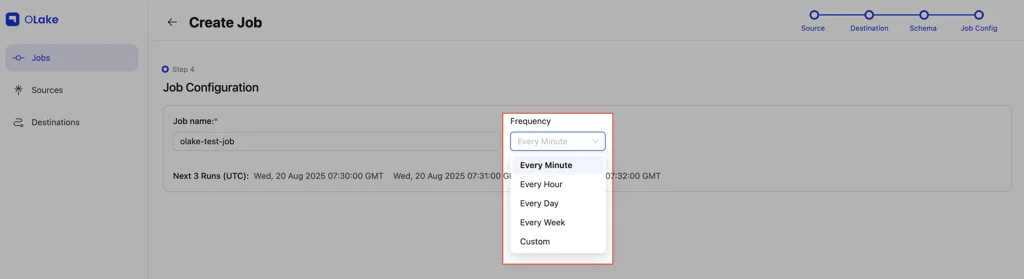
- Frequency Options:
- Default options i.e every minute, hourly, daily, weekly
- Custom frequency: Specify a cron expression.
OLake Go supports Custom Frequency using cron expressions in both 5-field and 7-field formats:
- 5-field:
minute, hour, day_of_month, month, day_of_week - 7-field:
second, minute, hour, day_of_month, month, day_of_week, year
OLake Go does not support Quartz cron syntax.
Guide to Cron Expression (5-field format):
| * | * | * | * | * |
|---|---|---|---|---|
| minute (0-59) | hour (0-23) | day of the month (1-31) | month (1-12) | day of the week (0-6) |
Cron Examples (5-field format):
* * * * *= Every minute0 * * * *= Every hour0 0 * * *= Every day at 12:00 AM0 0 * * FRI= At midnight only on Fridays0 0 1 * *= At midnight on the 1st day of each month
Guide to Cron Expression (7-field format):
| * | * | * | * | * | * | * |
|---|---|---|---|---|---|---|
| second (0-59) | minute (0-59) | hour (0-23) | day of the month (1-31) | month (1-12) | day of the week (0-6) | year |
Cron Examples (7-field format):
* * * * * * *= Every second0 * * * * * *= Every minute0 0 * * * * *= Every hour0 0 0 * * * *= Every day (day_of_month)0 0 0 1 * * *= Every month (on day 1)0 0 0 * * 5 *= Every week (on Friday)0 0 0 1 1 * *= Every year (on January 1)
4. Sync Now
Run the job immediately without waiting for the next scheduled time.
5. Edit Streams
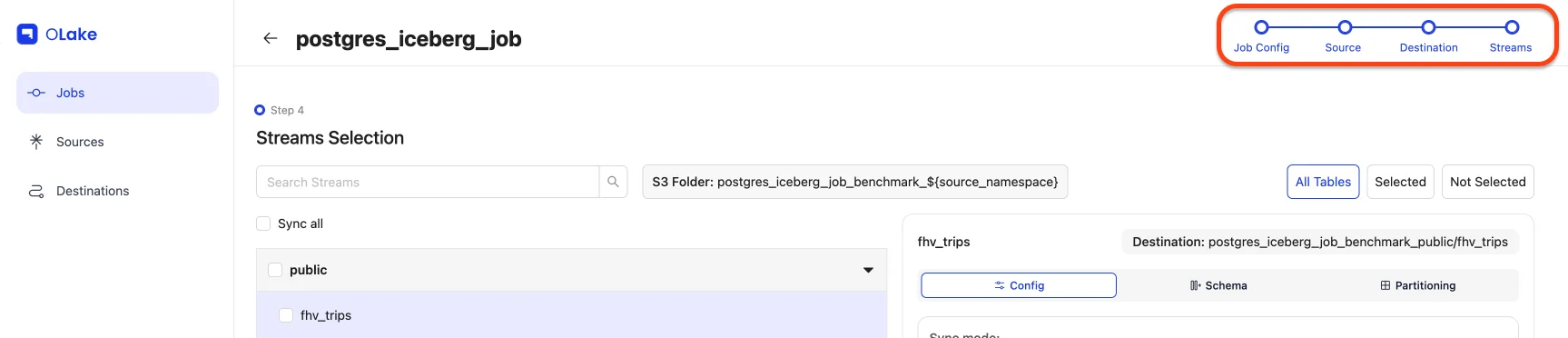
Use this option to modify which streams are included in your job. When you click Edit Streams you'll be redirected to the Stream Configuration page.
Here you can:
- Add new streams from your source.
- Change the sync mode for selected streams.
- Adjust partitioning, data filter, and Normalization for newly added streams.
6. Pause Job
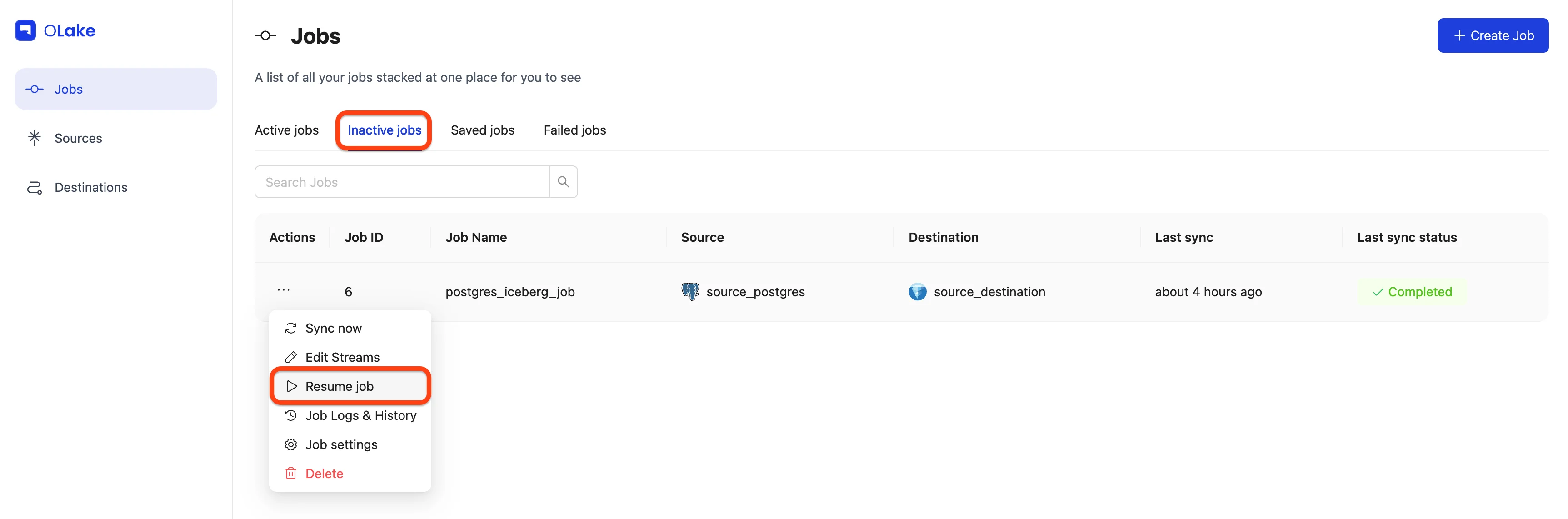
Stops the job from running until resumed. Paused jobs appear under Inactive Jobs. Resume them anytime from the Inactive Jobs tab.
7. Cancel Job
Stops a currently running sync safely. Available only while a sync is in "Running" status.
What the Cancel Button Does:
- When the cancel button is clicked, it sends a cancellation signal to the running sync
- The sync stops gracefully at a safe checkpoint (no partial/corrupted data)
- Performs cleanup (closes connections, releases resources)
- Marks the sync run as "Canceled"
- Saves progress only if the sync mode generates a state file
Cancellation takes up to 1 minute to complete. If the sync finishes before cancellation completes, the status will show "Completed" instead of "Canceled" - whichever happens first determines the final status.
What Happens to Your Data?
i. Data already synced before cancellation:
✅ Stays in the destination
✅ Not rolled back or deleted
✅ Remains in a consistent state (no partial records)
ii. Data being processed during cancellation:
- The system completes the current batch/record being processed
- Stops before starting new work
- Prevents incomplete writes
Whether your sync resumes from where it stopped depends on if it generates a state file:
| Sync Mode | State File? | What Happens on Restart? |
|---|---|---|
| Full Refresh | ❌ No | Reloads entire dataset each time as it does not track position because no state file is generated. |
| Full Refresh + CDC | ✅ Yes | Generates a state file for both Full Refresh and CDC syncs. Hence, resumes from the last saved state. |
| Full Refresh + Incremental | ✅ Yes | Generates a state file for both Full Refresh and Incremental syncs. Hence, resumes from the last saved state. |
| Strict CDC | ✅ Yes | Generates a state file whenever the CDC syncs runs. Hence, resumes from the last saved state. |
After cancellation completes, you can start the job again with Sync Now or wait for the next scheduled run. The next run resumes from the last saved state if a state file exists, or starts fresh if not.
8. Clear Destination
This feature enables users to erase the selected streams from a specific job or sync from the destination. It removes all data that was synced for that particular job, making it ideal when stream-level settings (such as normalization, partitioning, or filters) are misconfigured. Users can clear the destination, reconfigure their job settings, and initiate a fresh sync to rebuild a clean, correct snapshot without manual file or table deletion.
It can be considered a reset mechanism for a job’s destination outputs.
The Clear Destination feature is stable and available from OLake Go version v0.3.0 onwards.
Clear Destination deletes already‑synced data for the job's enabled streams at the destination. It cannot be canceled once it starts.
To trigger Clear Destination, navigate to the Job Settings page and click the Clear Destination button. This action can be initiated from the Actions menu (⋮) next to your job.
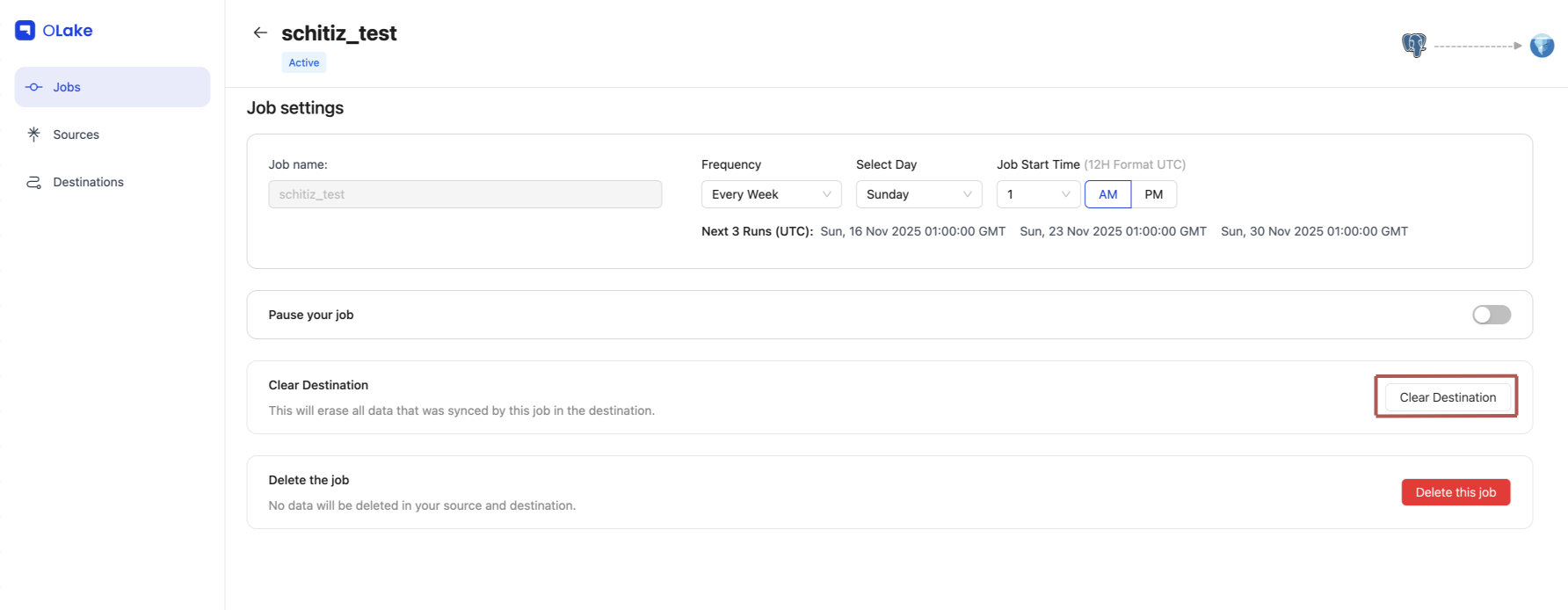
Clear Destination is only available for active jobs. Inactive or paused jobs cannot trigger Clear Destination until they are resumed.
How it works in OLake Go
- Job‑level behavior: Clear Destination affects only the specific job it is triggered for. Multiple jobs can run Clear Destination simultaneously
- Stream‑aware: Only the job's enabled streams are cleared other streams remain unaffected
- Exclusive while running: Job Settings or Edit Streams cannot be modified until the clear destination process completes
- Not cancellable: Once started, it will run until completion and cannot be stalled mid way
- Scheduling: The sync schedule will be paused and resumed after the clear destination process completes; other jobs will run as scheduled normally
- Running job protection: If a sync is running, cancellation of that particular job is required before starting a clear destination
When using Clear Destination with Kafka source, the behavior depends on whether a consumer group ID is provided:
Scenario 1: Consumer Group ID is blank (OLake Go-managed)
- After Clear Destination is executed, when you sync again, the entire data (currently present in the partitions) will be backfilled. A full refresh will take place and all data will be captured from the beginning of the first offset present.
Scenario 2: Consumer Group ID is provided by the user
- After Clear Destination, if you use the same consumer group ID as before, data will be filled from last marked offset (which is the normal incremental scenario).
- Important: If you perform Clear Destination and want the entire data to be read again, you must provide a new, unique consumer group ID by modifiying the source configuration or create a new job with a new consumer group ID.
Scenarios to Trigger Clear Destination
1) Click Clear Destination in Job Settings
- What happens: Selecting Clear Destination opens a confirmation modal. After confirmation, the Clear Destination job starts and the UI redirects to Job Logs & History to monitor progress. If a sync with respect to that job is currently running, it must be canceled first.
- Example: Job "daily_orders" has enabled streams
ordersandcustomers. Clear Destination is initiated → both streams are cleared at the destination. The next run (scheduled or Sync Now) rebuilds both streams using the latest configuration.
2) Stream-level property changes in previously syncing streams
When stream settings that have already synced are changed, OLake Go clears only the affected streams so they can be rebuilt consistently. If a job is running, OLake Go auto‑cancels the current run after confirmation and starts Clear Destination for those streams.
-
Normalization changes
- Example: Normalization is enabled so destination naming changes from raw to standardized table/column names. OLake Go clears the affected stream(s); the next run writes with normalized names.
-
Filter changes
- Example: A filter for the last 12 months (
order_date >= 2024-01-01) is added. OLake Go clears that stream; the next run writes only filtered rows.
- Example: A filter for the last 12 months (
-
Sync Mode changes
- Example: A stream is switched from Incremental to Full Refresh. OLake Go clears that stream so the next run writes a complete snapshot that matches the new mode.
-
Primary Cursor value changes
- Example: The cursor is changed from
updated_attoid. OLake Go drops the existing table and creates a new one as per new cursor.
- Example: The cursor is changed from
-
Fallback Cursor Modification
- Adding, removing, or changing a Fallback Cursor value will lead to dropping of the existing table and creation of a new one, as OLake Go tracks both primary and fallback cursors.
-
Partition changes
- Example: Partitioning is changed from day to month to reduce file counts, or an existing partition is deleted. OLake Go clears the stream; the next run writes new partitions based on the updated configuration.
-
Destination DB name change
- Example: The destination DB is renamed from
sales_rawtosales_curated. In this case, all the selected streams are dropped from the old destination database, and subsequent syncs write to the new database.
- Example: The destination DB is renamed from
-
Append/Upsert mode change
- Example: The mode is switched from append to upsert to deduplicate by a primary key. OLake Go clears the stream; the next run reconstructs with upsert semantics.
-
Enabling New Streams or Re-enabling Disabled Streams
- Enabling new streams: When new streams are enabled and added to a job, OLake Go triggers Clear Destination for those new streams, but since there is no data in the destination yet, no data is deleted.
- Re-enabling disabled streams: If a stream is disabled and then re-enabled, OLake Go clears those streams from the destination and rebuilds them, as the source data state may have changed during the disabled period. If the re-enabled streams also have modified properties (such as normalization, partitioning, or filters), they are rebuilt with the updated configuration.
Result: Only the modified streams are dropped and rebuilt at the next run; other enabled streams are unaffected.
- Full Refresh streams are dropped and rebuilt on every sync by design.
- Clear Destination is a one‑time reset that can be triggered (for all enabled streams from Job Settings, or only affected streams when editing). Both can co‑exist in the same job.
What happens next:
- OLake Go drops the affected streams from the destination so they can be rebuilt by the next run
- If the job is running, OLake Go auto‑cancels the current run after confirmation and initiates Clear Destination for the affected streams
- If the job is idle, the clear is queued; once it completes, the next run (scheduled or “Sync Now”) rebuilds with the new settings
What appears in the UI
- Job Settings page: A Clear Destination button opens a confirmation modal. If a run is active, cancellation is required before proceeding
- Edit Streams: Changing any previously syncing stream prompts a confirmation; if a run is active, OLake Go auto‑cancels it after confirmation and begins the clear for the affected streams
- Job Logs & History: A
Job Typecolumn indicates whether a run is a Sync or Clear Destination so progress and outcomes can be followed. This information is also visible on the Jobs home page to provide users with at-a-glance visibility of the job type.
Step‑by‑step Workflow
- Clear Destination is triggered.
- OLake Go checks if the job is currently running. If running, cancellation of the job is required first.
- OLake Go deletes destination data for the job’s enabled streams (or only affected streams).
- Clear completes → The job becomes editable again; the next run rebuilds the destination with the corrected settings.
9. Job Logs & History
This page lets you view and monitor a job's sync history and logs. You'll see a list of all current and past job runs. To view logs for a specific run, click View Logs in the Actions column.

Once you click View Logs, you'll see the logs for the selected job run.

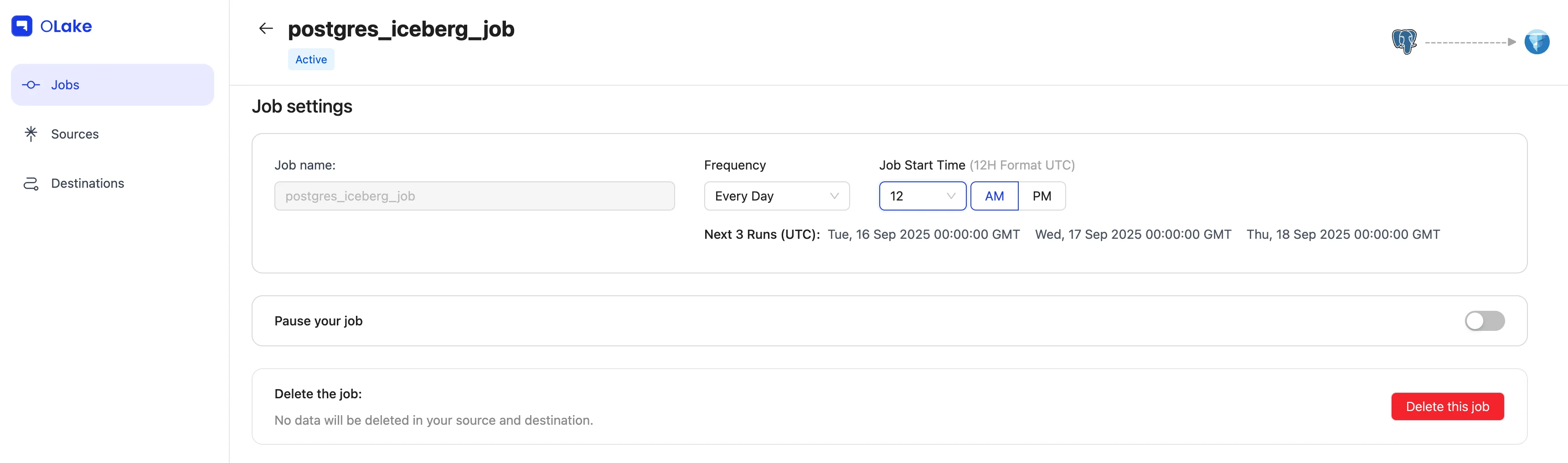
10. Job settings
Here, you can edit the frequency, and other configuration settings. You can also pause or delete the job.
When a job is deleted, its associated source and destination are automatically moved to the inactive state, provided they are not being used by any other job.