
 Twitter
 LinkedIn
 Facebook
 Email
Email
What are Catalogs?
A catalog is a entity from where OLake fetches Iceberg tables. It stores reference to the latest metadata file which stores info such as table names, schemas, and file locations. OLake must know which catalog (and database) a table belongs to before optimization can run on it.
Catalogs are managed from the Maintenance section in the OLake UI. There are two types: OLake Imported Catalogs and External Catalogs.
OLake Imported Catalogs
OLake Imported Catalogs are catalog entries whose credentials come from an Iceberg destination already configured in OLake Ingestion—imported into optimization instead of re-entering connection details.
When Iceberg ingestion is already set up, that destination's catalog can be imported this way.
How to add an OLake Imported Catalog
-
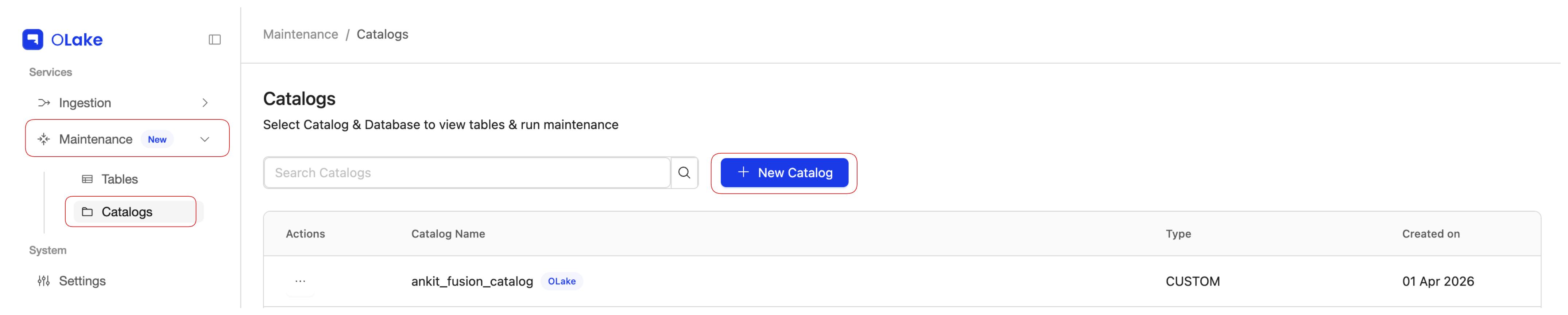
In the OLake UI sidebar, open the Maintenance dropdown and go to the Catalogs page.
-
Click New Catalog.
-
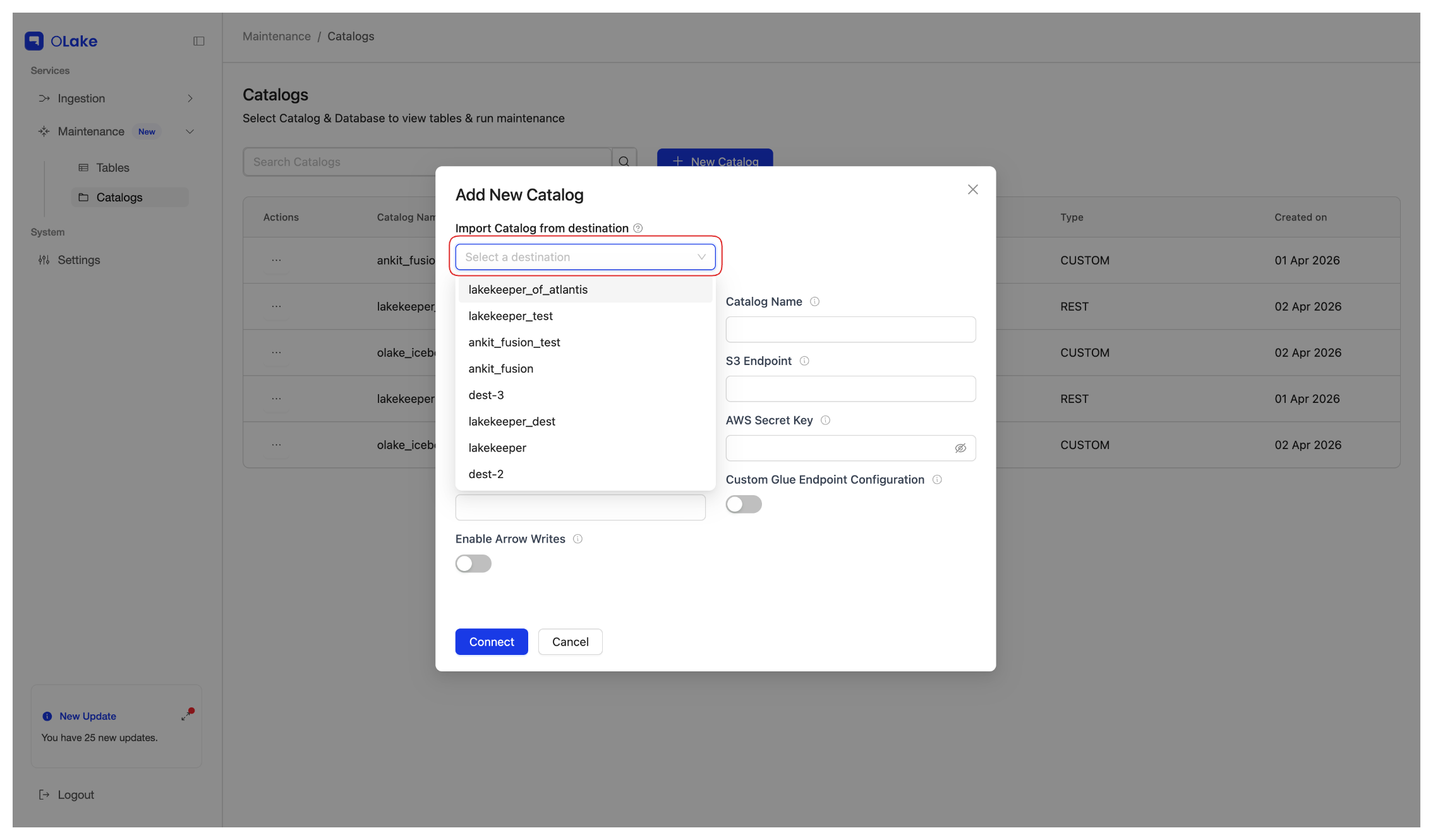
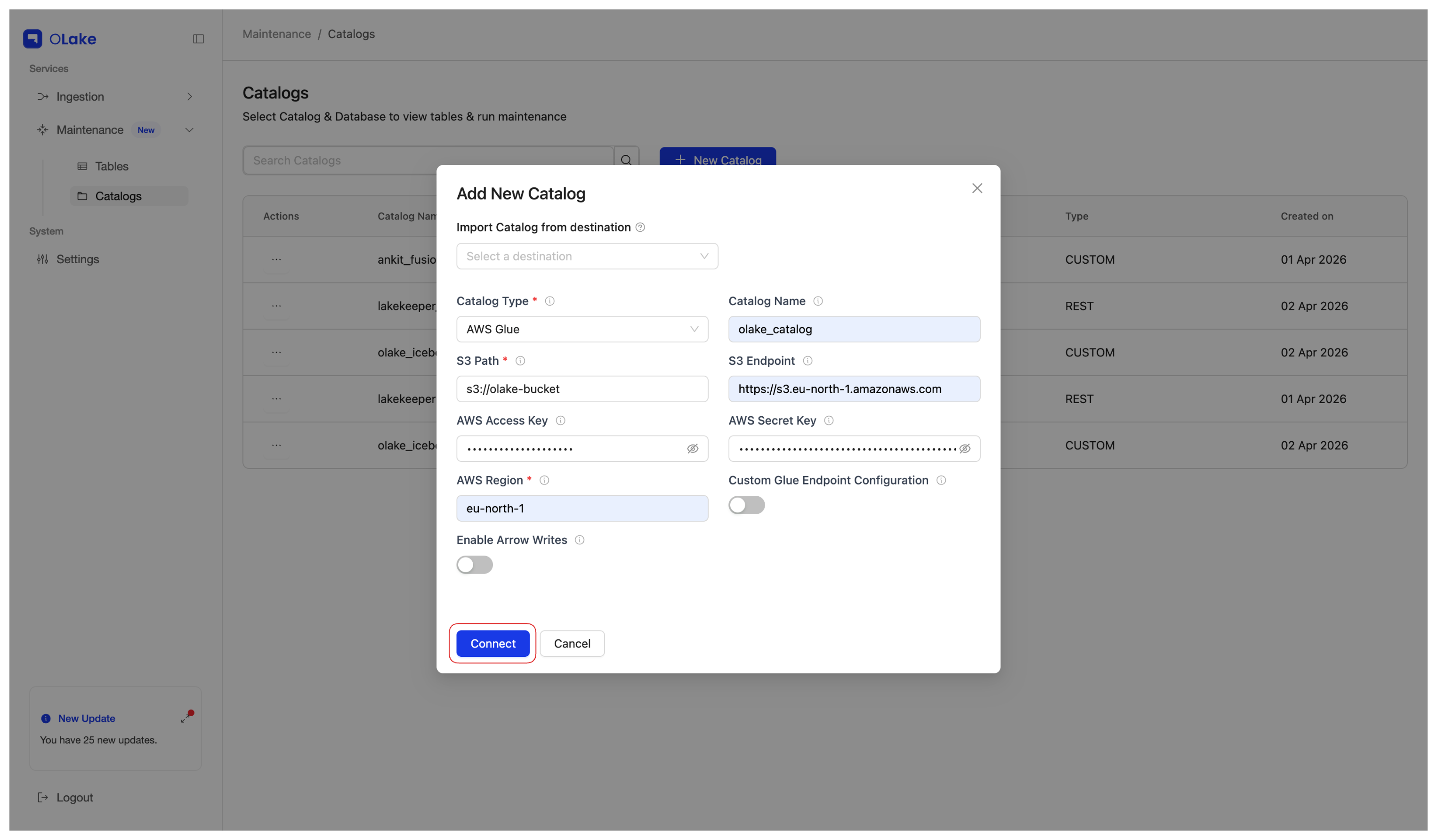
Under Import Catalog from destination, open the dropdown and select the destination. OLake imports all catalog credentials from that destination.
-
Click Connect to save and validate the catalog.
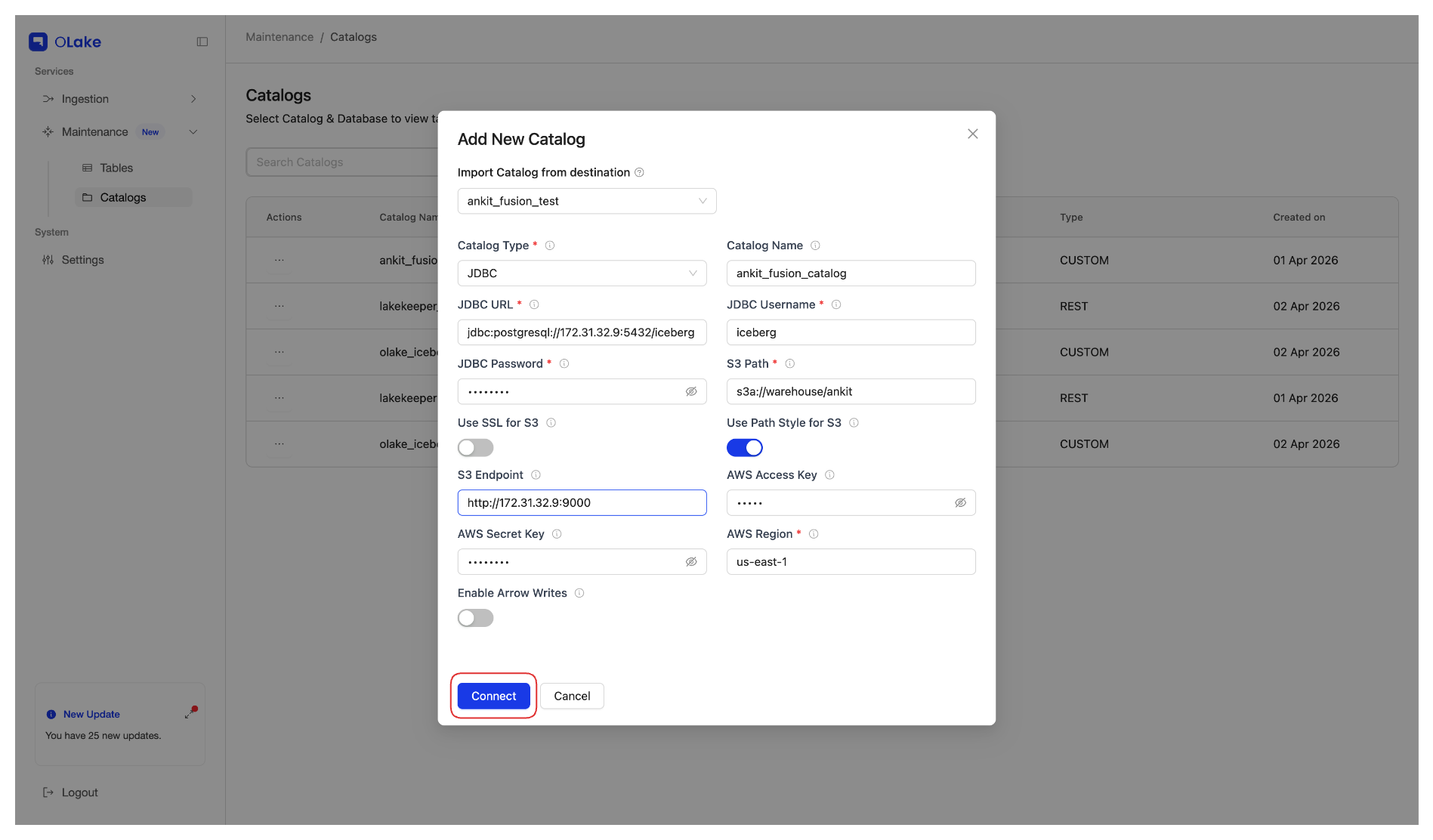
Note: Duplicate catalog names are not allowed. If a catalog with the same name already exists, the new catalog will not be added.
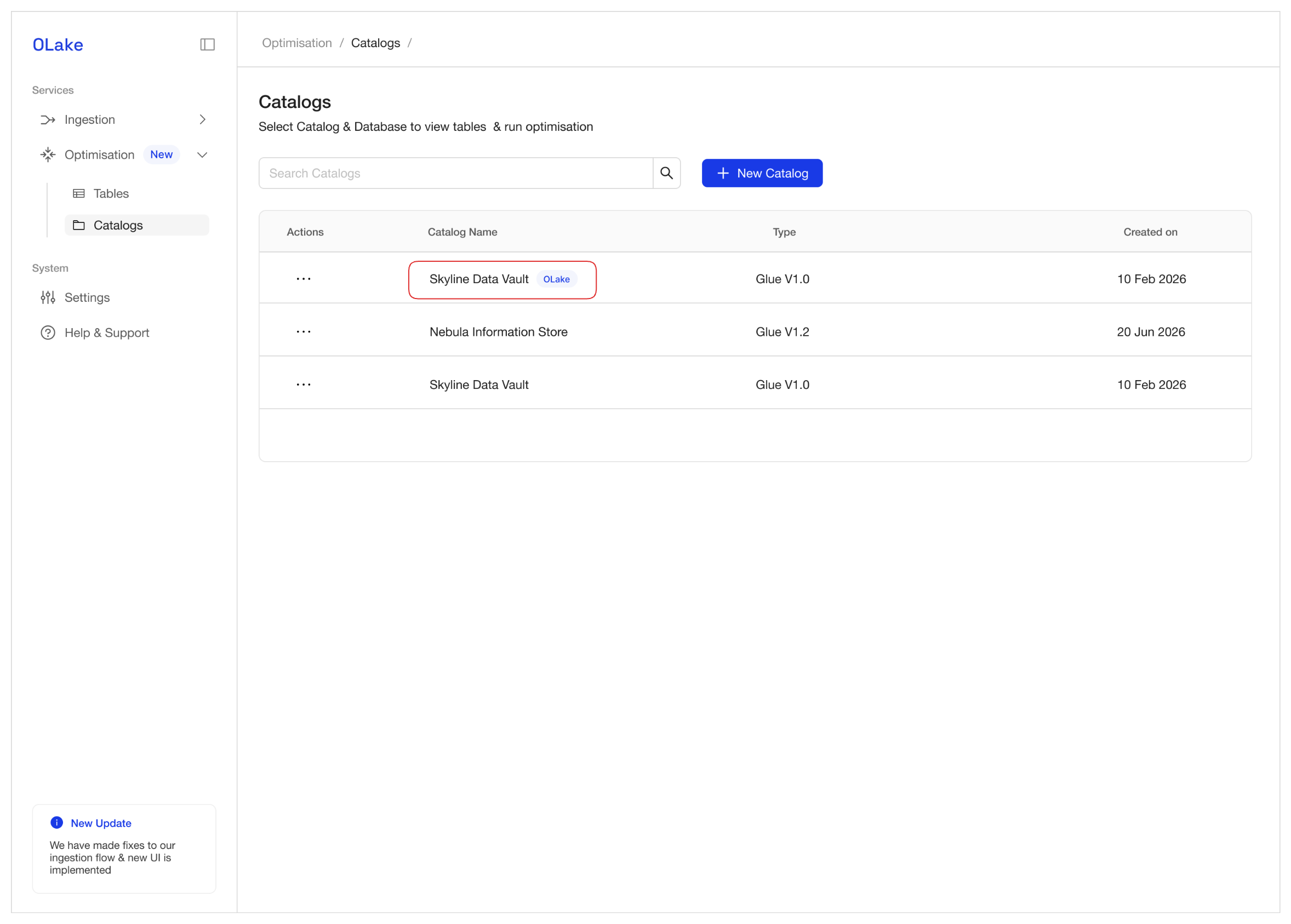
On the Catalogs page, OLake Imported Catalogs are shown with OLake beside their name to distinguish them from External Catalogs.
External Catalogs
External Catalogs are catalogs added by entering connection details manually from the Catalogs page (without using Import Catalog from destination).
Use an external catalog when:
- Optimization is needed on Iceberg tables created outside OLake.
- The same catalog is used by other systems and OLake should compact those tables without replicating data via Ingestion.
How to add an External Catalog
- In the OLake UI sidebar, open the Maintenance dropdown and go to the Catalogs page.
- Click New Catalog.
- Enter the catalog details manually (for example, catalog name, type, and connection settings). Do not use Import Catalog from destination.
- Click Connect to save and validate the catalog.
Once a catalog is connected—whether imported or added as external—it appears in the Select Catalog dropdown on the Tables page. Selecting a catalog (and then a database) lists the tables available for optimization configuration.
For a full walkthrough that includes adding a catalog and configuring the first optimization, see Configure Your First Optimization.