
 Twitter
 LinkedIn
 Facebook
 Email
Email
IAM Permissions Required
1. AWS (Amazon Web Services) IAM Policy
To successfully sync your source data with S3, ensure that your AWS IAM policy grants at least minimal permissions for listing, creating, reading, and writing to the S3 bucket. Below is a sample IAM policy.
{
    "Version": "2012-10-17",
    "Statement": [
        {
            "Sid": "S3BucketReadWrite",
            "Effect": "Allow",
            "Action": [
                "s3:ListBucket",
                "s3:GetBucket*",
                "s3:*Object"
            ],
            "Resource": [
                "arn:aws:s3:::{S3_BUCKET_NAME}",
                "arn:aws:s3:::{S3_BUCKET_NAME}/*"
            ]
        },
        {
            "Sid": "ListAllBuckets",
            "Effect": "Allow",
            "Action": "s3:ListAllMyBuckets",
            "Resource": "*"
        }
    ]
}
2. GCS (Google Cloud Storage) IAM Policy
To successfully sync source data using GCS, ensure that GCS IAM policy grants at least minimal permission for listing, creating, reading, and writing to S3 bucket.
Using GCloud CLI
-
Create a service account in GCS. Install Google Cloud SDK (gcloud CLI). Initialize the SDK using
gcloud initcommand. -
Login to GCS account, use
gcloud auth logincommand. -
Set the preferred project ID, use
gcloud config set project Project-ID. Replace 'Project-ID' with your actual project id. -
Create minimal set of IAM role required for the sync to GCS bucket.
gcloud iam roles create storage.customAccess \
--project="$(gcloud config get-value project)" \
--file=/user-preferred-directory/gcs_policy.yaml -
Sample gcs_policy.yaml with minimal set of permissions required.
gcs_policy.yamltitle: Custom Storage Access
description: Equivalent to AWS S3 policy (List/Get bucket, full object access, list all buckets)
stage: GA
includedPermissions:
- storage.buckets.getIamPolicy
- storage.buckets.get
- storage.buckets.list
- storage.objects.list
- storage.objects.get
- storage.objects.create
- storage.objects.delete
- storage.objects.update -
Replace 'Project-ID' and 'gcs-based-service-account' with actual GCS project id and service account.
gcs_rolebinding.json{
"bindings": [
{
"role": "projects/Project-ID/roles/storage.customAccess",
"members": [
"serviceAccount:gcs-based-service-account.com"
]
}
]
} -
Bind the role to service account.
gcloud storage buckets set-iam-policy \
gs://<bucket-name> \
/user-preferred-directory/gcs_rolebinding.json -
Create a GCS bucket and HMAC keys for the service account for whom the above role is defined.
Using GCP
-
Create a project.
-
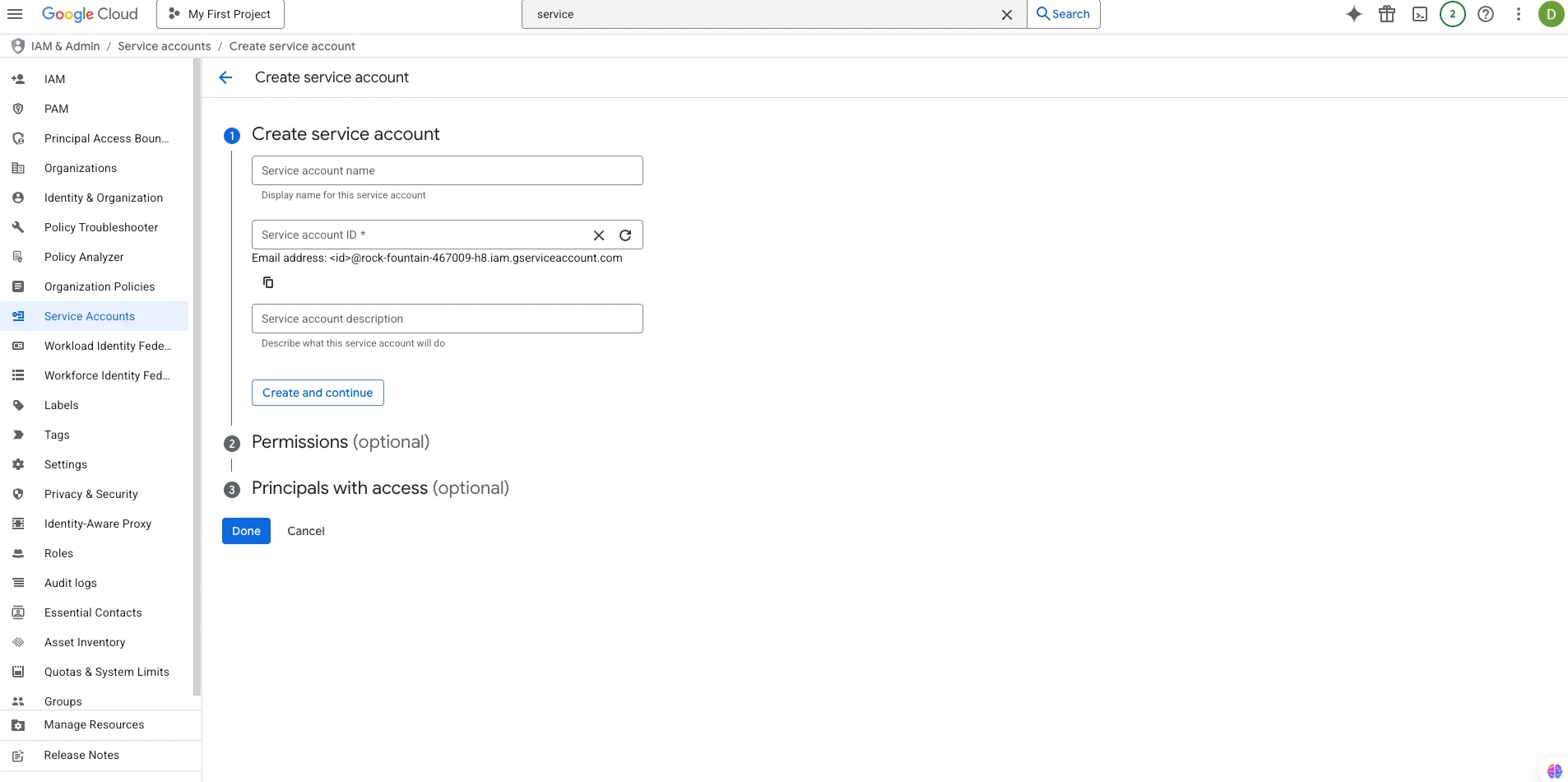
Creating service account - permissions can be given then and there as well.
-
Create a GCS bucket and HMAC keys for the service account
For more information on HMAC keys, refer to this GCP HMAC Keys.